

Configuring SMTP correctly for PBN websites is a practical infrastructure task that affects contact form delivery, WordPress notification emails, and any outreach or administrative communication tied to your network. Without a working SMTP setup, default PHP mail functions on shared or VPS hosting frequently fail silently, meaning password resets, plugin alerts, and form submissions never reach their destination. This guide walks through provider selection, DNS authentication records, WordPress plugin configuration, and the deliverability checks that keep your PBN sites functioning reliably.
Key Takeaways
- PBN websites need a working SMTP configuration to ensure WordPress system emails and contact form messages are delivered reliably rather than dropped by hosting mail functions.
- Each PBN site should ideally use a separate sending domain or subdomain with its own SPF, DKIM, and DMARC records to avoid cross-site footprints and maintain deliverability.
- Transactional SMTP providers such as SMTP2GO, Brevo, Mailgun, and Postmark offer free or low-cost tiers suitable for low-volume PBN site email needs.
- WordPress SMTP plugins such as WP Mail SMTP and FluentSMTP connect your site to an external SMTP relay without requiring server-level configuration.
- Testing outbound mail with tools like Mail Tester or MXToolbox after setup confirms that authentication records are correctly published and messages are not landing in spam.
Why PBN Websites Need Proper SMTP Configuration
Most shared hosting environments and many VPS setups rely on the server’s built-in PHP mail() function to send WordPress emails. This function sends messages directly from the server without authentication, which means receiving mail servers frequently reject or silently discard them. For a PBN website, this creates practical problems: WordPress admin notifications about plugin updates or failed logins go missing, contact form submissions are lost, and password reset emails never arrive. None of these issues affect the link-building function of a PBN site directly, but they create operational blind spots that make managing a network of sites significantly harder.
A properly configured SMTP relay routes outgoing mail through an authenticated external service. The receiving server can verify that the message genuinely originated from an authorized sender, which dramatically improves delivery rates. For PBN operators managing multiple sites, the goal is a lightweight, low-maintenance setup that keeps each site’s administrative email functional without creating unnecessary connections between sites in the network.
Choosing an SMTP Provider for PBN Sites
The right SMTP provider for a PBN website is one that offers reliable delivery, supports custom sending domains, and provides SPF and DKIM authentication without requiring a large monthly commitment. PBN sites typically send very low volumes of transactional email, so free or entry-level tiers from established providers are usually sufficient.
Several providers are commonly used for this purpose. SMTP2GO offers a free tier with a generous monthly send limit and supports custom domain authentication. Brevo (formerly Sendinblue) provides a free plan with daily sending limits and full DKIM support. Mailgun is developer-oriented and well-suited to sites where you want API-level control, though its free tier has changed over time and current availability should be verified directly. Postmark focuses on transactional deliverability and is a strong choice if reliable inbox placement is the priority, though it is a paid service. SendGrid offers a free tier and is widely supported by WordPress SMTP plugins.
For PBN network management, one practical approach is to use a single SMTP provider account with multiple verified sending domains, one per site or per small group of sites. This keeps billing consolidated while maintaining separate sending identities. Avoid routing all PBN sites through a single shared sending address, as this creates a visible connection between sites and can affect deliverability if one site’s sending behavior triggers a provider-level flag.
DNS Authentication Records: SPF, DKIM, and DMARC
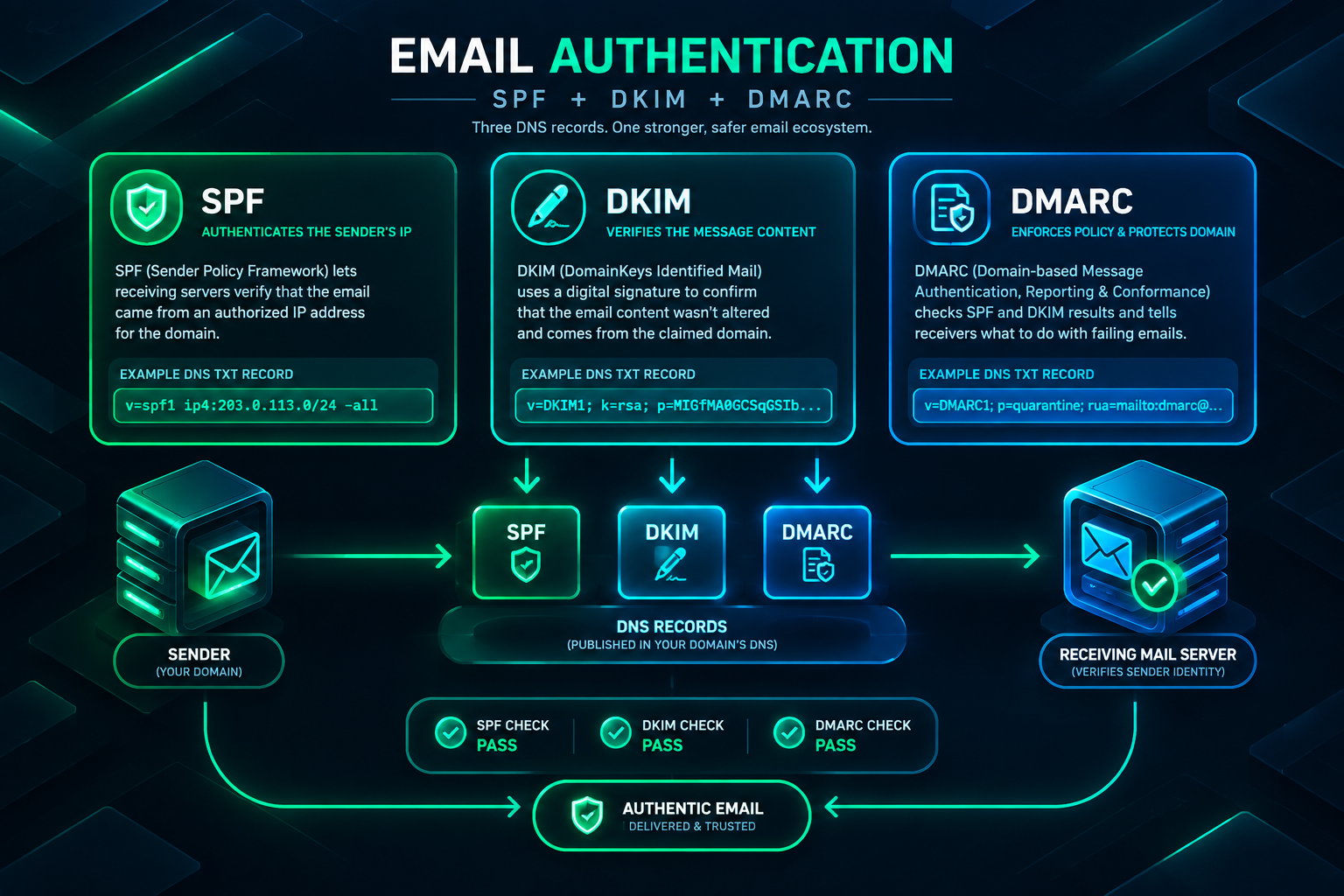
Before configuring WordPress to send through an external SMTP relay, the sending domain needs three DNS records published: SPF, DKIM, and DMARC. These records allow receiving mail servers to verify that outgoing messages are authorized, which is the foundation of modern email deliverability.
SPF Record
A Sender Policy Framework (SPF) record is a DNS TXT record that lists the mail servers authorized to send email on behalf of a domain. When you add an SMTP provider to a PBN site’s domain, the provider will supply an SPF include statement to add to the domain’s DNS. A typical SPF record looks like: v=spf1 include:sendingprovider.com ~all. The ~all softfail directive tells receiving servers to accept mail from unlisted sources but mark it as suspicious, while -all is a hard fail that rejects unlisted sources outright. For most PBN site setups, ~all is a reasonable starting point. Each domain should have only one SPF record; if one already exists, add the new include statement to it rather than creating a second record.
DKIM Record
DomainKeys Identified Mail (DKIM) adds a cryptographic signature to outgoing messages. The SMTP provider generates a public/private key pair; the public key is published as a DNS TXT record on the sending domain, and the private key signs each outgoing message. Receiving servers retrieve the public key from DNS and verify the signature, confirming the message has not been altered in transit. Your SMTP provider’s dashboard will display the exact DKIM record to add, typically a TXT record at a selector subdomain such as smtp2go._domainkey.yourdomain.com. Copy the record exactly as provided and allow up to 48 hours for DNS propagation before testing.
DMARC Record
A Domain-based Message Authentication, Reporting, and Conformance (DMARC) record tells receiving servers what to do when SPF or DKIM checks fail, and optionally where to send aggregate reports. A minimal DMARC record for a PBN site might look like: v=DMARC1; p=none; rua=mailto:[email protected]. The p=none policy monitors without taking action, which is appropriate while you are verifying that your setup is working correctly. Once you have confirmed that legitimate mail is passing authentication, you can tighten the policy to p=quarantine or p=reject. For low-volume PBN sites, p=none with a monitoring address is often sufficient long-term.
Configuring SMTP in WordPress
WordPress does not include a native SMTP configuration interface, so an SMTP plugin is the standard method for connecting a site to an external mail relay. Two plugins are widely used and well-maintained: WP Mail SMTP and FluentSMTP. Both replace the default WordPress wp_mail() function with one that routes outgoing mail through your chosen SMTP provider.
Step-by-Step WordPress SMTP Setup
- Install and activate your chosen SMTP plugin from the WordPress plugin repository. WP Mail SMTP and FluentSMTP are both available in the free repository and support all major SMTP providers.
- Open the plugin settings and select your SMTP provider from the mailer list. Most plugins include pre-built integrations for SMTP2GO, Brevo, Mailgun, SendGrid, and Postmark, which simplify the connection process.
- Enter your SMTP credentials. Depending on the provider and plugin, this may involve an API key, an SMTP username and password, or an OAuth connection. Retrieve these from your provider’s dashboard. For a standard SMTP connection, you will also need the provider’s SMTP hostname, port number, and encryption type.
- Set the From Name and From Email address. Use an address at the domain you have authenticated with SPF and DKIM. For example, if your PBN site is
example.comand you have verified that domain with your SMTP provider, use[email protected]or[email protected]as the From address. - Save settings and send a test email. Both WP Mail SMTP and FluentSMTP include a built-in test email function. Send a test to an address you control and confirm it arrives in the inbox rather than the spam folder.
- Check email headers on the received test message to confirm that DKIM is signing correctly and SPF is passing. Most email clients allow you to view raw message headers, where you will see authentication results.
Common SMTP Port and Encryption Settings
SMTP connections use different ports depending on the encryption method. Port 587 with STARTTLS encryption is the current standard for authenticated SMTP submission and is supported by all major providers. Port 465 with SSL/TLS is an older standard that some providers still support. Port 25 is the traditional SMTP port but is blocked by most hosting providers and should not be used for outgoing mail from WordPress sites. When configuring your plugin, select port 587 and STARTTLS unless your provider’s documentation specifies otherwise.
Managing SMTP Across Multiple PBN Sites
Operating a private blog network means repeating this configuration process across multiple sites. A few practices make this manageable at scale without creating unnecessary connections between sites in the network.
Use a separate verified sending domain for each site rather than routing all sites through a single shared From address. This means each site’s outgoing mail is authenticated independently, which avoids a situation where one site’s deliverability issue affects others. If your SMTP provider supports multiple verified domains under one account, you can manage authentication centrally while keeping sending identities distinct.
Document your SMTP credentials and DNS records for each site in a secure password manager or internal spreadsheet. When a provider rotates API keys or you need to update DKIM selectors, having a clear record of which credentials belong to which site saves significant time. Some SMTP providers allow you to set up subdomains as sending domains, such as mail.site1.com and mail.site2.com, which can be useful if you prefer to keep all sending under domains you already control.
Consider using a WordPress multisite installation or a site management tool such as MainWP if you are managing a large number of PBN sites. These tools allow you to push plugin updates and, in some cases, configuration changes across multiple sites from a single dashboard, reducing the per-site maintenance burden.
Deliverability Testing and Ongoing Monitoring
Publishing DNS records and entering SMTP credentials is not the end of the setup process. Verifying that outgoing mail is actually being delivered correctly requires a short testing phase after configuration.
Mail Tester (mail-tester.com) is a free tool that generates a temporary email address. Send a test message to that address from your WordPress site, then visit the tool to see a deliverability score and a breakdown of SPF, DKIM, DMARC, and content checks. A score of 8 or higher out of 10 generally indicates a well-configured setup. Lower scores will identify specific issues to address.
MXToolbox provides DNS lookup tools that let you verify your SPF, DKIM, and DMARC records are published correctly and are syntactically valid. Use the SPF Record Lookup and DKIM Record Lookup tools with your domain and DKIM selector to confirm the records are resolving as expected.
Your SMTP provider’s dashboard will typically show delivery logs, bounce rates, and spam complaint rates. Check these periodically, particularly after a new site is set up, to confirm that messages are being accepted by receiving servers. A high bounce rate may indicate that the From address domain is not correctly authenticated, or that the recipient addresses being used are invalid.
Footprint Considerations for PBN SMTP Configuration
From a PBN management perspective, SMTP configuration touches on footprint considerations in a limited but real way. Using the same SMTP provider account with the same API key across all sites in a network creates a shared technical identifier. While SMTP provider credentials are not publicly visible in the same way that IP addresses or WHOIS records are, it is worth being aware that provider-level data could theoretically be subpoenaed or accessed in ways outside your control.
A more significant footprint consideration is the From email address and the domain used for DKIM signing. If all sites in a network use the same sending domain for DKIM authentication, that domain becomes a common element across all outgoing mail from the network. Using per-site sending domains, even if they are subdomains of a registrar-private domain, reduces this shared identifier. This is a relatively minor consideration compared to hosting, IP, and content footprints, but it is worth addressing as part of a thorough network setup.
The DMARC reporting address is another element to consider. If you use the same monitoring email address for DMARC reports across all sites, that address appears in the DNS records of every site in the network. Using a unique reporting address per site, or omitting the rua tag entirely if you do not need aggregate reports, removes this shared element from public DNS records.
Troubleshooting Common SMTP Issues on PBN Sites
Even with a correct configuration, SMTP issues can arise. The most common problems and their likely causes are worth knowing before you encounter them.
Test email not received: Check that the From address matches the domain you have verified with your SMTP provider. A mismatch between the From domain and the authenticated sending domain is a frequent cause of rejected or filtered messages. Also confirm that your SMTP plugin is actually active and that no caching plugin is interfering with the test send.
DKIM signature failing: DNS propagation can take up to 48 hours. If you have just published a DKIM record, wait and retest. If the record has been in place for more than 48 hours and is still failing, use MXToolbox to verify the record is syntactically correct and that the selector matches what your SMTP provider expects.
SPF softfail or hardfail: This usually means the SMTP provider’s include statement is missing from the domain’s SPF record, or the record has a syntax error. Check that there is only one SPF TXT record on the domain and that the provider’s include statement is present.
Messages arriving in spam despite passing authentication: Authentication records confirm sender identity but do not guarantee inbox placement. Content factors, sending reputation, and recipient-side filtering all affect where a message lands. For PBN sites sending only low-volume transactional mail, this is rarely a persistent problem, but if it occurs, check that the message content does not contain elements commonly associated with spam, such as excessive links or misleading subject lines.
Plugin conflict: Some WordPress security plugins or firewall plugins interfere with outgoing mail functions. If SMTP was working and then stopped, check whether a recent plugin update or new plugin installation coincides with the issue.
Frequently Asked Questions
Do all PBN websites need SMTP configured?
Not every PBN site will send significant volumes of email, but configuring SMTP is still worthwhile for any site running WordPress. WordPress sends system emails for user registration, password resets, plugin and theme update notifications, and comment moderation. Without a working SMTP setup, these messages are likely to fail silently, leaving you without important administrative alerts. The setup time is low relative to the operational benefit.
Can I use Gmail or Google Workspace SMTP for PBN sites?
Gmail and Google Workspace SMTP can technically be used with WordPress SMTP plugins, but they are not well-suited to PBN use. Google’s SMTP server requires OAuth authentication or an app password, imposes sending limits, and ties outgoing mail to a Google account. Using a single Google account across multiple PBN sites creates a shared identifier. Dedicated transactional SMTP providers are a more practical and scalable choice for network management.
What is the difference between SMTP and PHP mail for WordPress?
PHP mail uses the server’s built-in mail function to send messages directly without authentication. Receiving servers increasingly reject unauthenticated mail, so PHP mail has poor deliverability on most hosting environments. SMTP routes outgoing mail through an authenticated external relay, allowing SPF and DKIM verification, which significantly improves delivery rates. For any site where reliable email delivery matters, SMTP is the appropriate choice.
How do I verify that DKIM is working correctly after setup?
Send a test email from your WordPress site to a Gmail or Outlook address you control, then view the raw message headers. In Gmail, click the three-dot menu on the message and select