

DNS problems on PBN domains are one of the most common technical issues that prevent a private blog network from functioning correctly. When DNS is misconfigured, a domain may fail to resolve, pages may not be crawled, and any link equity the domain was intended to pass may never reach its destination. Fixing these issues is straightforward once you understand what DNS does, where problems typically originate, and how to verify that a resolution is working correctly.
Key Takeaways
- DNS misconfiguration on a PBN domain can prevent the site from resolving entirely, stopping crawlers and users from reaching any content on that domain.
- The most common DNS problems on PBN domains involve missing or incorrect A records, nameserver propagation delays, expired registrations, and misconfigured TTL values.
- Propagation after a DNS change can take anywhere from a few minutes to 48 hours depending on the registrar, hosting provider, and TTL settings already in place.
- Free tools such as DNS Checker, MXToolbox, and Google’s Public DNS resolver can confirm whether a record has propagated globally before you assume a problem is fixed.
- Maintaining accurate DNS records across all PBN domains is an ongoing task, not a one-time setup, because domain renewals, hosting migrations, and registrar changes can each reintroduce resolution failures.
What DNS Does for a PBN Domain
The Domain Name System translates a human-readable domain name into the IP address where a web server is hosted. When a search engine crawler or a browser requests a PBN domain, it first queries DNS to find out where the server lives. If that query fails or returns an incorrect address, the request stops there. No content is served, no page is crawled, and no link on that page can be followed or evaluated. For a PBN domain whose primary purpose is to host content containing outbound links, a DNS failure is effectively a complete outage of the domain’s intended function.
DNS for a PBN domain involves several components working together: the domain registrar holds the authoritative nameserver records, the nameservers hold the zone file containing individual DNS records such as A records and CNAME records, and the hosting server listens at the IP address those records point to. A problem at any layer in this chain produces a resolution failure, though the symptoms and fixes differ depending on where the breakdown occurs.
Common DNS Problems on PBN Domains
Understanding the specific failure type is the first step toward fixing it. PBN domains encounter a predictable set of DNS issues, and most of them fall into one of the following categories.
Missing or Incorrect A Records
An A record maps the domain name to an IPv4 address. If the A record is absent, points to the wrong IP, or was deleted during a hosting migration, the domain will not resolve to any server. This is the most frequent cause of a PBN domain returning a DNS resolution error. After moving a domain to a new hosting provider, the A record in the DNS zone file must be updated to reflect the new server’s IP address. If the old hosting account has been closed, the old IP address will no longer serve any content even if the A record still points to it.
To check an A record, use a command-line tool such as nslookup or dig, or use a web-based DNS lookup tool. Query the domain and confirm that the returned IP address matches the IP assigned by the current hosting provider. If the addresses do not match, log into the DNS management panel at the registrar or nameserver provider and update the A record to the correct IP.
Nameserver Misconfiguration
When a domain is registered, the registrar stores nameserver records that tell the internet which DNS servers hold the authoritative zone file for that domain. If the nameservers are set to a hosting provider that no longer hosts the domain, or if they were never updated after a migration, DNS queries will reach the wrong nameserver and either return incorrect records or fail entirely. This is a common problem when PBN domains are moved between hosting providers without updating the nameserver settings at the registrar level.
Fixing a nameserver misconfiguration requires logging into the domain registrar’s control panel and updating the nameserver entries to match those provided by the current hosting provider. This change must be made at the registrar, not inside the DNS zone file, because the nameserver records sit above the zone file in the DNS hierarchy. After updating nameservers, propagation across the global DNS network typically takes between one and 48 hours.
Propagation Delays After DNS Changes
DNS propagation is the time it takes for an updated record to spread across DNS resolvers worldwide. During this window, some users and crawlers may see the old record while others see the new one. This can create inconsistent behavior where a domain resolves correctly from one location but not from another. Propagation delays are not errors in themselves, but they are frequently mistaken for persistent DNS failures.
The length of a propagation delay depends on the Time to Live value set on the record being changed. TTL is measured in seconds and tells DNS resolvers how long to cache a record before checking for an update. A TTL of 86400 means resolvers may cache the old record for up to 24 hours. If you anticipate a DNS change such as a hosting migration, reducing the TTL to a lower value such as 300 seconds several hours before making the change can significantly shorten the propagation window. After the change has propagated fully, the TTL can be raised again to reduce DNS query load.
Expired Domain Registration
A domain that has lapsed into expiry will typically have its DNS records suspended by the registrar. The domain may display a registrar parking page, return an NXDOMAIN error, or simply fail to resolve. For PBN domains, an expired registration is a serious problem because it can result in the domain being picked up by a third party, losing its backlink profile, and potentially being repurposed in a way that damages the link equity it was intended to carry.
Preventing expiry requires monitoring renewal dates across all domains in a network. Most registrars offer auto-renewal settings and email reminders, but these depend on a valid payment method and a monitored email address being associated with the account. For larger networks, a spreadsheet or domain management tool tracking renewal dates, registrars, and nameserver assignments for each domain is a practical maintenance measure.
CNAME and Root Domain Conflicts
A CNAME record creates an alias from one domain name to another. CNAME records cannot be used at the root domain level according to DNS standards, meaning a bare domain such as example.com cannot have a CNAME record pointing to another hostname. Some DNS providers offer proprietary workarounds such as CNAME flattening or ALIAS records, but not all registrars support these. Attempting to set a CNAME at the root level in a standard DNS zone file will either be rejected or produce unpredictable resolution behavior. If a PBN domain is hosted on a platform that requires a CNAME for its root domain, confirm that the DNS provider supports CNAME flattening before configuring it this way.
TTL Values That Slow Down Troubleshooting
A high TTL value does not cause a DNS failure, but it can make troubleshooting significantly slower. If a misconfigured record has a TTL of 86400 seconds and you correct it, resolvers that cached the old record may continue returning the wrong answer for up to 24 hours. When diagnosing a DNS problem on a PBN domain, check the current TTL on the affected record before making changes. If the TTL is high, be prepared to wait for the cache to expire before confirming whether the fix has taken effect, or use a DNS lookup tool that queries the authoritative nameserver directly rather than a cached resolver.
Step-by-Step DNS Troubleshooting Process
A structured approach to DNS troubleshooting avoids the common mistake of making multiple changes simultaneously, which makes it difficult to identify which change resolved the problem.
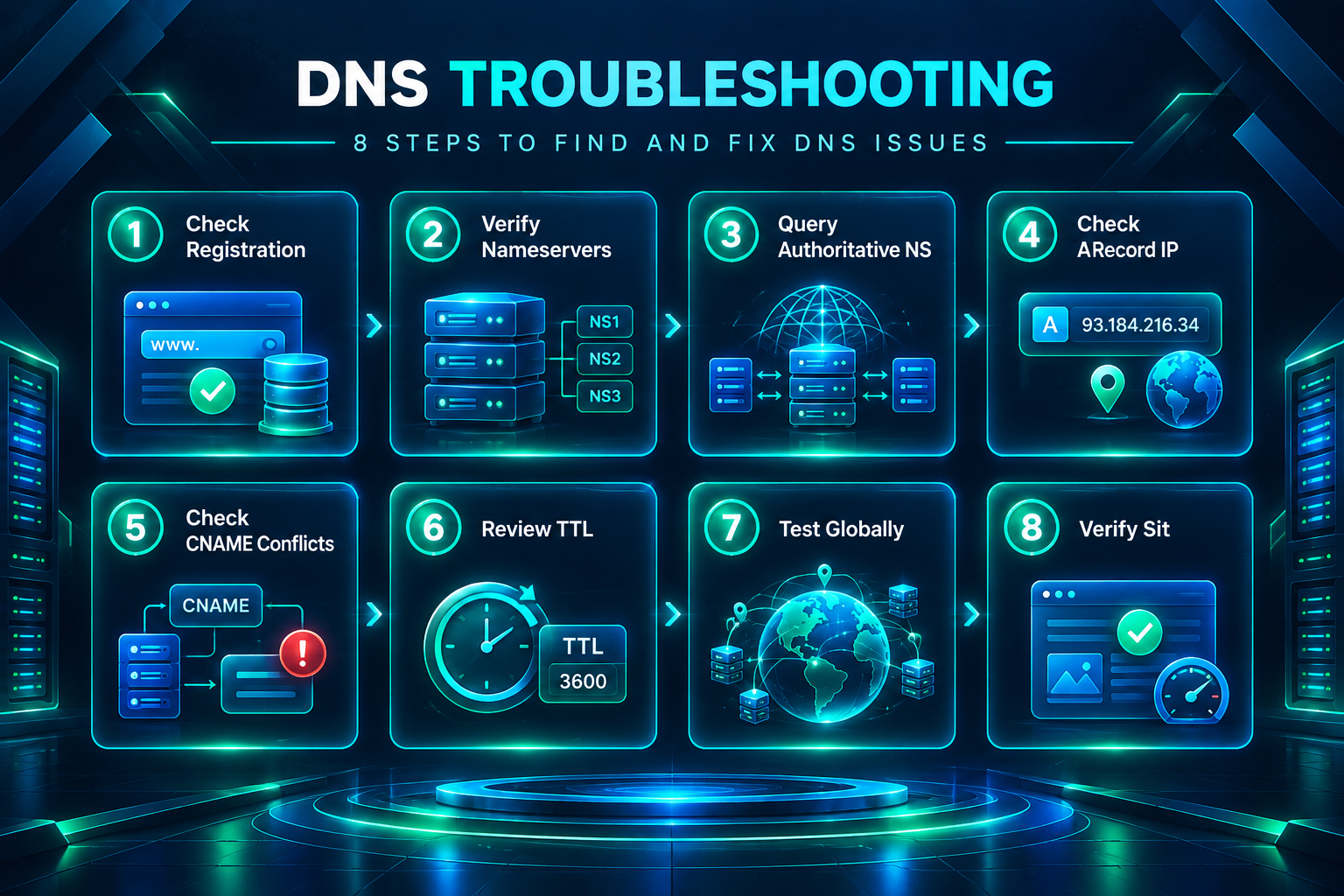
- Confirm the domain is registered and active. Log into the registrar account and verify that the domain has not expired and is in an active status. Check that the registrar has not placed a hold on the domain due to a payment issue or a dispute.
- Check the nameservers at the registrar. Confirm that the nameserver entries in the registrar’s control panel match the nameservers provided by the current hosting provider. Use a WHOIS lookup tool to see the publicly listed nameservers and compare them to what the hosting provider specifies.
- Query the authoritative nameserver directly. Using a tool such as dig with the
+traceflag, or a web-based tool that queries the authoritative nameserver rather than a cached resolver, check what records the authoritative nameserver is returning. This bypasses propagation delays and shows the current state of the zone file. - Verify the A record IP address. Confirm that the A record in the zone file points to the IP address currently assigned to the hosting account. Log into the hosting control panel to find the correct IP if you are unsure.
- Check for CNAME conflicts at the root domain. If the domain uses a CNAME at the root level and the DNS provider does not support CNAME flattening, replace it with an A record pointing to the correct IP address.
- Review TTL values. If you have made a correction, note the TTL on the updated record and allow sufficient time for propagation before testing again from a standard resolver.
- Test from multiple locations. Use a global DNS propagation checker such as DNS Checker or WhatsMyDNS to confirm that the correct record is resolving from multiple geographic locations. Inconsistent results across regions indicate that propagation is still in progress.
- Verify the site loads after DNS resolves. A domain resolving to the correct IP does not guarantee the web server is responding. After confirming DNS is correct, test the domain in a browser and check that the hosting server is active and serving content.
DNS Configuration for PBN Domains Across Different Hosting Setups
PBN domains are hosted across a variety of environments, and the DNS configuration process differs slightly depending on the setup. Understanding these differences helps avoid configuration errors during initial setup and after migrations.
Shared Hosting and cPanel Environments
On shared hosting accounts using cPanel, DNS zone files are typically managed through the Zone Editor or DNS Zone Manager within cPanel itself. The hosting provider assigns a shared IP address to the account, and the A record for the domain must point to that IP. When multiple PBN domains are hosted on the same shared account, they will share the same IP address, which is a footprint consideration separate from the DNS configuration itself. The DNS fix process in this environment involves updating the A record in cPanel’s zone editor to match the account’s assigned IP.
VPS and Dedicated Server Environments
On a VPS or dedicated server, the IP address is fixed and assigned to the server rather than to a shared account. DNS zone files may be managed through the server’s control panel, through a third-party DNS provider such as Cloudflare, or through the registrar’s DNS management interface. When using a third-party DNS provider, the nameservers at the registrar must point to that provider, and the zone file must be managed within that provider’s dashboard. Cloudflare, for example, requires that the domain’s nameservers be changed to Cloudflare’s nameservers before Cloudflare can manage DNS records for the domain.
Cloudflare DNS Management
Cloudflare is a commonly used DNS provider for PBN domains because it offers fast propagation, a straightforward interface, and additional features such as DDoS protection and SSL certificate provisioning. When a PBN domain is added to Cloudflare, Cloudflare scans the existing DNS records and imports them. After confirming the imported records are correct, the nameservers at the registrar are updated to Cloudflare’s nameservers. DNS changes made within Cloudflare’s dashboard typically propagate within minutes rather than hours, which makes troubleshooting faster. However, Cloudflare’s proxy feature, which routes traffic through Cloudflare’s network and masks the origin IP, should be evaluated carefully in the context of a PBN setup, as it changes the IP address that crawlers see when they access the domain.
Verifying That DNS Is Fully Resolved
After making DNS changes, verification is essential before assuming the problem is fixed. A domain that resolves correctly from your local network may still be returning old records from resolvers in other regions due to caching. Use a global propagation checker to query the domain from multiple DNS resolvers across different countries and confirm that all or most are returning the correct A record. If some resolvers are still returning the old IP, propagation is still in progress and no further changes are needed unless the TTL has already expired.
Once DNS is confirmed as correct globally, verify that the web server is responding by loading the domain in a browser and checking that the expected content appears. If the domain resolves but the server returns an error such as a 500 or 403 status code, the problem has shifted from DNS to the hosting or server configuration layer. At that point, DNS troubleshooting is complete and the investigation moves to the web server or CMS configuration.
For PBN domains specifically, it is also worth confirming that the domain is accessible to crawlers after a DNS fix. Checking Google Search Console for crawl errors, or using a crawler tool to verify that the domain’s pages are reachable, can confirm that the fix has restored the domain’s ability to be indexed and to pass link signals through its outbound links.
Preventing DNS Problems Across a PBN Network
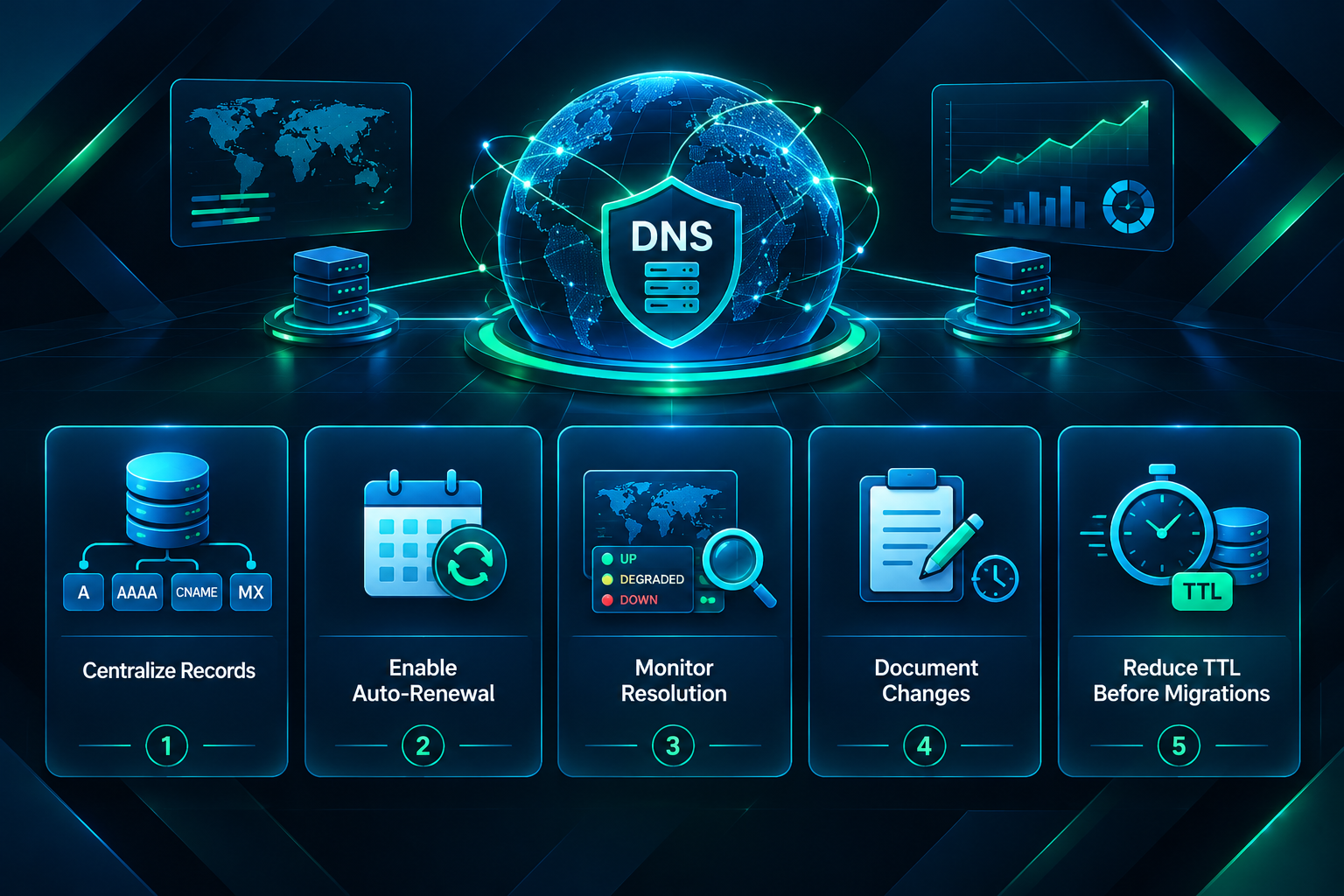
Reactive troubleshooting is necessary when a problem occurs, but proactive management reduces the frequency of DNS failures across a network of domains. Several practices help maintain DNS stability over time.
- Centralize domain management records. Maintain a document or spreadsheet listing each domain, its registrar, its nameservers, its hosting provider, the assigned IP address, and its renewal date. This reference makes it faster to identify the correct place to make a change when a problem occurs.
- Enable auto-renewal at the registrar. Domain expiry is a preventable cause of DNS failure. Auto-renewal with a valid payment method eliminates the risk of accidental expiry for domains that are actively in use.
- Monitor domain resolution regularly. Automated uptime monitoring tools can check whether a domain resolves and whether the web server responds at regular intervals. An alert when a domain stops resolving allows a DNS problem to be caught and fixed before it affects crawling or indexing for an extended period.
- Document DNS changes. When a DNS record is changed, note the date, the old value, the new value, and the reason for the change. This record is useful if a change produces an unexpected result and needs to be reversed.
- Reduce TTL before planned migrations. When a hosting migration is planned, lower the TTL on the A record in advance so that the new record propagates quickly after the migration is complete.
Frequently Asked Questions
How long does DNS propagation take after fixing a PBN domain record?
Propagation time depends on the TTL value set on the record before the change was made. If the TTL was set to 86400 seconds, resolvers that cached the old record may take up to 24 hours to update. If the TTL was already low, such as 300 seconds, most resolvers will pick up the new record within minutes. Using a global DNS propagation checker lets you monitor progress across different regions rather than waiting blindly.
Can a DNS problem cause a PBN domain to lose its indexed pages?
A DNS failure that prevents a domain from resolving will stop search engine crawlers from accessing the domain’s pages. If the domain remains unresolvable for an extended period, previously indexed pages may eventually be dropped from the index because the crawler cannot confirm they still exist. Fixing the DNS issue and allowing crawlers to re-access the domain is the appropriate response. How quickly pages are re-crawled and re-indexed after a DNS fix depends on the domain’s crawl frequency and the search engine’s scheduling.
What is the difference between updating nameservers and updating an A record?
Nameservers are updated at the registrar level and tell the internet which DNS servers hold the authoritative zone file for the domain. An A record is updated inside the zone file held by those nameservers and maps the domain name to a specific IP address. If the nameservers are correct but the A record is wrong, the domain resolves to the wrong server. If the nameservers are wrong, DNS queries reach the wrong nameserver entirely and the A record in the correct zone file is never consulted.
Should I use Cloudflare for DNS on PBN domains?
Cloudflare can be a practical DNS management option for PBN domains because it offers fast propagation and a clear interface. Whether to use Cloudflare’s proxy feature, which routes traffic through Cloudflare’s network, is a separate decision that depends on the specific hosting and network setup. Using Cloudflare purely for DNS without enabling the proxy is a straightforward configuration that does not change the IP address crawlers see when accessing the domain.
Why does my PBN domain resolve on my computer but not from other locations?
This is typically a propagation issue. Your local DNS resolver may have cached the new record quickly while resolvers in other regions are still returning the old cached record. Use a global DNS propagation checker to see which resolvers have updated and which have not. If the TTL on the old record has not yet expired for those resolvers, the inconsistency will resolve on its own as caches expire.
What should I check if a PBN domain resolves correctly but pages are still not being crawled?
If DNS is confirmed as correct but crawling is not occurring, the issue may be at the web server or CMS level rather than DNS. Check that the hosting server is active and returning a 200 status code for the domain’s pages. Verify that the robots.txt file is not blocking crawlers, that the sitemap is accessible, and that there are no server-level firewall rules blocking crawler IP ranges. Google Search Console’s URL Inspection tool can provide information about the last crawl attempt and any errors encountered.
Keeping PBN Domains Technically Sound
DNS troubleshooting on PBN domains is a practical technical skill rather than a complex specialty. Most DNS failures on PBN domains trace back to a small set of causes: an A record pointing to the wrong IP after a hosting change, nameservers that were not updated at the registrar, a domain that lapsed into expiry, or a propagation delay that was mistaken for a persistent error. Working through these possibilities in a structured order, verifying each layer before moving to the next, and using global propagation tools to confirm fixes are working resolves the majority of DNS problems without requiring advanced networking knowledge.
The broader point for anyone managing a network of domains is that DNS stability is a maintenance task, not a one-time configuration. Hosting migrations, registrar changes, and domain renewals each create opportunities for DNS records to fall out of sync with the actual hosting environment. Keeping a current record of each domain’s registrar, nameservers, hosting provider, and IP address, and monitoring domain resolution on a regular basis, reduces the likelihood of a DNS failure going unnoticed long enough to affect crawling, indexing, or the link signals the domain is intended to carry. If you are evaluating PBN domain placements or need support assessing the technical health of a domain network, PBN Backlinks Service can help you review domain and placement quality as part of a broader link-building strategy.