

A robots.txt file that accidentally blocks Googlebot or other crawlers on a PBN site can silently prevent the pages carrying your backlinks from being crawled and indexed — meaning the link equity those placements are meant to pass may never reach your target URL. Diagnosing robots.txt crawl-block issues on PBN websites is a practical technical task that any SEO practitioner can perform with the right tools and a clear process, and catching these problems early can make a meaningful difference to whether a placement delivers its intended value.
Key Takeaways
- A robots.txt disallow directive on a PBN site can prevent crawlers from accessing the page where your backlink lives, reducing or eliminating the link’s ability to pass value to your target URL.
- Diagnosing the issue involves fetching the robots.txt file directly, testing specific URLs against its rules, and cross-referencing with indexing status in tools such as Google Search Console or third-party crawlers.
- Common causes include misconfigured WordPress SEO plugins, staging-environment rules left in production, and blanket disallow directives applied to entire directories.
- Resolving a confirmed crawl block typically requires editing the robots.txt file and verifying that the affected URLs are subsequently crawled and indexed.
- Regular monitoring of PBN site crawlability is a worthwhile maintenance step, particularly after CMS updates, plugin changes, or site migrations.
Why Robots.txt Blocks Matter for PBN Backlinks
When a search engine crawler visits a website, it checks the robots.txt file at the root of the domain before deciding which pages to crawl. If the robots.txt file contains a Disallow directive that covers the URL where a backlink placement sits, the crawler will typically skip that page entirely. The consequence for a PBN backlink is straightforward: a page that is not crawled cannot be indexed, and a page that is not indexed cannot pass link signals to the destination URL. The placement may exist in the CMS and be visible to a human visitor, but from a search engine’s perspective it is effectively invisible.
This is distinct from a noindex directive, which allows crawling but suppresses indexing. A robots.txt block stops the crawler before it even reads the page content or follows the outbound link. Understanding this distinction matters when you are diagnosing why a backlink does not appear in tools such as Ahrefs, Semrush, or Majestic, or why a placement that was delivered weeks ago has not been picked up by any crawler.
For PBN sites specifically, robots.txt misconfigurations tend to arise from a handful of recurring scenarios: a site was built on a staging subdomain with a blanket disallow and then migrated to production without updating the file; a WordPress SEO plugin such as Yoast SEO or Rank Math was configured to discourage search engines during development and the setting was never reversed; or a site owner added a broad disallow rule to protect one section and inadvertently blocked the blog or post directory where link placements live.
Step 1 — Fetch and Read the Robots.txt File Directly
The first diagnostic step is to retrieve the robots.txt file from the PBN site and read its contents. The file is always located at the root of the domain, accessible by appending /robots.txt to the domain name in your browser address bar — for example, example.com/robots.txt. If the file does not exist, the server will return a 404 response, which means there are no crawl restrictions in place at the robots.txt level and you can rule this out as the cause of any indexing problem.
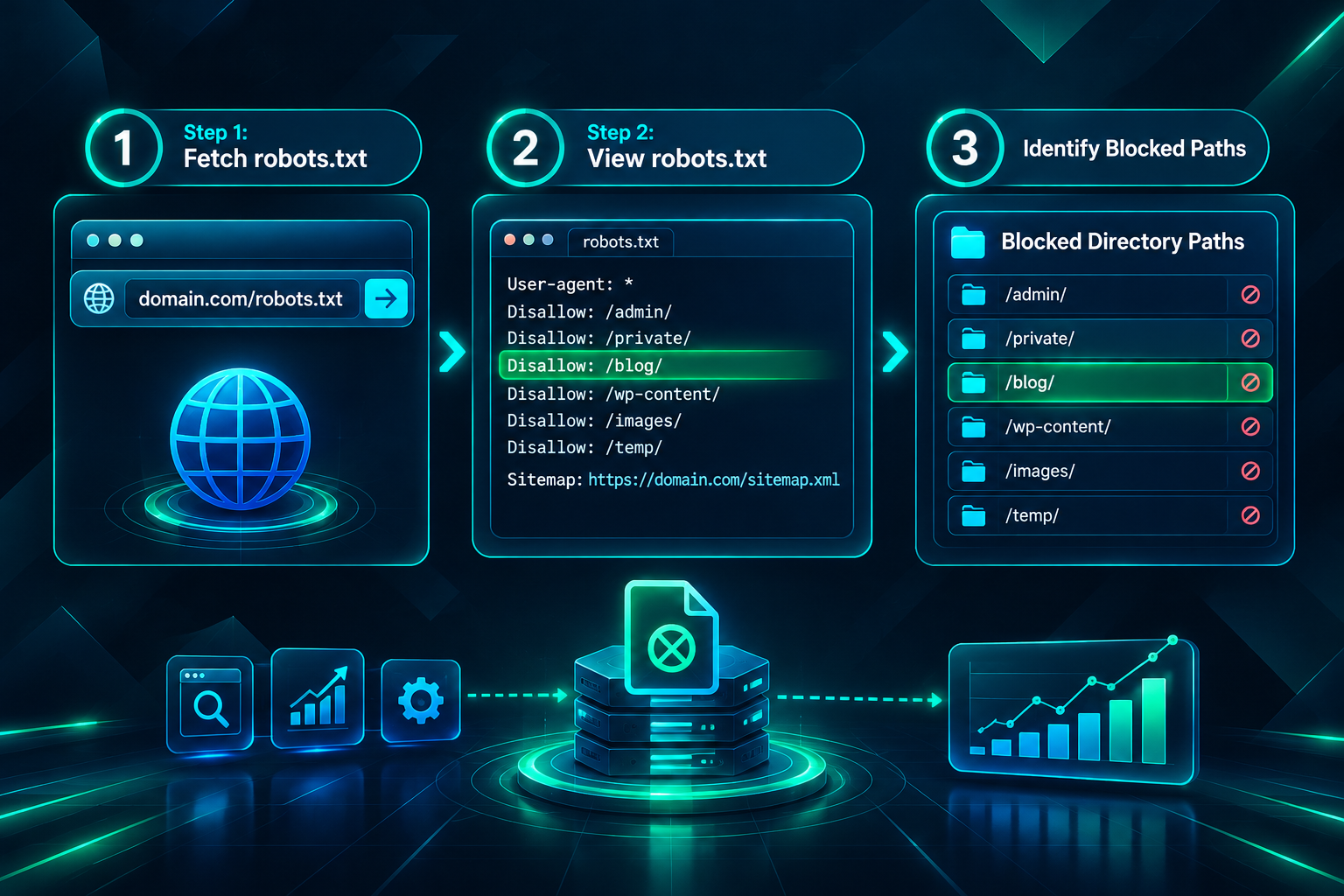
When the file does exist, look for the following elements:
- User-agent lines — these specify which crawlers the rules apply to. A wildcard User-agent: * applies to all crawlers including Googlebot. A specific User-agent: Googlebot line applies only to Google’s crawler.
- Disallow directives — these tell the specified crawler not to access certain paths. A Disallow: / blocks the entire site. A Disallow: /blog/ blocks all URLs under the blog directory.
- Allow directives — these can override a broader disallow for specific paths, but their behavior varies slightly between crawlers.
- Sitemap declarations — these point crawlers to the XML sitemap and are not a crawl restriction, but their presence or absence can be informative.
Pay particular attention to whether a Disallow: / rule exists under any user-agent group, and whether the directory containing your backlink placement — commonly /blog/, /post/, or a category path — appears in a disallow directive.
Step 2 — Test Specific URLs Against the Robots.txt Rules
Reading the robots.txt file manually is useful, but robots.txt syntax can be ambiguous when multiple user-agent groups, overlapping allow and disallow rules, or wildcard patterns are present. The most reliable way to confirm whether a specific placement URL is blocked is to use a dedicated robots.txt testing tool.
Google Search Console includes a robots.txt tester within the legacy interface, though its availability may vary depending on the account and property type. The tool allows you to paste a URL and check whether Googlebot would be blocked by the current robots.txt rules. For sites where you do not have Search Console access — which is common for PBN sites managed by a provider — third-party tools offer equivalent functionality. Screaming Frog SEO Spider can crawl a site and flag URLs that return a robots.txt block status. Online robots.txt validators from providers such as SEO tools aggregators allow you to paste the robots.txt content and test a specific URL path against it without needing site access.
When testing, use the exact URL of the page containing the backlink, not just the domain root. A rule that blocks /category/seo/ will affect a post at /category/seo/my-article/ even if the post itself is not explicitly named in the disallow directive.
Step 3 — Cross-Reference with Indexing Status
Confirming a robots.txt block explains why a URL is not crawled, but it is worth cross-referencing with actual indexing status to understand the full picture. A URL that is not blocked by robots.txt may still be unindexed for other reasons — a noindex meta tag, a canonical pointing elsewhere, thin content, or a manual action on the domain. Conversely, a URL that was previously indexed before a robots.txt block was introduced may remain in the index temporarily while the cached version ages out.
To check indexing status without Search Console access, use a site: search query in Google — for example, site:example.com/specific-post-url. If the URL does not appear in results, it is either not indexed or the index entry has been removed. This is not a definitive diagnostic on its own, but combined with a confirmed robots.txt block it provides a coherent explanation. Third-party backlink tools such as Ahrefs and Semrush also record whether a linking page was crawlable at the time of their last crawl, and some display a warning when a referring page returns a robots.txt blocked status.
If you have access to the PBN site’s Google Search Console property, the URL Inspection tool provides the most direct answer: it shows the last crawl date, the indexing status, and whether any crawl anomaly was detected, including robots.txt restrictions. The Coverage report can also surface pages that are excluded due to robots.txt rules across the entire site.
Step 4 — Identify the Source of the Block
Once a robots.txt block is confirmed, identifying its source helps determine the fastest resolution path. On WordPress-based PBN sites — which represent a large proportion of PBN infrastructure — the robots.txt file is often generated dynamically by an SEO plugin rather than stored as a static file on the server. This means editing the file requires changing a plugin setting rather than modifying a file via FTP or a hosting file manager.
Common sources of unintended robots.txt blocks on PBN sites include:
- WordPress SEO plugin settings — Yoast SEO, Rank Math, and All in One SEO each include a setting to discourage search engines, which adds a broad disallow rule. This setting is sometimes enabled during site setup and forgotten.
- WordPress Reading settings — WordPress itself has a native checkbox labeled “Discourage search engines from indexing this site” under Settings → Reading. When checked, WordPress adds a disallow directive to the dynamically generated robots.txt output.
- Staging-to-production migration artifacts — sites migrated from a staging environment may retain a robots.txt file that was intentionally restrictive during development.
- Manually edited static robots.txt files — a static file placed in the site’s root directory can override or conflict with the dynamically generated version, depending on server configuration.
- Hosting panel or CDN-level rules — some hosting configurations or CDN setups such as Cloudflare page rules can affect how robots.txt is served, though this is less common than plugin-level issues.
Step 5 — Resolve the Block and Verify the Fix
Resolving a confirmed robots.txt crawl block depends on its source. For WordPress sites with the “Discourage search engines” setting enabled, unchecking the box under Settings → Reading will remove the disallow directive from the dynamically generated robots.txt. For plugin-generated blocks, the equivalent setting within the SEO plugin’s configuration panel needs to be disabled. For static file blocks, the file needs to be edited directly — either via FTP, a hosting file manager, or a WordPress file editing plugin — to remove or correct the disallow directive.
After making the change, verify the fix by fetching the robots.txt file again from the browser and confirming the disallow directive is no longer present. Then re-test the specific placement URL using a robots.txt testing tool to confirm it is no longer blocked. If you have Search Console access, use the URL Inspection tool to request a recrawl of the affected page. Without Search Console access, submitting the URL to Google’s public URL inspection interface or ensuring the page is linked from a crawlable sitemap will help prompt re-crawling, though crawl scheduling is ultimately at the search engine’s discretion.
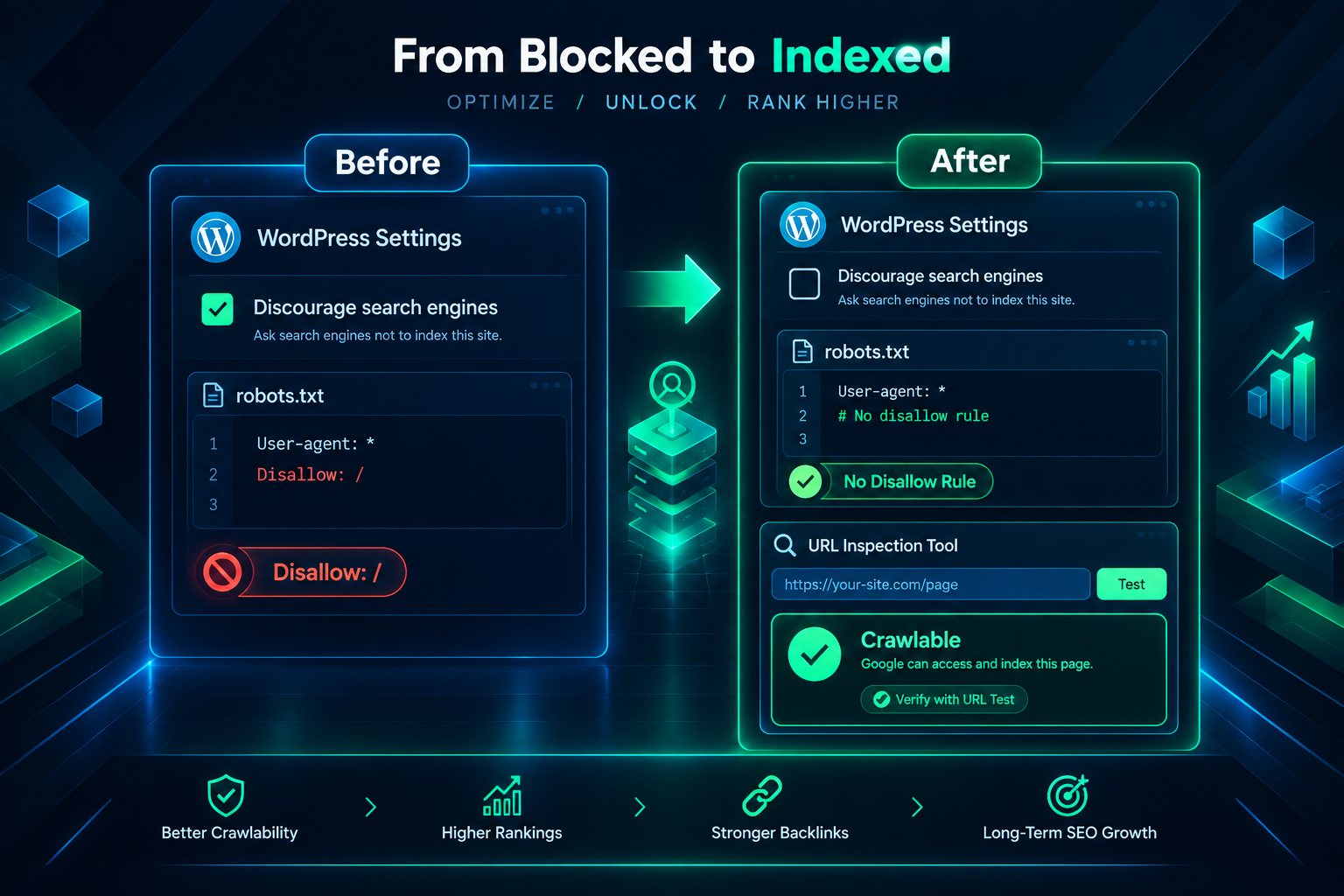
Allow sufficient time after the fix before assessing whether the placement has been indexed. Crawl frequency for individual pages varies based on the domain’s crawl budget, the page’s link profile, and how recently the domain was last crawled. For a PBN site with moderate crawl activity, re-indexing after a robots.txt fix may take anywhere from a few days to several weeks.
Diagnosing Partial Blocks and Edge Cases
Not every robots.txt issue presents as a complete site-wide block. Partial blocks — where only specific directories or URL patterns are disallowed — can be harder to spot and may affect only a subset of placements on a given PBN site. If some backlinks from a domain appear in third-party tools while others do not, a partial robots.txt block affecting specific URL paths is a plausible explanation worth investigating.
Wildcard patterns in robots.txt rules add another layer of complexity. A directive such as Disallow: /*? blocks all URLs containing a query string, which could affect paginated content or filtered category pages. A directive such as Disallow: /*.pdf$ blocks PDF files specifically. These patterns are valid in Google’s robots.txt specification but may produce unexpected results if they were added without a full understanding of the site’s URL structure.
Another edge case involves the interaction between robots.txt and XML sitemaps. A URL listed in a sitemap but blocked by robots.txt creates a conflict: the sitemap signals that the URL should be indexed, but the robots.txt rule prevents the crawler from accessing it. Google’s documentation notes that it will not index a URL it cannot crawl, regardless of sitemap inclusion. If a PBN site’s sitemap includes placement URLs that are simultaneously blocked by robots.txt, the sitemap entry will not override the crawl restriction.
Monitoring PBN Site Crawlability Over Time
A robots.txt block that appears after a placement has already been indexed can cause the indexed page to eventually drop out of the index as the crawler is unable to re-access it during subsequent crawl cycles. This makes ongoing monitoring of PBN site crawlability a practical maintenance consideration, not just a one-time setup check.
Periodic checks of the robots.txt file on each PBN site in a network — particularly after CMS updates, plugin updates, or any site migration — can catch newly introduced blocks before they affect indexed placements. Screaming Frog can be scheduled to crawl a list of URLs and flag any that return a robots.txt blocked status. Third-party monitoring tools that track backlink availability can also surface situations where a previously crawlable linking page becomes inaccessible, though they may not always distinguish between a robots.txt block and other causes such as a 404 error or a noindex tag.
If you are working with a PBN backlink provider, asking about their crawlability monitoring process is a reasonable due-diligence question. A provider that actively checks whether placement pages remain crawlable and indexed — and that notifies clients or replaces placements when a page becomes inaccessible — offers a more reliable service than one that delivers placements without any post-delivery verification.
Frequently Asked Questions
Does a robots.txt block on a PBN site mean the backlink has no value?
A robots.txt block prevents the crawler from accessing the page, which means the link on that page cannot be followed or attributed during that crawl cycle. If the block is persistent and the page is not indexed, the link is unlikely to contribute to the target URL’s backlink profile in any measurable way. Resolving the block and allowing the page to be crawled and indexed is the appropriate corrective step.
Can I check robots.txt on a PBN site I do not own?
Yes. The robots.txt file is publicly accessible at the root of any domain — simply navigate to domain.com/robots.txt in a browser. You can also use third-party robots.txt testing tools by pasting the file’s contents and testing specific URL paths without needing site access or credentials.
What is the difference between a robots.txt block and a noindex tag?
A robots.txt disallow directive prevents the crawler from accessing the page at all. A noindex meta tag or HTTP header allows the crawler to access and read the page but instructs it not to include the page in the search index. Both can result in a page not appearing in search results, but they operate at different stages of the crawl-and-index process. For backlink purposes, a robots.txt block is generally more problematic because the crawler cannot follow the outbound link on a page it cannot access.
How long does it take for a page to be indexed after a robots.txt block is removed?
Re-indexing timelines after removing a robots.txt block vary depending on the domain’s crawl frequency, the page’s position in the site architecture, and whether the URL is included in an XML sitemap. For active domains with regular crawl activity, re-indexing may occur within days. For lower-activity domains, it may take several weeks. Requesting a recrawl via Google Search Console, if access is available, can help accelerate the process.
Should every PBN site have a robots.txt file?
A PBN site intended to have its pages crawled and indexed should either have no robots.txt file or a robots.txt file that does not block the directories containing placement pages. An absent robots.txt file is interpreted by crawlers as having no restrictions. A minimal robots.txt file that explicitly allows all crawlers — or simply omits any disallow directives — is a straightforward configuration for a site where full crawlability is the goal.
Can a CDN or caching layer affect how robots.txt is served?
In some configurations, a CDN or caching layer may serve a cached version of the robots.txt file that does not reflect recent edits. If you have updated the robots.txt file but the change does not appear when fetching the file from a browser, clearing the CDN cache for the robots.txt URL is a necessary step. Cloudflare and similar CDN providers typically allow cache purging for specific URLs through their dashboard.
Assessing Robots.txt Health as Part of PBN Placement Quality
Diagnosing and resolving robots.txt crawl blocks on PBN sites is a specific but important part of ensuring that backlink placements function as intended. The diagnostic process — fetching the file, testing specific URLs, cross-referencing with indexing status, identifying the block’s source, and verifying the fix — is methodical and does not require advanced technical knowledge once the steps are understood. The tools needed, including browser-based file access, robots.txt validators, Screaming Frog, and Google Search Console where available, are accessible to most SEO practitioners.
For anyone managing PBN placements or evaluating a PBN backlink provider, crawlability is one of the concrete quality factors that can be checked and confirmed rather than assumed. A placement on a page that is blocked from crawling is a placement that is not contributing to your backlink profile in any measurable way, regardless of the domain’s authority metrics or the quality of the surrounding content. Building robots.txt checks into a placement verification routine — alongside indexing status checks, link attribute confirmation, and anchor text review — gives a more complete picture of whether a placement is delivering its intended function.
If you are reviewing a PBN backlink package or assessing the quality of an existing network, PBN Backlinks Service can help you evaluate placement crawlability and indexing as part of a broader backlink profile review. Understanding the technical health of your link placements is a practical starting point for any informed link-building decision.