

Securing a private blog network requires more than strong passwords. Two-factor authentication (2FA) adds a second verification step to every admin login, so that a stolen or guessed password alone cannot grant access to your PBN sites, domain registrar accounts, or hosting control panels. This guide explains how to enable two-factor authentication across the key access points of a PBN, which tools and plugins are commonly used, and what a practical security setup looks like for network operators managing multiple sites.
Key Takeaways
- Two-factor authentication should be enabled at every administrative layer of a PBN: WordPress dashboards, hosting control panels, domain registrar accounts, and DNS management interfaces.
- WordPress supports 2FA through dedicated plugins such as WP 2FA, Two Factor, and Google Authenticator plugins, most of which work with standard TOTP authenticator apps.
- Registrar and hosting panel 2FA is often the most critical layer, because domain hijacking or hosting account compromise can affect every site in a network simultaneously.
- Authenticator apps such as Google Authenticator, Authy, and Microsoft Authenticator generate time-based one-time passwords (TOTP) and are generally more secure than SMS-based verification for PBN administration.
- Backup codes and recovery options should be stored securely before enabling 2FA, because losing access to the second factor can lock an administrator out of multiple sites at once.
Why Two-Factor Authentication Matters for PBN Administration
A private blog network typically involves multiple WordPress installations, one or more hosting accounts, several domain registrar accounts, and possibly a DNS management layer such as Cloudflare. Each of these access points represents a potential entry for an unauthorized party. If a single admin password is exposed through a data breach, phishing attempt, or credential-stuffing attack, an attacker could gain control of multiple PBN sites simultaneously, alter content, remove links, redirect domains, or expose the network’s structure. Two-factor authentication reduces this risk by requiring a second proof of identity that is time-sensitive and device-specific, making a stolen password significantly less useful on its own.
For PBN operators, the consequences of an account compromise extend beyond a single website. A registrar account breach could allow domain transfers or DNS changes that take every site in the network offline. A hosting panel compromise could expose file structures, database credentials, and IP configurations across multiple installations. Enabling 2FA at each layer is therefore a practical operational priority rather than an optional security enhancement.
Enabling Two-Factor Authentication on WordPress PBN Sites
WordPress does not include native two-factor authentication in its core installation, so a plugin is required. Several well-maintained plugins are available that implement the TOTP (Time-Based One-Time Password) standard, which is compatible with most authenticator apps.
Choosing a WordPress 2FA Plugin
The most commonly used options for WordPress 2FA include WP 2FA, the Two Factor plugin maintained in the WordPress plugin repository, and plugins that integrate directly with Google Authenticator or Authy. WP 2FA provides a setup wizard and supports multiple second-factor methods including TOTP apps, email-based codes, and backup codes. The Two Factor plugin is a lightweight option that supports TOTP, email, and FIDO U2F security keys. When selecting a plugin for a PBN, consider whether it supports role-based enforcement, so that 2FA can be required for administrator accounts specifically, and whether it provides backup code generation in case the primary second factor becomes unavailable.
Step-by-Step: Enabling 2FA with WP 2FA
- Install and activate the plugin. Navigate to the WordPress dashboard, go to Plugins, click Add New, search for WP 2FA, and activate it after installation.
- Run the setup wizard. The plugin launches a configuration wizard on first activation. Select TOTP as the primary method if you intend to use an authenticator app.
- Configure enforcement policy. Choose whether 2FA is required for all users, administrators only, or specific roles. For a PBN where only one or a small number of administrators log in, enforcing 2FA for the administrator role is a practical starting point.
- Scan the QR code with an authenticator app. Open Google Authenticator, Authy, or Microsoft Authenticator on your mobile device, tap the option to add a new account, and scan the QR code displayed in the plugin setup screen. The app will begin generating six-digit TOTP codes that refresh every thirty seconds.
- Enter the verification code. Type the current code from your authenticator app into the plugin’s confirmation field to verify that the setup is working correctly before saving.
- Save backup codes. The plugin will generate a set of single-use backup codes. Store these in a secure location such as a password manager, because they are the recovery method if you lose access to your authenticator app.
- Test the login flow. Log out of WordPress and log back in to confirm that the second-factor prompt appears and that your authenticator app code is accepted correctly.
Managing 2FA Across Multiple WordPress Installations
A PBN with many sites presents a practical challenge: repeating the setup process on each individual WordPress installation. One approach is to use a WordPress management tool that allows plugin installation and configuration across multiple sites from a single interface, such as MainWP or ManageWP. These tools can push plugin installations to multiple sites simultaneously, though 2FA enrollment for each user account still typically requires per-site configuration because the TOTP secret is unique to each site and user combination. Keeping a consistent plugin choice across all PBN sites simplifies maintenance and reduces the risk of configuration gaps on individual installations.
Enabling 2FA on Domain Registrar Accounts
Domain registrar accounts are a high-priority target for 2FA because a single registrar account often controls multiple domains. Most major registrars support two-factor authentication, though the specific setup path varies by provider. The general process involves logging into the registrar account, navigating to account security or profile settings, locating the two-factor authentication or two-step verification option, and following the provider’s enrollment flow.
Most registrars offer TOTP-based authentication compatible with standard authenticator apps, and some also offer hardware security key support. SMS-based verification is available at many registrars but is generally considered less secure than TOTP because of SIM-swapping vulnerabilities. Where a registrar supports an authenticator app option, that method is preferable for PBN domain management. After enabling 2FA on a registrar account, verify that backup or recovery codes are saved, and confirm that the account recovery email address is itself secured with a strong password and its own 2FA enrollment.
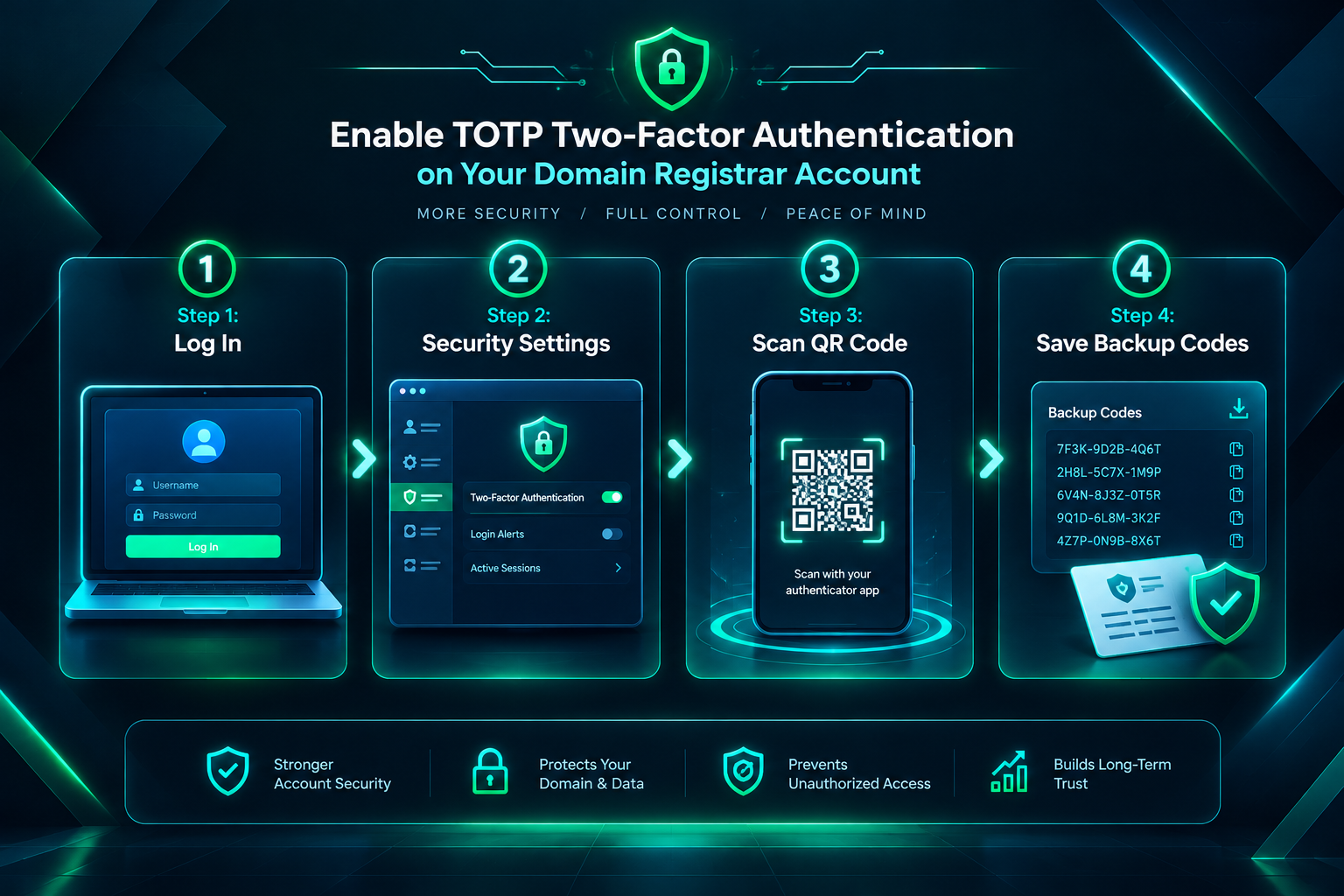
If a PBN uses multiple registrars to distribute domain registration across different providers, 2FA enrollment needs to be completed separately at each registrar. Maintaining a record of which registrar holds which domains, along with the 2FA method and backup code storage location for each account, is a useful operational practice for networks with a larger number of domains.
Enabling 2FA on Hosting Control Panels
Hosting control panels such as cPanel, Plesk, and DirectAdmin typically include built-in two-factor authentication options. The setup process generally involves logging into the control panel, finding the security or account settings section, and enabling the two-factor authentication feature. Most implementations use TOTP and display a QR code for scanning with an authenticator app, following the same enrollment flow as WordPress plugins.
For PBN operators using a VPS or dedicated server with a management panel, the 2FA setup may be at the panel level rather than at the individual hosting account level. Some hosting providers also offer 2FA at the client area or billing portal level, which is a separate access point from the server control panel itself. Both layers are worth securing, because the client area often provides access to server management, support tickets, and billing information that could be used to make changes affecting hosted PBN sites.
Cloudflare, which is commonly used for DNS management and CDN services across PBN sites, supports two-factor authentication through its account security settings. Enabling 2FA on a Cloudflare account protects DNS records, SSL configurations, and any firewall or access rules applied to sites in the network. The enrollment process follows the standard TOTP flow: navigate to account profile, select security, enable two-factor authentication, scan the QR code with an authenticator app, and save backup codes.
Authenticator App Options for PBN Operators
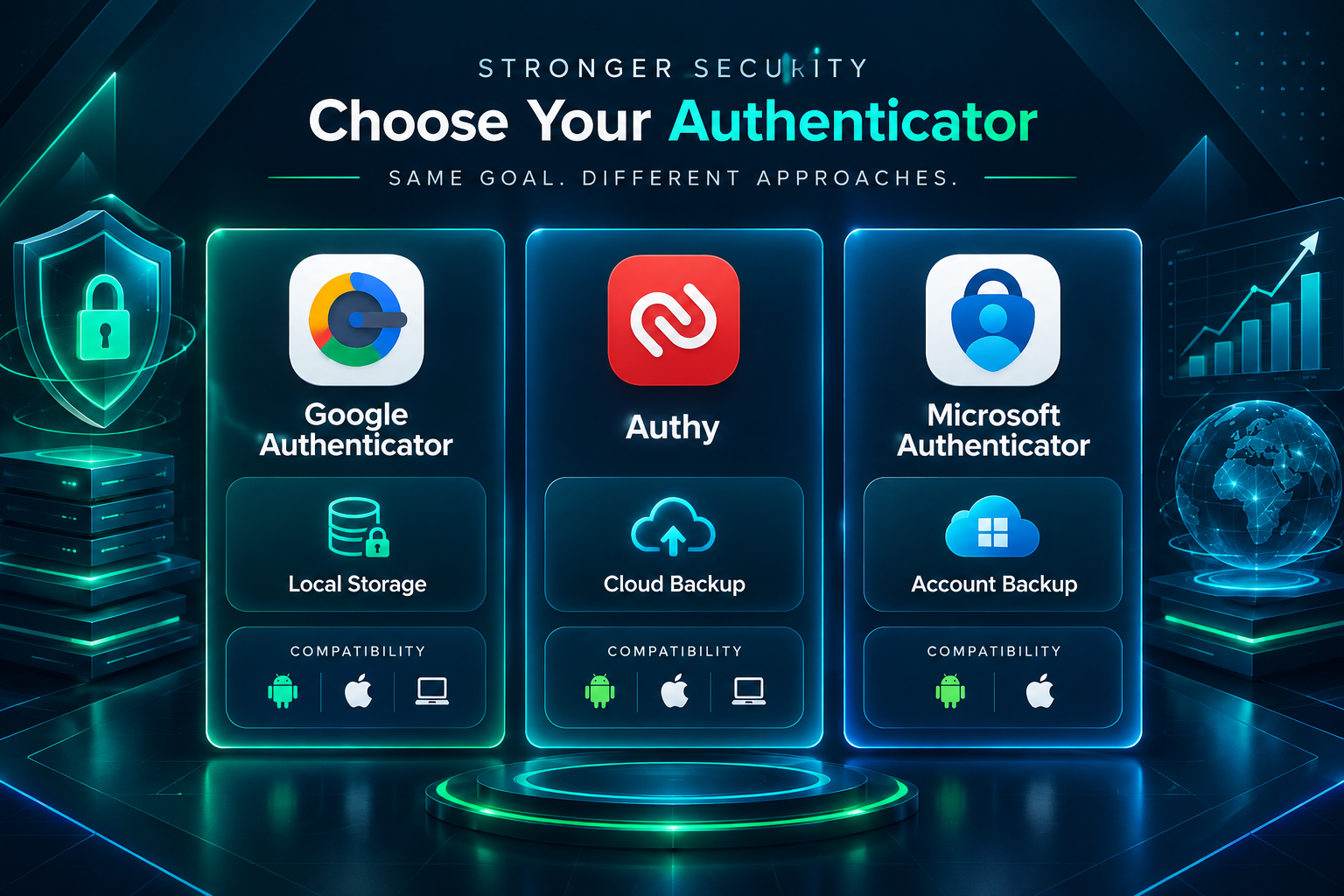
The choice of authenticator app affects both security and operational convenience, particularly when managing 2FA across many accounts. The three most widely used TOTP apps are Google Authenticator, Authy, and Microsoft Authenticator.
- Google Authenticator is straightforward and widely compatible. It stores TOTP secrets locally on the device, which means that if the device is lost or replaced without a backup, re-enrollment is required on every account. It does not natively support encrypted cloud backup in all versions, so device management is important.
- Authy supports encrypted cloud backup of TOTP secrets and multi-device access, which can be useful for PBN operators who need to access authenticator codes from more than one device. The backup feature requires a separate Authy account password to protect the encrypted backup.
- Microsoft Authenticator supports TOTP for non-Microsoft accounts and offers cloud backup tied to a Microsoft account. It is a practical option for operators already using Microsoft services.
For a PBN with a large number of sites and accounts, an authenticator app that supports cloud backup and multi-device access reduces the operational risk of being locked out due to a lost or damaged device. Whichever app is chosen, the backup codes generated during each 2FA enrollment should be stored in a password manager or another secure offline location, separate from the authenticator app itself.
Backup and Recovery Planning for PBN 2FA
Backup and recovery planning is a practical necessity when enabling two-factor authentication across a network of sites. Losing access to the second factor without a recovery method can result in being locked out of WordPress dashboards, registrar accounts, or hosting panels, which may require contacting support teams and going through account verification processes that take time and may not always be straightforward.
A reliable backup strategy for PBN 2FA includes the following elements. First, save the backup codes generated during each 2FA enrollment in a password manager that is itself protected by a strong master password and, where the password manager supports it, its own 2FA enrollment. Second, if using an authenticator app that supports encrypted cloud backup, enable that feature and confirm that the backup is active. Third, for WordPress sites, note that some 2FA plugins store the TOTP secret in the WordPress database, which means that a full database backup also preserves the 2FA configuration. Fourth, maintain a documented record of which 2FA method is active on each account, so that recovery steps are clear if access is lost.
For WordPress specifically, if an administrator is locked out because the 2FA plugin is blocking login and the backup codes are unavailable, recovery typically involves accessing the site’s database directly through phpMyAdmin or a similar tool and deactivating the 2FA plugin by modifying the active plugins record in the database. This requires hosting panel access, which is another reason to ensure that hosting panel 2FA is set up with its own backup codes stored separately.
Security Practices That Complement 2FA for PBN Administration
Two-factor authentication is one component of a broader access security approach for PBN administration. Several complementary practices strengthen the overall security posture of a network without requiring significant additional infrastructure.
- Strong, unique passwords for every account. A password manager makes it practical to use long, randomly generated passwords for each WordPress installation, registrar account, and hosting panel without needing to remember them individually.
- Limiting login attempts on WordPress. Plugins that limit failed login attempts reduce the effectiveness of brute-force attacks against WordPress admin pages. This is a useful complement to 2FA rather than a replacement for it.
- Changing the default WordPress admin username. The default username “admin” is a common target for automated login attempts. Using a non-default administrator username reduces the information available to an attacker.
- Restricting wp-admin access by IP address. Where PBN administration is performed from a consistent IP address or a small range of addresses, restricting access to the WordPress admin directory at the server or .htaccess level adds a network-layer barrier before the login form is even reached.
- Keeping WordPress core, themes, and plugins updated. Outdated software is a common entry point for unauthorized access. Regular updates reduce the attack surface across all PBN installations.
- Using separate email addresses for PBN administration. Using dedicated email accounts for registrar and hosting registrations, rather than a primary business email, limits the exposure if one email account is compromised.
Common Questions About PBN 2FA Setup
Frequently Asked Questions
Can I use the same authenticator app account for all my PBN sites?
Yes. A single authenticator app installation can hold TOTP entries for multiple accounts simultaneously. Each WordPress site, registrar account, and hosting panel generates its own unique TOTP secret during enrollment, and the authenticator app stores and displays codes for each one separately. Labeling each entry clearly in the app makes it easier to identify the correct code when logging into a specific account.
What happens if I lose my phone and cannot access my authenticator app?
If backup codes were saved during 2FA enrollment, use one of those codes to log in and then re-enroll 2FA with a new device. If backup codes are unavailable, recovery options depend on the platform. WordPress 2FA plugins often have a database-level deactivation method accessible through the hosting panel. Registrar and hosting providers typically have an account recovery process that may involve identity verification. This is why storing backup codes in a password manager before enabling 2FA is strongly recommended.
Is SMS-based 2FA acceptable for PBN administration?
SMS-based verification provides a meaningful improvement over password-only access, but it is generally considered less secure than TOTP authenticator apps because of the possibility of SIM-swapping attacks, where an attacker convinces a mobile carrier to transfer a phone number to a new SIM card. For PBN administration, where account compromise can affect multiple sites and domains simultaneously, TOTP-based authentication is the preferable option where the platform supports it.
Do I need to enable 2FA on every individual WordPress site in my PBN?
Each WordPress installation has its own admin login, so 2FA needs to be configured on each site individually unless a centralized management tool is used to deploy and manage plugins across multiple installations. Prioritizing 2FA on sites that are actively managed or that host the most valuable link placements is a practical starting point if rolling out across a large network takes time.
Does enabling 2FA on WordPress affect how the site appears to search engines?
No. Two-factor authentication applies only to the WordPress admin login process and has no effect on the public-facing pages of a site, how those pages are crawled, or how links on those pages are evaluated. The 2FA layer is entirely behind the login screen and is invisible to search engine crawlers.
Can I enforce 2FA for all users on a WordPress PBN site?
Most WordPress 2FA plugins support role-based enforcement, allowing administrators to require 2FA for specific user roles. For a PBN site where only one administrator account is used, enforcing 2FA for the administrator role is straightforward. If multiple contributors or editors have accounts on a PBN site, enforcing 2FA across all roles reduces the risk of a lower-privilege account being used as an entry point.
Securing Your PBN Administration: Next Steps
Enabling two-factor authentication across a private blog network is a practical, achievable security measure that significantly reduces the risk of unauthorized access at every administrative layer. The process involves enabling a 2FA plugin on each WordPress installation, enrolling TOTP-based authentication on registrar accounts and hosting control panels, choosing a reliable authenticator app, and storing backup codes securely before completing each enrollment. For networks with many sites, a phased rollout starting with registrar and hosting accounts, which carry the highest impact if compromised, is a sensible approach.
The operational investment in setting up 2FA across a PBN is modest compared to the potential disruption of an account compromise affecting multiple sites simultaneously. Pairing 2FA with strong unique passwords, limited login attempts, and regular software updates creates a layered access security approach that is appropriate for the administrative complexity of managing a private blog network. If you are reviewing the security setup of your PBN alongside its link-building strategy, the team at PBN Backlinks Service can discuss network management considerations as part of a broader assessment of your campaign requirements.