

SSL errors on PBN sites are a practical maintenance problem that can affect how search engines crawl your network, whether browsers flag your pages as insecure, and whether the links you have built continue to pass value effectively. Diagnosing the specific error type is the first step, because the fix for an expired certificate is different from the fix for a mixed-content warning or a hostname mismatch. This guide walks through the most common SSL error categories, how to identify each one, and what to do to resolve them on a private blog network site.
Key Takeaways
- SSL errors on PBN sites fall into several distinct categories — expired certificates, hostname mismatches, mixed content, incomplete certificate chains, and self-signed certificates — and each requires a different fix.
- An unresolved SSL error can prevent search engine crawlers from indexing pages correctly and may cause browsers to display security warnings that reduce the perceived credibility of the site.
- Most SSL issues on PBN sites are caused by certificate expiry, incorrect installation, or HTTP assets loading on an HTTPS page, all of which are resolvable without advanced server knowledge.
- Free certificate providers such as Let’s Encrypt and hosting-level SSL options make it straightforward to install and auto-renew certificates across multiple sites in a network.
- After fixing an SSL error, verifying correct HTTPS redirects, updating internal links, and confirming crawlability in a webmaster tool helps ensure the fix is complete.
Why SSL Errors Matter for PBN Sites
A PBN site that serves pages over HTTP, or that presents a broken HTTPS configuration, creates two practical problems. First, modern browsers — Chrome, Firefox, Safari, and Edge — display a “Not Secure” warning or a full interstitial block when a certificate is missing, expired, or misconfigured. Any visitor or crawler that reaches the site sees that warning before the content loads. Second, Googlebot and other search engine crawlers follow HTTPS by default and may have difficulty crawling or indexing pages that return SSL errors, which can affect whether the pages containing your link placements are indexed at all.
For a PBN site, indexed pages with working HTTPS are a baseline requirement. A link placement on a page that is not indexed, or that is flagged as insecure, is less likely to contribute to the ranking goals of the target site. Keeping SSL configurations healthy across a network is therefore a routine maintenance task rather than an optional upgrade. The good news is that the most common SSL errors have clear, repeatable fixes once you know which error type you are dealing with.
Identifying the SSL Error Type
Before applying any fix, identify the specific error. Different errors produce different browser codes and have different root causes. The fastest way to diagnose an SSL error on a PBN site is to use a free online SSL checker — tools such as SSL Labs’ SSL Test, WhyNoPadlock, or DigiCert’s SSL Installation Checker will scan the domain and return a detailed report showing the certificate status, chain completeness, hostname match, and any mixed-content issues. You can also read the browser error code directly from the address bar or the browser’s security panel.
The most common SSL error codes you will encounter on PBN sites are listed below, along with what each one means in practice.
ERR_CERT_DATE_INVALID — Expired Certificate
This error means the SSL certificate installed on the site has passed its expiry date. Certificates issued by Let’s Encrypt expire every 90 days. Certificates from commercial certificate authorities typically expire after one or two years. When a certificate expires, browsers immediately block access and display a warning. This is the most common SSL error on PBN sites because network owners often set up certificates manually and forget to configure automatic renewal.
ERR_CERT_COMMON_NAME_INVALID — Hostname Mismatch
A hostname mismatch error means the domain name in the browser’s address bar does not match the domain name listed on the certificate. This happens when a certificate was issued for example.com but the site is also accessed via www.example.com, or when a certificate was installed on the wrong domain after a domain migration. It can also occur when a PBN site is moved to a new hosting account and the old certificate is not replaced.
ERR_CERT_AUTHORITY_INVALID — Self-Signed or Untrusted Certificate
This error appears when the certificate was not issued by a trusted certificate authority (CA) that browsers recognize. Self-signed certificates are sometimes used during development or testing but are not suitable for live PBN sites because every browser will flag them as untrusted. Some low-cost hosting environments also install certificates from CAs that are not included in major browser trust stores, which produces the same error.
Mixed Content Warnings
A mixed-content warning is not a certificate error in the strict sense, but it appears alongside or instead of the padlock icon and can cause browsers to block certain page resources. Mixed content occurs when a page is served over HTTPS but some of its assets — images, scripts, stylesheets, or iframes — are loaded over HTTP. WordPress sites are particularly prone to this after a migration from HTTP to HTTPS, because internal links and media URLs stored in the database still reference the old HTTP addresses.
Incomplete Certificate Chain
An incomplete chain error means the server is not sending the full chain of trust from the site’s certificate up to a root CA that browsers recognize. Intermediate certificates are required to bridge the gap between the site certificate and the root. When a hosting provider installs only the end-entity certificate without the intermediate certificates, some browsers — particularly on mobile devices — will display a trust error even though the certificate itself is valid.
How to Fix an Expired SSL Certificate on a PBN Site
The fix for an expired certificate depends on how the certificate was originally installed. If the site is hosted on a managed hosting platform such as Cloudways, SiteGround, WP Engine, or a similar provider, the hosting control panel usually includes a one-click SSL renewal or an automatic renewal option. Log into the hosting dashboard, navigate to the SSL or HTTPS section for the relevant domain, and either trigger a manual renewal or confirm that automatic renewal is enabled.
If the certificate was installed manually using Let’s Encrypt via Certbot on a VPS or dedicated server, run the renewal command from the server’s command line. The standard Certbot renewal command is certbot renew, which checks all installed certificates and renews any that are within 30 days of expiry. To prevent future expiry, configure a cron job or a systemd timer to run this command automatically at regular intervals — typically twice per day, as recommended in the Certbot documentation. After renewal, restart the web server (Apache or Nginx) to apply the new certificate.
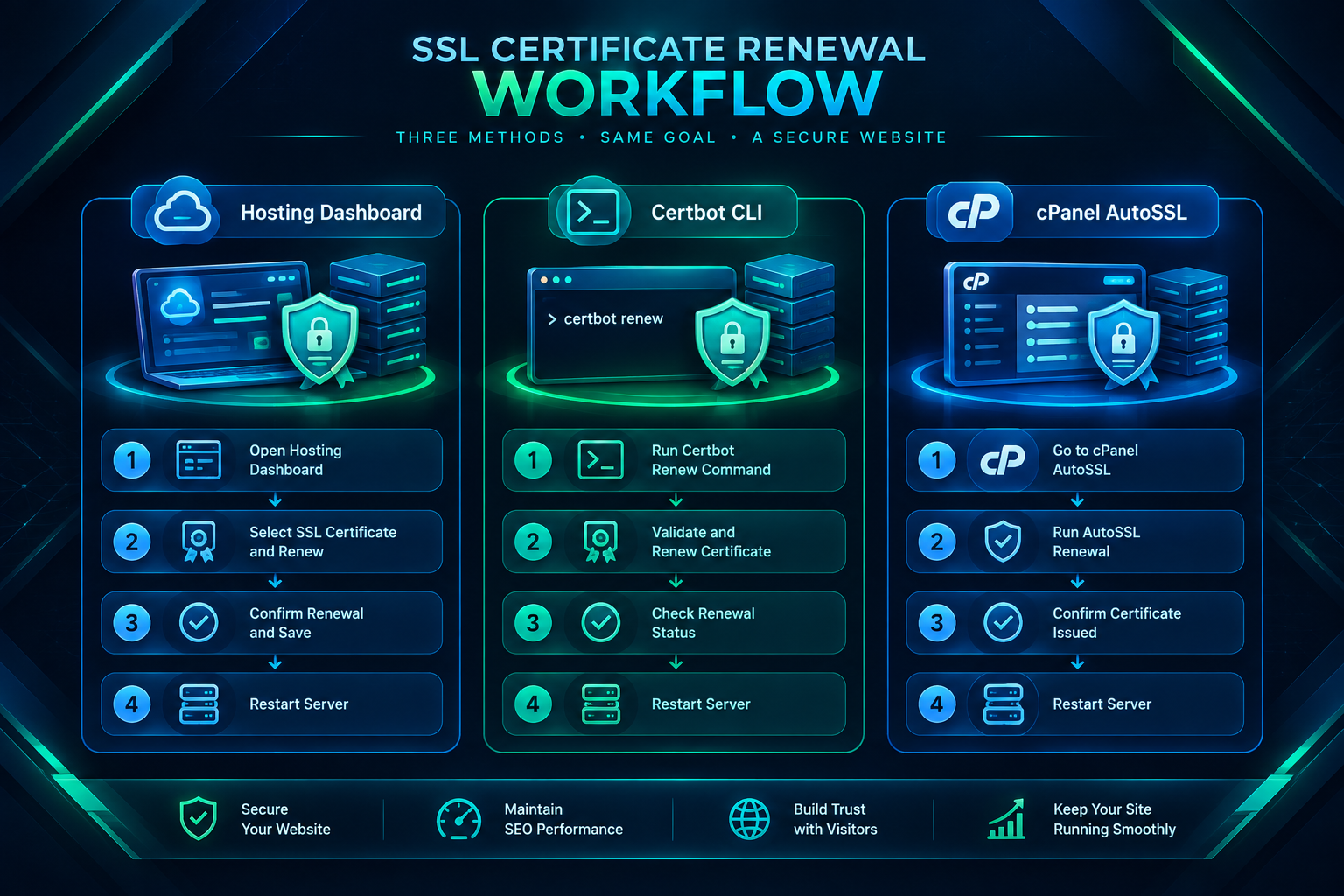
If the site uses cPanel or a similar shared hosting control panel, look for the “SSL/TLS” section and use the “Let’s Encrypt” or “AutoSSL” option to issue a new certificate for the domain. Most cPanel hosts running Imunify360 or cPanel’s native AutoSSL will renew certificates automatically, but this can fail if the domain’s DNS is not pointing correctly to the hosting account. Verify that the domain’s A record resolves to the correct server IP before attempting renewal.
Fixing a Hostname Mismatch on a PBN Site
A hostname mismatch is resolved by issuing a new certificate that covers all the hostname variants the site uses. If the site is accessible at both example.com and www.example.com, the certificate must include both as Subject Alternative Names (SANs). Most modern certificate issuance tools, including Let’s Encrypt via Certbot and cPanel’s AutoSSL, will include both the root domain and the www subdomain by default when you issue the certificate correctly.
To fix a mismatch caused by a domain migration, revoke or replace the old certificate and issue a new one for the correct domain. If the PBN site was recently moved to a new hosting account, confirm that the domain’s DNS records have fully propagated before issuing the new certificate, because the CA needs to verify domain ownership during issuance and will fail if the DNS is still pointing to the old server.
After issuing the corrected certificate, confirm the fix using an SSL checker tool. The report should show that the certificate’s Common Name and all SANs match the domain names the site uses.
Replacing a Self-Signed or Untrusted Certificate
Self-signed certificates should be replaced with a certificate from a trusted CA. Let’s Encrypt is free, widely trusted, and supported by virtually every hosting environment. To replace a self-signed certificate, issue a Let’s Encrypt certificate for the domain through the hosting control panel, Certbot, or an ACME client compatible with the server environment. Once the trusted certificate is installed, the browser error will clear immediately for new visitors. Existing browser sessions may need to be refreshed or the browser cache cleared to reflect the change.
If the error is caused by a certificate from an untrusted or obscure CA, the process is the same: issue a replacement certificate from Let’s Encrypt or another widely trusted CA and install it in place of the existing one. Check the SSL checker report after installation to confirm the new certificate is being served correctly.
Resolving Mixed Content on WordPress PBN Sites
Mixed content is one of the more time-consuming SSL issues to resolve on WordPress-based PBN sites because the HTTP references are often stored throughout the database rather than in a single configuration file. The most reliable approach is to use a plugin such as Really Simple SSL or Better Search Replace to update all HTTP references in the WordPress database to HTTPS in a single operation.
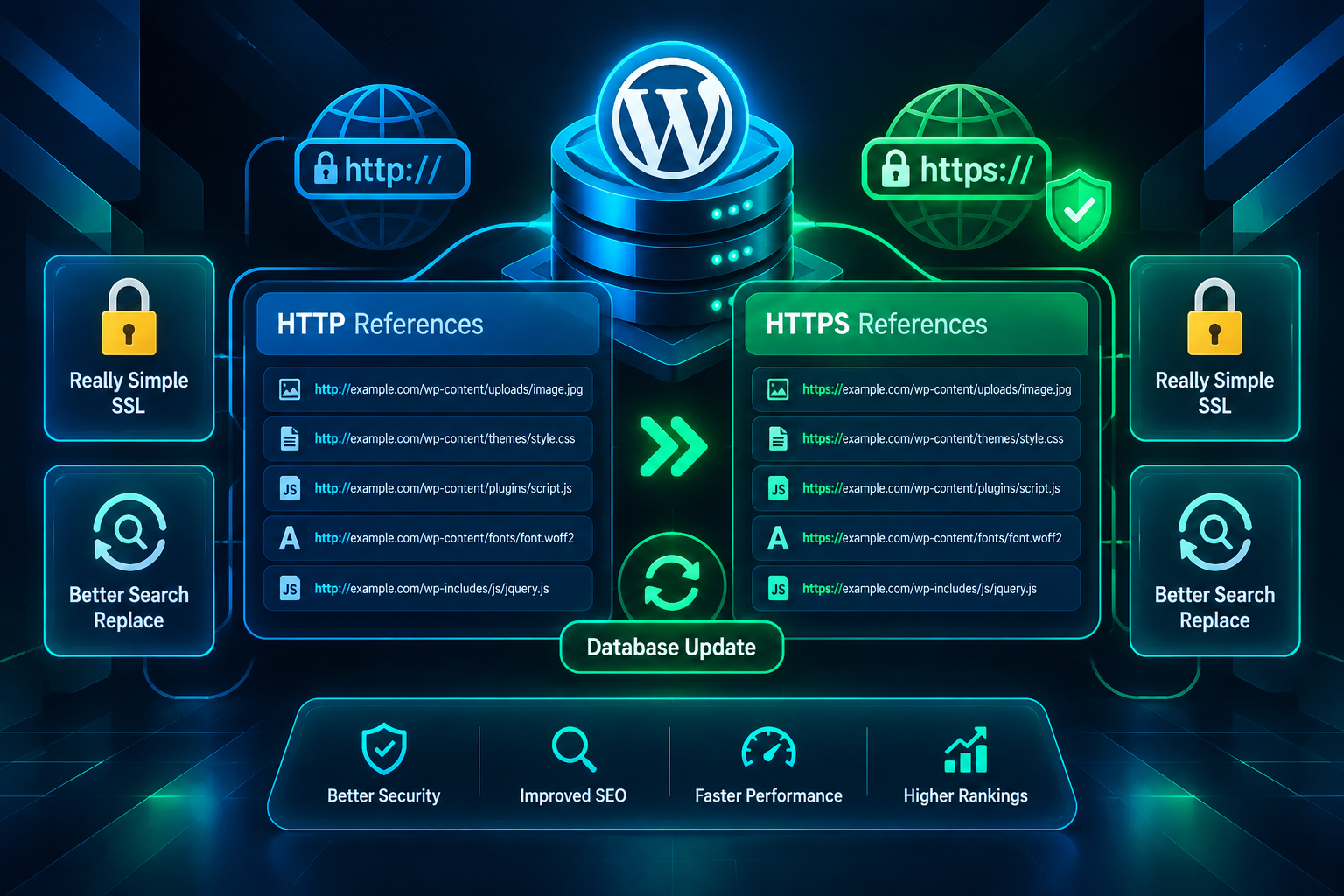
Really Simple SSL can be activated with a single click and will automatically update the site URL settings in WordPress, set HTTPS redirects, and attempt to fix mixed-content references. For more granular control, Better Search Replace allows you to search the entire database for http://yourdomain.com and replace every instance with https://yourdomain.com. Run a database backup before performing a search-and-replace operation to avoid data loss if something goes wrong.
After running the database update, check the site in a browser and use the browser’s developer tools (the Console and Network tabs) to identify any remaining HTTP asset requests. External assets — such as images or scripts loaded from third-party domains that do not support HTTPS — will need to be replaced with HTTPS equivalents or removed. If a third-party resource does not offer an HTTPS version, host a local copy of the asset on the PBN site itself and reference it over HTTPS.
Also check the WordPress wp-config.php file and the site’s .htaccess file to confirm that HTTPS is enforced at the server level. A standard HTTPS redirect rule in .htaccess for Apache servers ensures that any HTTP request is permanently redirected (301) to the HTTPS version of the same URL, which prevents browsers from loading the HTTP version in the first place.
Fixing an Incomplete Certificate Chain
An incomplete chain is a server-side configuration issue. The fix is to install the intermediate certificate (sometimes called the CA bundle or chain file) alongside the end-entity certificate. Most certificate authorities provide a bundle file when you download the certificate. In cPanel, there is a dedicated field for the CA bundle during SSL installation. In Nginx, the intermediate certificate is concatenated with the end-entity certificate into a single .pem file. In Apache, the SSLCertificateChainFile directive (or SSLCertificateFile with a bundled file in newer Apache versions) is used to specify the chain.
If the certificate was issued by Let’s Encrypt via Certbot, the chain is typically installed automatically and this error is uncommon. If it does appear, re-running the Certbot installation command for the domain will usually correct the chain configuration. After making the change, restart the web server and verify the chain using an SSL checker, which will show whether the full chain from the site certificate to the root CA is present and trusted.
Configuring Automatic SSL Renewal Across a PBN Network
Managing SSL certificates manually across multiple PBN sites is error-prone. A certificate that expires on one site in a network can go unnoticed for days or weeks, during which time that site’s pages may not be crawled or indexed correctly. Setting up automatic renewal is a one-time task that eliminates this risk for the majority of common expiry scenarios.
For sites on shared hosting with cPanel, enable AutoSSL in the hosting account settings and confirm it is active for each domain. For sites on VPS or cloud servers managed with Certbot, configure a cron job to run certbot renew --quiet twice daily and send renewal logs to an email address you monitor. For sites managed through a hosting platform with a built-in SSL manager, verify that the auto-renewal toggle is enabled for each domain in the platform’s dashboard.
In addition to automatic renewal, set up external monitoring for SSL certificate expiry. Free tools such as UptimeRobot and StatusCake offer SSL expiry monitoring that sends an alert when a certificate is within a configurable number of days of expiry — typically 30 days. This provides a safety net in case automatic renewal fails due to a DNS issue, a hosting configuration change, or a rate-limit error from the certificate authority.
Verifying the Fix and Confirming Crawlability
After resolving an SSL error, confirm the fix is complete before assuming the site is healthy. Run the domain through an SSL checker tool to verify that the certificate is valid, the chain is complete, the hostname matches, and no mixed-content issues remain. Then check the site in multiple browsers — Chrome, Firefox, and Safari — to confirm the padlock icon appears and no security warnings are displayed.
If the PBN site has been submitted to Google Search Console or Bing Webmaster Tools, check the Coverage or Indexing report to see whether any crawl errors related to HTTPS are present. If the site was previously served over HTTP and has been migrated to HTTPS, submit the HTTPS version of the sitemap and request indexing for the key pages to prompt recrawling. Confirm that the canonical tags on the site reference the HTTPS URLs, not the HTTP versions, to avoid sending conflicting signals to search engines.
Also verify that the HTTPS version of the site is the one being linked to from your target sites. If the link placements on the PBN site point to the target URL correctly but the PBN page itself is returning an SSL error, the link may still be crawled depending on the severity of the error, but resolving the SSL issue removes any uncertainty about whether the page is accessible to crawlers.
Common SSL Mistakes on PBN Sites and How to Avoid Them
Several recurring mistakes cause SSL problems on PBN sites. Installing a certificate for the root domain only, without including the www subdomain, is one of the most frequent. Always issue certificates that cover both variants unless the site is configured to redirect one to the other before the SSL handshake occurs — which is not possible at the application level and requires a server-level or CDN-level configuration.
Migrating a site to a new host without issuing a new certificate for the new server is another common source of errors. The certificate is tied to the server’s private key, not just the domain name, so moving a site to a new server always requires issuing a new certificate on that server. Do not attempt to transfer a certificate and private key between hosting accounts unless you have direct server access and understand the implications.
Using a CDN such as Cloudflare without configuring the SSL mode correctly can also produce errors. Cloudflare offers several SSL modes — Off, Flexible, Full, and Full (Strict). The Flexible mode serves HTTPS to visitors but communicates with the origin server over HTTP, which can cause redirect loops on WordPress sites configured to force HTTPS. The Full or Full (Strict) mode is generally appropriate for PBN sites where the origin server has a valid certificate installed. Setting the wrong mode is a common cause of ERR_TOO_MANY_REDIRECTS errors that appear alongside or after SSL configuration changes.
Frequently Asked Questions
Will an SSL error on a PBN site cause the link placement to stop working?
An SSL error does not automatically remove a link from the page or prevent it from being crawled, but it can interfere with how reliably search engine crawlers access the page. A severe error — such as a completely expired certificate that causes browsers to block access — may reduce crawl frequency or prevent indexing of the affected page. Resolving the error restores normal crawl access and removes any uncertainty about whether the page is being indexed.
How often do SSL certificates expire on PBN sites?
Let’s Encrypt certificates expire every 90 days. Commercial certificates from paid CAs typically expire after one or two years. Without automatic renewal configured, a Let’s Encrypt certificate will expire roughly every three months, making auto-renewal configuration essential for any network with more than a handful of sites.
Can I use a wildcard SSL certificate to cover multiple PBN sites on the same domain?
A wildcard certificate covers all subdomains of a single domain — for example, *.example.com — but it does not cover multiple separate domains. Each PBN site on its own domain requires its own certificate. Wildcard certificates are useful if a PBN site uses multiple subdomains, but they do not reduce the certificate management workload across a network of separate domains.
Does Cloudflare fix SSL errors automatically for PBN sites?
Cloudflare’s proxy can issue an edge certificate that covers the connection between visitors and Cloudflare’s servers, which means visitors may see a padlock even if the origin server has an SSL problem. However, this does not fix the underlying certificate issue on the origin server, and depending on the SSL mode configured in Cloudflare, it can introduce redirect loops or other errors. Cloudflare is a useful tool for SSL management, but it works best when the origin server also has a valid certificate installed and the SSL mode is set to Full or Full (Strict).
What is the fastest way to check SSL errors across multiple PBN sites at once?
For a small number of sites, running each domain through SSL Labs or a similar free checker is practical. For larger networks, a monitoring service such as UptimeRobot, StatusCake, or a dedicated SSL monitoring tool can check certificate validity and expiry dates across all domains simultaneously and send alerts when an issue is detected. Some server management panels also include built-in SSL monitoring dashboards.
Should I prioritize fixing SSL errors on PBN sites before building new links?
Resolving SSL errors on existing PBN sites is a maintenance task that should be addressed as soon as an error is identified, regardless of whether new links are being built. An SSL error on a site that already hosts link placements affects the crawlability of those existing pages. Fixing the error before adding new placements ensures the entire site is in a healthy state for crawlers.
Keeping Your PBN Network SSL-Healthy Long Term
SSL certificate management is a routine part of maintaining a functional PBN network. The errors covered in this guide — expired certificates, hostname mismatches, self-signed certificates, mixed content, and incomplete chains — each have clear, documented fixes that do not require advanced server administration skills. The most important step is identifying the specific error type accurately before attempting a fix, because applying the wrong solution wastes time and may introduce new configuration problems.
Automatic renewal, external SSL monitoring, and a consistent certificate issuance process for new sites in the network are the three practices that prevent most SSL problems from recurring. If you are evaluating the overall health of your PBN placements or considering expanding your network, reviewing the SSL status of each site alongside other technical factors — indexing status, page load speed, and content quality — gives you a complete picture of which sites are performing their intended function and which need attention. PBN Backlinks Service can help you assess placement quality and network health as part of a broader link-building strategy review.