

A database connection error on a PBN site can take a live, link-passing page offline within seconds, interrupting the flow of link equity to your target URLs and potentially triggering crawl errors that affect how search engines perceive the network. Understanding the common causes, the correct diagnostic sequence, and the practical repair steps lets you restore affected sites quickly and keep your private blog network operating reliably.
Key Takeaways
- Database connection errors on PBN sites are almost always caused by incorrect credentials, a stopped MySQL service, corrupted tables, or resource limits imposed by the hosting environment.
- The wp-config.php file is the first place to check because it stores the database name, username, password, and host that WordPress uses to connect.
- Shared hosting plans commonly used for PBN sites impose per-account database connection limits that can cause intermittent errors under load or after a hosting migration.
- Corrupted database tables can be repaired using the built-in WordPress database repair tool or phpMyAdmin without requiring a full site restore.
- Keeping regular database backups and monitoring uptime across PBN sites reduces the time a connection error goes undetected and limits its impact on link equity delivery.
What Causes a Database Connection Error on a WordPress PBN Site
WordPress-powered PBN sites store all content, settings, and link placements in a MySQL or MariaDB database. When WordPress cannot establish a connection to that database, it displays the familiar “Error Establishing a Database Connection” message instead of the page. Because most PBN sites run on WordPress, this error is one of the most common operational problems network owners encounter. The root cause is almost always one of five things: wrong credentials in wp-config.php, a MySQL service that has stopped or crashed, a database user that lacks the correct permissions, a corrupted database table, or a hosting-level resource limit that has been reached.
Identifying which of these five causes applies to a specific site determines the correct repair path. Attempting fixes in the wrong order wastes time and can occasionally make the situation harder to diagnose, so working through a structured sequence is more efficient than guessing.
Step One: Check wp-config.php Credentials
The wp-config.php file in the WordPress root directory contains four database connection values: DB_NAME (the database name), DB_USER (the MySQL username), DB_PASSWORD (the password for that user), and DB_HOST (the server address, usually localhost on shared hosting). A mismatch between any of these values and the actual database settings on the server will produce a connection error immediately.
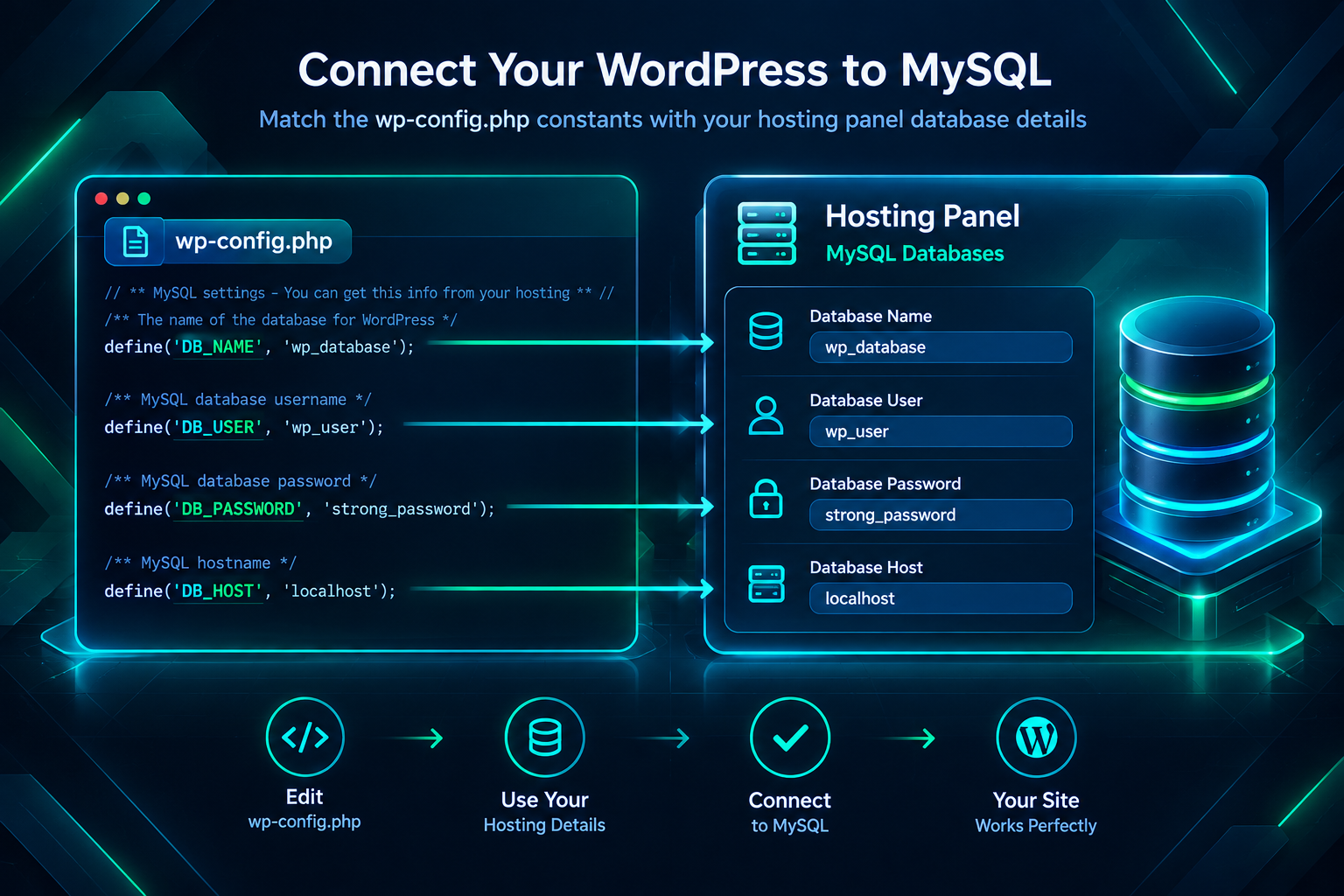
Access wp-config.php through your hosting control panel’s file manager or via FTP. Compare each value against the database credentials shown in your hosting panel under the MySQL Databases section. Common mismatches include a password that was changed in the hosting panel but not updated in wp-config.php, a database that was deleted and recreated with a slightly different name during a migration, or a DB_HOST value that needs to be a specific internal hostname rather than localhost on certain managed or cloud hosting environments. Correcting a credential mismatch and saving the file is often enough to restore the site immediately.
Step Two: Verify the MySQL Service Is Running
On shared hosting, the MySQL service is managed by the host and is generally not something you can restart directly. If credentials are correct but the error persists, contact your hosting provider’s support and ask them to confirm that the MySQL service is running and that your account’s databases are accessible. Hosts occasionally restart database servers for maintenance, and a brief outage can produce a connection error that resolves on its own within minutes.
On a VPS or dedicated server where you have root access, you can check the MySQL or MariaDB service status using the server’s service management commands. If the service has stopped, restarting it through the command line or server control panel will typically restore connectivity to all databases on that server simultaneously, bringing multiple PBN sites back online at once. After restarting the service, check the MySQL error log for the reason it stopped, because a recurring crash usually points to a deeper issue such as insufficient memory allocation or disk space exhaustion.
Step Three: Confirm Database User Permissions
A database user that exists and has the correct password but lacks sufficient privileges will still cause a connection error or produce a partial connection that breaks WordPress functionality. The WordPress database user needs at minimum the following MySQL privileges on the assigned database: SELECT, INSERT, UPDATE, DELETE, CREATE, DROP, INDEX, and ALTER.
In cPanel-based hosting environments, navigate to MySQL Databases, scroll to the section that shows existing users assigned to each database, and verify that the user listed in wp-config.php is actually assigned to the correct database with “All Privileges” selected. A common scenario on PBN sites that have been migrated between hosts is that the database and user were imported correctly but the user-to-database assignment was not recreated, leaving the user with no privileges on the new server. Reassigning the user with full privileges through the hosting panel resolves this without touching any files.
Step Four: Repair Corrupted Database Tables
If credentials are correct, the MySQL service is running, and permissions are properly assigned, the next likely cause is a corrupted database table. Table corruption can occur after an unexpected server shutdown, a failed plugin update, or a disk write error. WordPress includes a built-in database repair tool that can be activated by adding a single line to wp-config.php.
Add define(‘WP_ALLOW_REPAIR’, true); to wp-config.php, then navigate to yourdomain.com/wp-admin/maint/repair.php in a browser. This page does not require a login and will attempt to repair and optimize all WordPress database tables. After the repair completes, remove the WP_ALLOW_REPAIR line from wp-config.php immediately, because leaving it active allows anyone to access the repair tool without authentication.
Alternatively, phpMyAdmin in your hosting control panel allows you to select individual tables, choose the “Repair table” operation from the dropdown menu, and run it manually. This approach is useful when only specific tables are corrupted and you want more granular control over the process. The wp_posts, wp_options, and wp_postmeta tables are the most frequently corrupted in WordPress installations and are worth checking first if the repair tool reports errors.
Step Five: Address Hosting Resource Limits
Shared hosting plans commonly used for PBN sites impose limits on the number of simultaneous database connections an account can open. When a site receives a burst of crawler traffic, runs a resource-intensive plugin, or shares a hosting account with many other WordPress installations, it can exceed this limit and produce intermittent connection errors that appear and disappear without any change to the configuration.
Signs that a resource limit is the cause include errors that occur only at certain times of day, errors that resolve after a few minutes without any intervention, and errors that affect multiple sites on the same hosting account simultaneously. Hosting providers can usually confirm whether your account has hit a connection limit by reviewing server logs. Solutions include upgrading to a higher-tier hosting plan with a larger connection allowance, distributing PBN sites across multiple hosting accounts to reduce per-account load, or disabling resource-heavy plugins such as caching layers or analytics tools that open persistent database connections.
Diagnosing the Admin Dashboard Separately
WordPress produces slightly different behavior depending on whether the database connection error affects the front end, the admin dashboard, or both. If the front end shows the error but the admin dashboard loads, the problem is often a corrupted wp_options table or a misconfigured site URL setting rather than a true connection failure. If both the front end and the admin dashboard are inaccessible, the connection itself is broken, pointing toward credentials, the MySQL service, or permissions.
When the admin dashboard is inaccessible, you can still interact with the database directly through phpMyAdmin or, on a VPS, through the MySQL command-line client. Running a simple query such as SELECT option_value FROM wp_options WHERE option_name = ‘siteurl’; confirms whether the database is reachable and whether the site URL is set correctly. If this query returns a result, the database connection is functional and the problem is likely within WordPress itself rather than at the server level.
Handling Database Errors After a PBN Site Migration
Migrating a PBN site to a new host is one of the most common triggers for database connection errors, because the migration process involves exporting and importing the database, recreating users and permissions, and updating wp-config.php — any one of which can introduce a mismatch. A structured migration checklist reduces the likelihood of post-migration errors significantly.
After importing the database to the new host, verify that the imported database name matches exactly what is in wp-config.php, including case sensitivity on Linux servers. Create a new MySQL user on the new host, assign it to the imported database with full privileges, and update wp-config.php with the new credentials. If the new host uses a different DB_HOST value, such as an internal IP address or a named socket, update that value as well. Finally, use phpMyAdmin to run a search-and-replace on the wp_options table to update the siteurl and home values to the new domain or IP address if the domain has also changed.
Plugins such as WP Migrate DB can automate the search-and-replace step during migration, but they require a working database connection to run. If the connection is broken immediately after migration, the manual phpMyAdmin approach is more reliable for the initial repair.
Preventing Recurring Database Connection Errors Across a PBN Network
A single PBN site going offline briefly may have a limited impact, but multiple sites experiencing repeated database errors can reduce the reliability of the network’s link equity delivery and create crawl anomalies that accumulate over time. Preventive measures at the network level are more efficient than reactive repairs.
Automated uptime monitoring tools can alert you within minutes when a PBN site returns a server error, including database connection errors, rather than a normal HTTP 200 response. Services that check URLs at regular intervals and send notifications by email or messaging app allow you to identify and address outages before they persist for hours or days. For a network of any meaningful size, manual checking is not a practical substitute for automated monitoring.
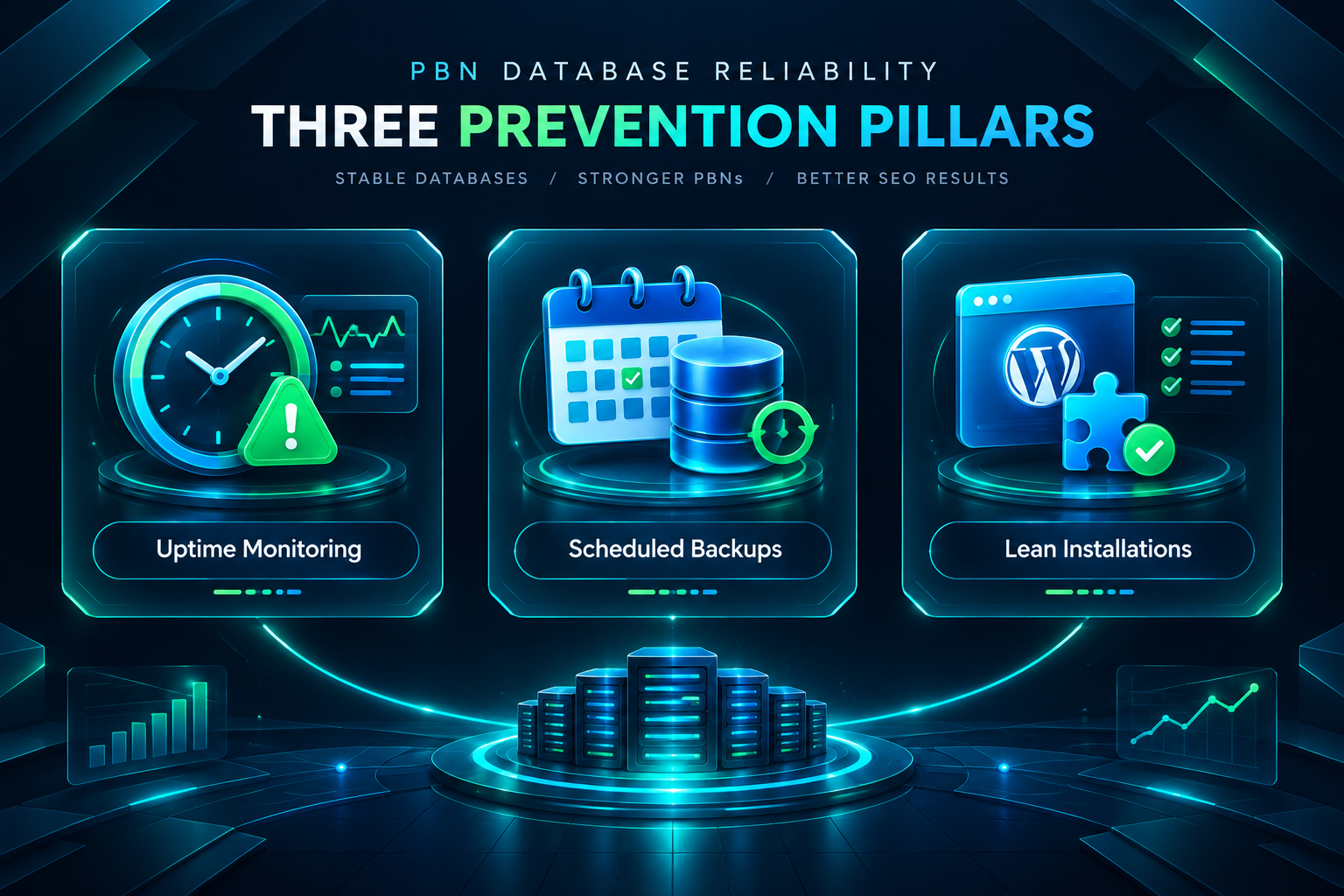
Scheduled database backups stored outside the hosting account protect against data loss from table corruption or accidental deletion. Most hosting control panels include a built-in backup tool, and WordPress plugins can automate database-only backups to remote storage on a daily or weekly schedule. Keeping at least two recent backups per site means that a corrupted database can be restored quickly without rebuilding content from scratch.
Keeping WordPress core, themes, and plugins updated on PBN sites reduces the risk of database errors caused by compatibility issues between outdated code and newer MySQL versions. Hosting providers periodically upgrade their database server software, and plugins or themes that rely on deprecated MySQL functions can begin producing errors after such an upgrade. Running lean installations with only the plugins necessary for the site’s function also reduces the surface area for database-related conflicts.
When to Restore From a Backup Instead of Repairing
The built-in repair tool and phpMyAdmin table repair operations handle most common forms of table corruption, but some corruption is severe enough that repair attempts fail or produce incomplete results. If the WordPress repair tool reports that a table cannot be repaired, or if phpMyAdmin returns errors during the repair operation, restoring the database from a recent backup is the more reliable path forward.
Before restoring, export the current corrupted database as a precaution, because some data written after the last backup may still be recoverable from it. Import the backup into the existing database by dropping the current tables first or by importing into a fresh database and updating wp-config.php to point to it. After restoring, run the WordPress repair tool once more to confirm that all tables are in a healthy state before bringing the site back online.
For PBN sites where the content is relatively static and link placements do not change frequently, restoring from a backup that is a few days old typically has minimal practical impact on the site’s function. The link placements themselves are stored in the database, so confirming that they are intact after a restore is worth a quick manual check before considering the repair complete.
Frequently Asked Questions
Why does the database connection error appear only on some pages and not others?
Partial connection errors, where some pages load and others do not, are usually caused by a corrupted specific table rather than a complete connection failure. For example, if the wp_posts table is corrupted, post pages may fail while the homepage loads from a cached version. Running the WordPress repair tool or checking individual tables in phpMyAdmin will identify which table is causing the selective failure.
Can a database connection error on a PBN site affect the links it passes?
Yes. When a PBN site is returning a database error instead of a normal page, search engine crawlers that visit during the outage will receive a server error response rather than the page content containing the link placement. Extended outages increase the likelihood that a crawler visits during the error period. Restoring the site quickly and maintaining uptime monitoring limits this exposure.
Is it safe to use the WordPress database repair tool on a live PBN site?
The repair tool is designed to be run on a live installation and does not delete or overwrite content. It attempts to fix structural issues within tables. The main precaution is to remove the WP_ALLOW_REPAIR constant from wp-config.php immediately after use, because leaving it active exposes the repair page to anyone who knows the URL.
What does DB_HOST need to be set to on different hosting types?
On most shared hosting plans, DB_HOST should be set to localhost. Some hosts use a specific internal hostname or IP address, which is usually documented in their knowledge base or visible in the hosting panel’s database section. On managed WordPress hosts and some cloud platforms, the DB_HOST value may be a longer hostname string provided during database setup. When in doubt, contact the host’s support to confirm the correct value for your account.
How often should I back up the databases on my PBN sites?
For PBN sites with static content and infrequent changes, weekly database backups stored remotely are generally sufficient. If you are actively adding or updating content or link placements, daily backups provide better protection. The backup schedule should match how much work you would be willing to redo if a restore became necessary.
Can moving PBN sites to a new host cause database errors even if I copy the files correctly?
Yes. Copying the WordPress files correctly does not automatically transfer the database, the MySQL user, or the user’s permissions. Each of these must be recreated on the new host independently. The most common post-migration error is a wp-config.php file that still contains the old host’s credentials or DB_HOST value. Updating wp-config.php to match the new host’s database settings is a required step in every migration.
Keeping Your PBN Sites Online and Link-Ready
Database connection errors on PBN sites are almost always fixable through a structured diagnostic process: verify wp-config.php credentials, confirm the MySQL service is running, check user permissions, repair corrupted tables, and investigate hosting resource limits if intermittent errors persist. Each step narrows the cause and points toward a specific, actionable repair rather than a broad infrastructure overhaul.
The operational reliability of a private blog network depends on individual sites staying accessible to crawlers consistently. A site that returns errors intermittently or for extended periods is not delivering the link equity it was built to provide. Combining prompt error diagnosis with automated uptime monitoring, scheduled database backups, and lean WordPress installations reduces both the frequency and the duration of database-related outages across the network.
If you are managing a PBN network and want to ensure that your link placements are on well-maintained, reliably hosted sites, PBN Backlinks Service can help you assess placement quality and network infrastructure as part of a broader link-building strategy review.