

Contact forms on PBN sites failing to deliver email is one of the most common and frustrating operational issues for private blog network managers. When a form submission disappears silently, it can mean missed outreach, broken site verification workflows, or gaps in network monitoring. The root cause is almost always a mail delivery configuration problem rather than a fault with the form plugin itself, and most cases can be resolved by working through a structured set of server, DNS, and SMTP checks.
Key Takeaways
- Most PBN contact form email failures are caused by server-level mail restrictions, missing DNS authentication records, or incorrect SMTP credentials rather than plugin errors.
- Shared and budget hosting environments commonly block PHP’s native
mail()function, which is the default delivery method for plugins like Contact Form 7 and WPForms. - Configuring an authenticated SMTP connection through a dedicated mail service resolves the majority of delivery failures and improves inbox placement.
- SPF, DKIM, and DMARC DNS records are required for reliable delivery and to prevent messages from being filtered as spam by receiving mail servers.
- Testing with a dedicated SMTP diagnostic tool or mail log before and after changes confirms whether the fix is working at the server level, not just the plugin level.
Why PBN Contact Forms Fail to Send Email
WordPress contact form plugins such as Contact Form 7, WPForms, Gravity Forms, and Ninja Forms all rely on a mail delivery mechanism to forward submissions to a designated inbox. By default, most of these plugins use WordPress’s built-in wp_mail() function, which in turn calls PHP’s mail() function. On many shared hosting environments, budget VPS setups, and managed WordPress hosts commonly used for PBN sites, this native mail function is either disabled entirely or heavily restricted to prevent server abuse. When the function is blocked, form submissions are accepted by the browser but the email is never dispatched, leaving no visible error for the site visitor and no message in the recipient’s inbox.
Even when the server does allow PHP mail, messages sent through it frequently fail to reach the inbox because they carry no authentication. Receiving mail servers check whether the sending IP is authorized to send on behalf of the domain using SPF records, verify a cryptographic signature using DKIM, and may apply a DMARC policy. A message sent through a shared server’s default mail handler typically fails one or more of these checks and is either rejected outright or routed to the spam folder. For PBN sites hosted across multiple providers on different IP ranges, this problem is compounded because each hosting environment has its own mail configuration and reputation.
A third category of failure involves plugin misconfiguration. An incorrect recipient address, a form that was duplicated from another site without updating the notification settings, or a WordPress admin email that was never confirmed after a site migration can all produce silent delivery failures. These are worth checking first because they require no server access to fix.
Step One: Confirm the Problem Is Mail Delivery, Not the Form
Before adjusting any server or DNS settings, verify that the form itself is functioning correctly. Submit a test entry and check whether WordPress records the submission. Contact Form 7 does not store entries by default, but plugins like Flamingo (a free companion plugin) or the built-in entry logs in WPForms and Gravity Forms will show whether the submission was received by WordPress. If the entry appears in the log but no email arrives, the problem is definitively in the mail delivery layer, not the form logic.
Also check the WordPress admin email address under Settings > General. WordPress requires this address to be confirmed, and if it was changed after migration or setup, notifications may be silently suppressed. Verify that the notification email address in the form’s settings matches an active, reachable inbox. A typo in the recipient field is a surprisingly common cause of apparent delivery failure.
Finally, check the spam or junk folder of the recipient inbox before assuming the message was never sent. Some mail servers accept the message and then filter it internally. If the message appears in spam, the issue is authentication and sender reputation rather than a blocked mail function, and the DNS record fixes described below will address it.
Step Two: Check Whether PHP Mail Is Enabled on the Hosting Server
Log in to the hosting control panel for the PBN site in question. In cPanel environments, navigate to the Email section and look for mail-related settings or restrictions. Some hosts provide a PHP mail test tool directly in the panel. Alternatively, create a temporary PHP file on the server containing a basic mail() call and load it in a browser to test whether the function executes and whether a test message is delivered. If the function is disabled, the host’s documentation or support team can confirm whether it can be re-enabled, though on many budget shared hosts it cannot be.
For PBN sites spread across multiple hosting providers, this check needs to be performed individually for each environment. A configuration that works on one host may not apply to another. Keeping a simple record of which hosts allow native PHP mail and which require SMTP helps avoid repeating this diagnostic step for every site in the network.
Step Three: Install and Configure an SMTP Plugin
Replacing the default PHP mail function with an authenticated SMTP connection is the most reliable fix for contact form email delivery on PBN sites. An SMTP plugin intercepts WordPress’s wp_mail() calls and routes them through a properly authenticated mail server instead of the host’s local mail handler. This approach works regardless of whether the host allows PHP mail and produces messages that carry valid authentication headers.

Widely used SMTP plugins for WordPress include WP Mail SMTP, FluentSMTP, and Post SMTP. All three are available in free versions that support the major transactional mail providers. The configuration process is similar across plugins: install and activate the plugin, then enter the SMTP credentials from a mail service account.
For the SMTP mail service itself, options include Google Workspace (Gmail SMTP), Brevo (formerly Sendinblue), Mailgun, SendGrid, Amazon SES, and Postmark. For PBN sites, the choice of mail service matters less than ensuring that the sending domain is properly authenticated. Google Workspace is straightforward for single sites but becomes costly across a large network. Brevo and Mailgun offer free tiers that are sufficient for low-volume contact form traffic and support full DKIM and SPF configuration. Amazon SES is cost-effective at scale but requires domain verification and a brief sandbox exit process.
When configuring the SMTP plugin, set the From Email address to an address on the same domain as the PBN site rather than a generic Gmail or provider address. This is important for two reasons: it keeps the sender identity consistent with the site’s domain, and it allows the SPF and DKIM records for that domain to authenticate the outgoing message correctly.
Step Four: Add SPF, DKIM, and DMARC DNS Records
DNS authentication records tell receiving mail servers that the sending IP or service is authorized to send email on behalf of the domain. Without these records, even a correctly configured SMTP connection may result in messages being filtered or rejected. Adding these records is done through the DNS management interface for the domain, which may be at the domain registrar, a DNS hosting provider, or Cloudflare if the domain’s nameservers have been pointed there.
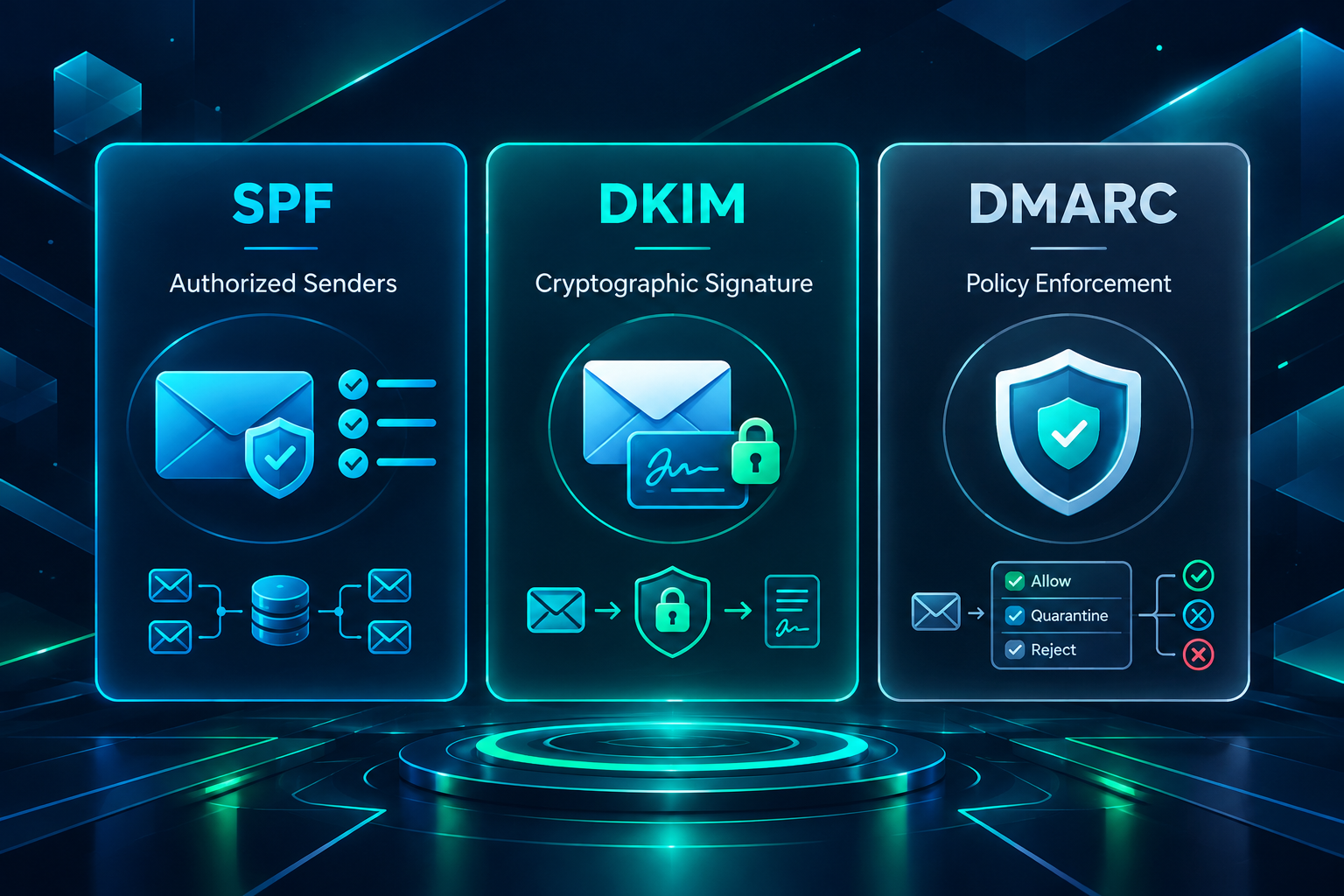
SPF (Sender Policy Framework) is a TXT record added to the domain’s DNS zone that lists the mail servers authorized to send on its behalf. If using Mailgun, for example, Mailgun’s documentation provides the exact SPF include statement to add. A domain should have only one SPF record; if one already exists, the new include statement should be merged into it rather than creating a second record, which would cause an SPF failure.
DKIM (DomainKeys Identified Mail) adds a cryptographic signature to outgoing messages. The mail service generates a public/private key pair; the public key is published as a TXT record in the domain’s DNS, and the private key is used by the mail service to sign each outgoing message. Receiving servers verify the signature against the published public key. Most transactional mail providers generate the DKIM key pair automatically and provide the DNS record values to copy into the domain’s DNS zone.
DMARC (Domain-based Message Authentication, Reporting and Conformance) is a policy record that tells receiving servers what to do when SPF or DKIM checks fail. A basic DMARC record with a p=none policy enables reporting without rejecting messages and is a reasonable starting point for PBN contact form domains. DNS propagation for new or updated records typically takes between a few minutes and 48 hours depending on the registrar and TTL settings, so allow time before retesting after making changes.
Step Five: Test Delivery and Review Mail Logs
After configuring SMTP and adding DNS records, use the test email function built into the SMTP plugin to send a test message and confirm delivery. WP Mail SMTP, FluentSMTP, and Post SMTP all include a send-test feature that shows whether the connection succeeded and displays any error returned by the mail server. A successful test at this stage confirms that the SMTP credentials are correct and the server accepted the message for delivery.
To verify that authentication records are working correctly, use a mail header analyzer. Send a test message to a Gmail or Google Workspace inbox and open the full message headers. Look for the Authentication-Results header, which will show whether SPF passed, DKIM passed, and whether DMARC alignment was achieved. If SPF or DKIM shows a fail or softfail result, the DNS records need to be reviewed for accuracy and propagation status.
External tools such as MXToolbox’s Email Health check, Mail-Tester, and the Google Admin Toolbox can verify SPF syntax, DKIM record publication, and DMARC policy without needing to send a live message. These are useful for diagnosing DNS record problems before completing the SMTP setup. For PBN networks with many domains, running each domain through a quick MXToolbox check after setup helps catch misconfigured records before they cause ongoing delivery failures.
Common Configuration Errors and How to Resolve Them
Several specific errors appear repeatedly when diagnosing PBN contact form mail delivery problems. Understanding what each error means speeds up the resolution process.
- SMTP authentication failed: The username or password entered in the SMTP plugin is incorrect, or the mail service account requires an app-specific password rather than the account’s main password. For Google Workspace accounts with two-factor authentication enabled, a dedicated app password must be generated in the Google account security settings.
- Connection timed out or could not connect to SMTP host: The hosting server’s firewall is blocking the outbound port used by the SMTP service. Common SMTP ports are 587 (STARTTLS), 465 (SSL), and 25. Many shared hosts block port 25 to prevent spam; switching to port 587 with STARTTLS encryption resolves this in most cases. If port 587 is also blocked, contact the host to confirm which outbound mail ports are permitted.
- SSL certificate error: The SMTP plugin is set to use SSL or TLS but the mail server’s certificate cannot be verified. Ensure the encryption setting in the plugin matches the port being used: SSL for port 465, STARTTLS for port 587. Mismatched settings produce certificate errors even when the credentials are correct.
- Messages delivered to spam despite SMTP configuration: SPF or DKIM records are missing, incorrect, or not yet propagated. Verify the records using MXToolbox and allow additional time for propagation before retesting. Also check that the From Email address in the SMTP plugin matches the domain for which SPF and DKIM records have been configured.
- Duplicate SPF records: Adding a second SPF TXT record instead of merging the new include into the existing record causes SPF to fail. The domain’s DNS zone should contain exactly one TXT record beginning with
v=spf1.
Managing Mail Delivery Across a PBN Network
For operators managing contact forms across multiple PBN sites, handling mail delivery individually for each domain is time-consuming but necessary because each domain requires its own DNS authentication records. A practical approach is to standardize on a single transactional mail provider that supports multiple sending domains under one account. Mailgun, Brevo, and SendGrid all allow multiple verified sending domains within a single account, which reduces the administrative overhead of managing separate accounts for each PBN site.
Using a consistent SMTP plugin across all network sites also simplifies troubleshooting. If all sites use the same plugin with the same provider, a delivery problem on one site can be diagnosed using the same process and the same set of diagnostic tools. Documenting the SMTP credentials, DNS record values, and test results for each domain in a simple spreadsheet makes it easier to identify which sites have been fully configured and which still need attention.
Some PBN operators choose to disable contact forms on network sites entirely and rely on other contact methods, particularly if the sites are not intended to receive public inquiries. If contact forms serve a functional purpose on the network, such as receiving link-building inquiries or managing site-level communications, then investing in proper SMTP and DNS configuration is worthwhile. If the forms exist only as default WordPress theme elements and serve no operational function, removing or disabling them eliminates the delivery problem without requiring any mail configuration work.
When to Escalate to Hosting Support
Most contact form email delivery problems on PBN sites can be resolved through the steps above without needing to contact the hosting provider. However, certain situations warrant escalating to hosting support directly. If outbound SMTP connections on all standard ports are blocked and the host’s documentation does not explain how to enable them, a support ticket is the fastest way to confirm what is permitted. If the server’s mail logs show that messages are being sent but are bouncing at the receiving server with a specific error code, the host’s support team can often identify whether the sending IP is on a blocklist and initiate a delisting request if necessary.
IP blocklisting is more common on shared hosting environments where many sites share the same outbound IP address. If one site on the shared IP has been used to send spam, the entire IP range may be listed on mail blocklists such as Spamhaus or Barracuda. Switching to an authenticated SMTP service that routes mail through the provider’s own IP infrastructure bypasses this problem entirely, which is another reason why SMTP configuration is the preferred long-term solution over relying on the host’s native mail function.
Frequently Asked Questions
Why does my PBN contact form work on one host but not another?
Different hosting providers have different mail configurations. Some allow PHP’s native mail() function while others disable it entirely. The solution is to use an SMTP plugin configured with a dedicated mail service, which works consistently regardless of the host’s local mail settings.
Do I need a separate email address for each PBN site’s contact form?
Not necessarily. The recipient address where form submissions are delivered can be any reachable inbox. However, the From Email address used in the SMTP plugin should match the domain of the PBN site so that SPF and DKIM authentication works correctly. This typically means creating at least one mailbox or alias on each domain.
Will adding SMTP fix messages going to spam?
SMTP alone is not sufficient if SPF and DKIM records are missing. Authenticated SMTP combined with correctly configured SPF and DKIM records significantly improves inbox placement. DMARC adds an additional layer of policy enforcement and reporting. All three should be configured together for reliable delivery.
How long does DNS propagation take after adding SPF or DKIM records?
DNS propagation time depends on the TTL (time to live) value set for the record and the DNS provider. Changes typically propagate within a few minutes to a few hours for most resolvers, but full global propagation can take up to 48 hours in some cases. Use MXToolbox or a similar DNS lookup tool to check whether the record is visible before concluding that propagation is complete.
Can I use one SMTP account for multiple PBN domains?
Yes. Providers such as Mailgun, Brevo, and SendGrid support multiple verified sending domains under a single account. Each domain still requires its own SPF and DKIM DNS records, but the account management and billing are centralized, which simplifies administration for larger networks.
What should I check if the SMTP plugin test succeeds but form submissions still don’t arrive?
Confirm that the form’s notification settings are using the same From Email address configured in the SMTP plugin. Check that the recipient address in the form notification is correct and that the inbox is not filtering messages to spam. Also verify that the form is actually triggering the notification on submission by checking the entry log if the plugin supports it.
Getting PBN Contact Form Email Delivery Working Reliably
Fixing contact form email delivery on PBN sites is a solvable technical problem that follows a consistent diagnostic path. The majority of failures trace back to one of three causes: the host blocking PHP’s native mail function, missing or misconfigured DNS authentication records, or an error in the form’s notification settings. Working through each of these systematically, starting with the simplest checks and progressing to SMTP configuration and DNS record setup, resolves most cases without requiring advanced server administration skills.
The most durable fix is to configure an authenticated SMTP connection through a reputable transactional mail provider and to publish correct SPF, DKIM, and DMARC records for each sending domain. This combination addresses both the delivery failure and the spam filtering problem in a single implementation. For PBN operators managing multiple sites, standardizing on one SMTP provider and one plugin across the network reduces ongoing maintenance and makes future troubleshooting faster.
If you are managing a PBN and want to ensure your network’s technical setup supports your broader link-building goals, the team at PBN Backlinks Service can help you assess domain configuration, placement quality, and network health as part of a broader SEO strategy review.