

Mixed content errors on HTTPS PBN sites are a practical technical problem that can undermine both the security posture of your network and the link equity passed to your money sites. When a page is served over HTTPS but still loads resources such as images, scripts, or stylesheets over HTTP, browsers flag the page as insecure or block the offending resources entirely. For a private blog network where the authority and trustworthiness of each site matters, resolving mixed content is a straightforward but important maintenance task that deserves a systematic approach.
Key Takeaways
- Mixed content occurs when an HTTPS page loads one or more resources over HTTP, causing browser security warnings or resource blocking that can affect crawlability and perceived site quality.
- Active mixed content such as scripts and iframes is blocked by modern browsers by default; passive mixed content such as images may load but still triggers a warning indicator in the browser address bar.
- The most reliable fix combines a site-wide HTTP-to-HTTPS redirect, a WordPress HTTPS plugin or manual URL update, a Content Security Policy upgrade header, and a database search-and-replace for hardcoded HTTP URLs.
- Tools such as Screaming Frog, browser developer tools, and online SSL checkers can locate mixed content sources quickly before you begin remediation.
- Fixing mixed content on PBN sites helps maintain consistent HTTPS delivery, supports proper crawling and indexing, and keeps each site presenting as a well-maintained, technically sound property.
What Mixed Content Actually Means on an HTTPS Site
When a web server delivers an HTML page over an encrypted HTTPS connection, every resource that page requests should also arrive over HTTPS. Mixed content arises when at least one resource on that page is still requested over plain HTTP. Browsers treat this inconsistency as a security concern because an unencrypted resource can be intercepted or modified in transit, even if the main page itself is encrypted.
Browsers divide mixed content into two categories. Passive mixed content covers resources that are displayed but do not interact with the page’s logic, most commonly images, audio files, and video embeds. Modern browsers typically load passive mixed content but display a warning indicator, often a padlock with a caution symbol, in the address bar. Active mixed content covers resources that can alter the page’s behavior, including JavaScript files, CSS stylesheets, iframes, and XMLHttpRequest calls. Because active mixed content can be used to intercept user data or rewrite page content, browsers such as Chrome and Firefox block it by default rather than loading it with a warning.
For a PBN site, the practical consequences of unresolved mixed content include a degraded padlock indicator that signals an insecure connection to any visitor or crawler, potential blocking of scripts that control layout or functionality, and a site that may appear poorly maintained to automated quality assessments. None of these outcomes are desirable for a network property whose purpose is to function as a credible, well-structured website.
Why Mixed Content Appears on PBN Sites After Moving to HTTPS
The most common trigger for mixed content on a PBN site is migrating from HTTP to HTTPS without updating every internal URL stored in the database. WordPress, which many PBN operators use, stores the site URL and a large number of content URLs directly in the database. When you install an SSL certificate and switch the site address to HTTPS in WordPress settings, the database still contains thousands of hardcoded http:// references in post content, widget settings, theme options, and plugin configuration tables.
Additional sources of mixed content on PBN sites include externally hosted images or media files that were embedded using HTTP URLs, theme or plugin assets that reference a CDN or external stylesheet over HTTP, older page builders that stored absolute URLs at the time content was created, and imported content from expired domains where the original site used HTTP. If a PBN site was built by repurposing archived content from a previously HTTP-only domain, every image and internal link in that imported content is a potential mixed content source.
Third-party embeds such as YouTube videos, social media widgets, or analytics scripts added via HTTP src attributes are another frequent culprit, particularly on sites that were set up before HTTPS became the default expectation. Identifying all of these sources before attempting a fix saves time and prevents partial remediation that leaves some warnings in place.
How to Identify Mixed Content Sources Before You Fix Them
Attempting to fix mixed content without first locating every source is inefficient. A structured audit using a combination of browser tools and crawling software gives you a complete picture before you make any changes.
Browser Developer Tools
Open the page in Chrome or Firefox, open the browser developer tools with F12, and navigate to the Console tab. Mixed content errors and warnings appear here with the exact URL of each offending resource and the element type that requested it. The Network tab, filtered to show only HTTP requests, provides the same information in a sortable list. This method works well for checking individual pages but is impractical for auditing an entire site.
Screaming Frog SEO Spider
Screaming Frog can crawl an entire PBN site and flag pages that contain mixed content. Configure the spider to crawl the HTTPS version of the site, then review the response codes and the content report for HTTP resource references. The tool exports results to a spreadsheet, making it straightforward to prioritize pages by the number or type of mixed content issues present. For PBN sites with a moderate number of pages, a full Screaming Frog crawl is usually the most efficient audit method.
Online SSL Checkers
Tools such as Why No Padlock and SSL Shopper’s SSL Checker scan a given URL and report mixed content resources without requiring a local software installation. These are useful for a quick check of individual pages or for verifying that a fix has been applied correctly after remediation.
WordPress Debug Plugins
Plugins such as SSL Insecure Content Fixer include a diagnostic mode that logs mixed content warnings to the browser console as you browse the site while logged in. This approach surfaces issues in theme templates and plugin output that a static crawl might miss, particularly dynamic content generated by shortcodes or page builders.
Step-by-Step: How to Fix Mixed Content on PBN Sites
Once you have a complete list of mixed content sources, remediation follows a logical sequence. The steps below address the most common causes in order of scope, starting with site-wide fixes that resolve the majority of issues before moving to targeted corrections for remaining edge cases.
Step 1: Confirm the SSL Certificate Is Installed and Valid
Before changing any URLs, verify that a valid SSL certificate is installed and covering the correct domain, including both the www and non-www versions if both are in use. An expired, self-signed, or incorrectly scoped certificate will cause browser errors that are separate from mixed content warnings and must be resolved first. Most hosting control panels display certificate status clearly, and tools such as SSL Labs’ SSL Test provide a detailed certificate report.
Step 2: Set WordPress Site URL to HTTPS
In the WordPress admin panel, navigate to Settings and then General. Update both the WordPress Address and the Site Address fields to use https:// instead of http://. Save the changes. This ensures that WordPress generates HTTPS URLs for new content going forward, but it does not update URLs already stored in the database.
Step 3: Run a Database Search and Replace
The most thorough way to update hardcoded HTTP URLs in the WordPress database is to run a search-and-replace operation directly on the database. The widely used Better Search Replace plugin performs this operation safely within the WordPress admin interface without requiring direct database access. Search for http://yourdomain.com and replace it with https://yourdomain.com across all database tables. Run the operation in dry-run mode first to preview the number of replacements before committing the change. For PBN operators comfortable with command-line tools, WP-CLI’s search-replace command performs the same operation and handles serialized data correctly, which is important for avoiding database corruption in WordPress installations that store serialized arrays in option fields.
Step 4: Install and Configure an SSL or HTTPS Plugin
Plugins such as Really Simple SSL or SSL Insecure Content Fixer intercept page output and rewrite remaining HTTP references to HTTPS before the page is delivered to the browser. Really Simple SSL also configures the HTTP-to-HTTPS redirect automatically and sets the HSTS header. These plugins are particularly useful for catching mixed content in theme templates, plugin output, and dynamically generated URLs that a database search-and-replace does not reach. After running the database replacement in Step 3, an SSL plugin acts as a reliable safety net for any residual HTTP references.
Step 5: Update the Server-Level HTTP-to-HTTPS Redirect
A server-level 301 redirect from HTTP to HTTPS ensures that any visitor or crawler arriving at the HTTP version of the site is immediately redirected to the secure version. On Apache servers, this redirect is added to the .htaccess file. On Nginx servers, it is configured in the server block. Many hosting providers offer a one-click HTTPS redirect option in their control panel. Confirm that the redirect is in place and returns a 301 status code rather than a 302, since a permanent redirect is the appropriate signal for a site that has fully migrated to HTTPS.
Step 6: Add an HTTP Content Security Policy Upgrade Header
The Content-Security-Policy: upgrade-insecure-requests HTTP response header instructs browsers to automatically upgrade any remaining HTTP resource requests to HTTPS before making the connection. This header does not fix the underlying URLs in the database or templates, but it provides an additional layer of protection against mixed content warnings caused by resources you may have missed during the audit. The header can be added via the server configuration, a WordPress plugin that manages HTTP headers, or through a CDN or proxy service such as Cloudflare. Note that this header upgrades requests; it does not guarantee that the upgraded HTTPS version of every resource actually exists, so it works best as a complement to the URL-level fixes rather than a substitute for them.
Step 7: Update External Embeds and Third-Party Resources
External resources such as embedded images from other domains, third-party scripts, or widget code added via HTTP src attributes need to be updated manually. For images hosted on external HTTP-only domains, the most reliable fix is to download the image and host it locally on the PBN site. For third-party scripts and embeds, check whether the provider offers an HTTPS version of the embed code and update the src attribute accordingly. If an external resource is not available over HTTPS and cannot be replaced, removing it is usually the cleanest solution for a PBN site where the resource is unlikely to be essential to the site’s function.
Step 8: Verify the Fix Across the Site
After completing the remediation steps, re-crawl the site with Screaming Frog or re-check individual pages with browser developer tools to confirm that no mixed content warnings remain. Check the browser address bar on the homepage, a sample of inner pages, and any pages that contained the most mixed content issues during the initial audit. A clean padlock icon in the address bar on every page confirms that the HTTPS implementation is consistent across the site.
Cloudflare and CDN Considerations for PBN Sites
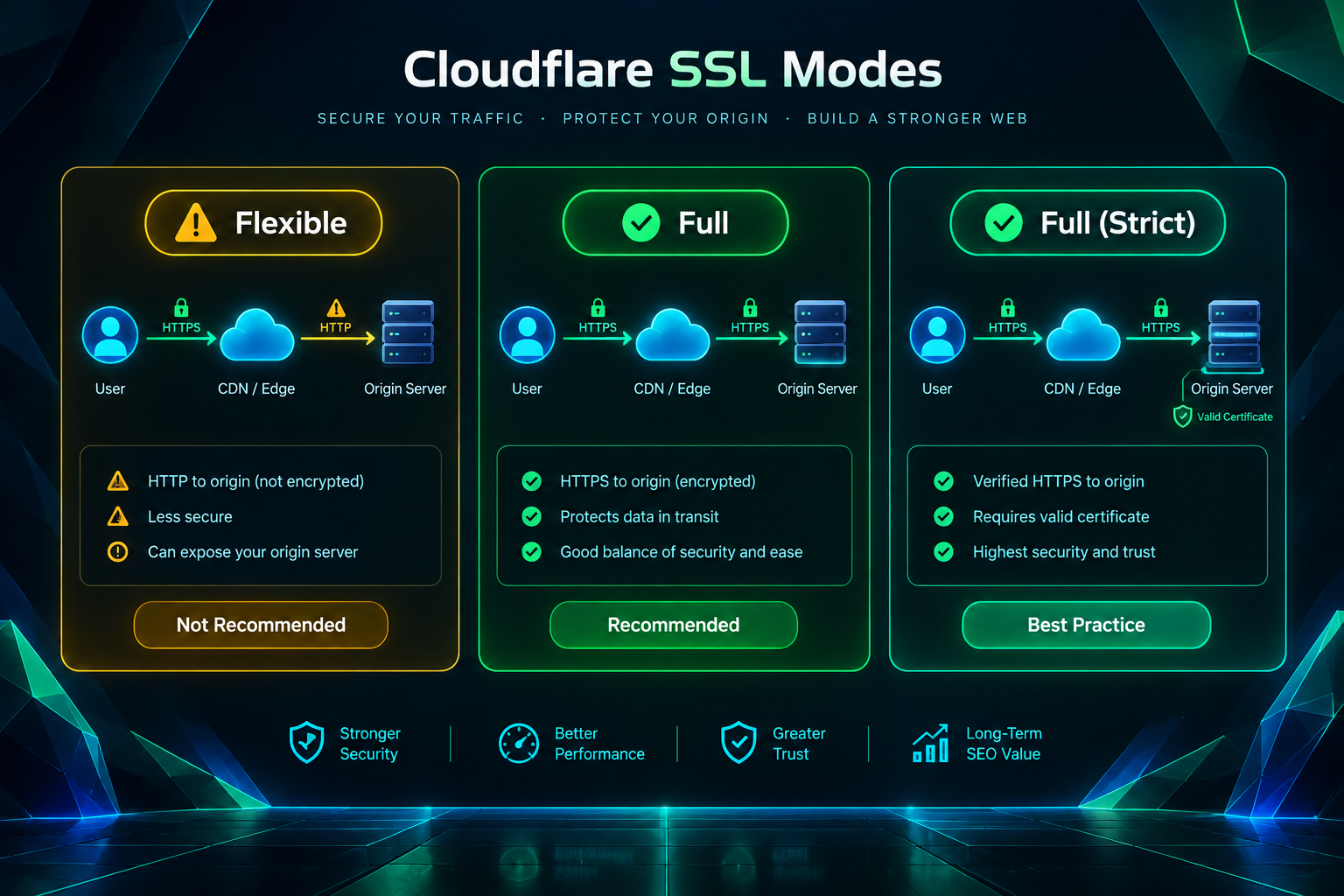
Many PBN operators route their sites through Cloudflare for DNS management, caching, and SSL termination. Cloudflare’s Automatic HTTPS Rewrites feature, available in the SSL/TLS settings of the Cloudflare dashboard, rewrites HTTP resource URLs to HTTPS in page output before delivery to the browser. This is functionally similar to the upgrade-insecure-requests Content Security Policy header and can resolve a significant portion of mixed content warnings without requiring changes to the WordPress database or theme files. Enabling Automatic HTTPS Rewrites in Cloudflare is a useful first step for PBN sites already behind Cloudflare, though it should still be combined with a database search-and-replace to address the root cause rather than relying solely on the rewrite layer.
Cloudflare’s SSL mode should be set to Full or Full (Strict) rather than Flexible. The Flexible mode terminates SSL at Cloudflare but connects to the origin server over HTTP, which can itself generate mixed content issues and creates a misleading security posture. Full mode encrypts the connection between Cloudflare and the origin server, which is the correct configuration for a site that has a valid SSL certificate installed at the hosting level.
How Mixed Content Affects PBN Site Quality and Link Equity
A PBN site that displays mixed content warnings is not functioning as a fully secure HTTPS property. From a technical standpoint, the site’s padlock indicator is degraded, which affects how the site appears to any visitor or automated tool that checks the URL. For a network where each site is intended to operate as a credible, independently maintained web property, consistent HTTPS delivery is a basic quality standard rather than an optional enhancement.
From a crawling and indexing perspective, search engine crawlers follow redirects and index the canonical version of a page. A site that has been migrated to HTTPS but still contains HTTP resource references may present inconsistencies that affect how the page is processed. While search engines do not publish specific rules about how mixed content warnings influence crawl behavior or link evaluation, maintaining a technically clean HTTPS implementation is consistent with operating a well-maintained site. Resolving mixed content removes a potential signal of poor maintenance and ensures that the HTTPS version of each PBN site is the version being crawled and indexed consistently.
For the link equity passed from a PBN site to a target page, the canonical URL of the linking page matters. A site that redirects HTTP to HTTPS correctly and serves all resources over HTTPS presents a consistent canonical HTTPS URL. Ensuring that the linking pages on your PBN sites are technically sound, including correct HTTPS implementation, is part of maintaining the overall quality of the network.
Common Mistakes to Avoid During Mixed Content Remediation
Running a database search-and-replace without first backing up the database is the most consequential mistake in this process. A backup taken immediately before the operation allows you to restore the database if the replacement produces unexpected results. Most WordPress hosting environments offer one-click database backups, and plugins such as UpdraftPlus can automate this step.
Replacing only the homepage URL during the database search-and-replace and missing subdomain or subfolder variations is another frequent error. If the PBN site uses both www and non-www versions, or if content was imported from a domain with a different URL structure, run separate search-and-replace operations for each URL variant that appears in the database.
Relying solely on a WordPress plugin to fix mixed content without addressing the database is a partial solution. Plugins that rewrite output on the fly add processing overhead and may not catch every HTTP reference in every context. The database search-and-replace is the more durable fix because it corrects the stored URLs rather than rewriting them at delivery time.
Forgetting to check theme customizer settings, widget areas, and custom CSS fields is also common. These areas of a WordPress site store content separately from post tables and are sometimes missed by a standard search-and-replace if the operation is not run across all database tables. The Better Search Replace plugin and WP-CLI both allow you to select all tables, which avoids this gap.
Frequently Asked Questions
Does mixed content affect how a PBN site passes link equity?
Mixed content does not directly block link equity in the way that a nofollow attribute or a disavow entry does. However, a site with unresolved mixed content warnings is not operating as a fully secure HTTPS property, which is a basic quality standard for any well-maintained site. Ensuring consistent HTTPS delivery is part of maintaining the technical quality of each PBN site.
Will fixing mixed content improve the rankings of my money site?
Fixing mixed content on a PBN site is a technical maintenance task rather than a direct ranking signal for the money site. The benefit is that each PBN site functions correctly as an HTTPS property, which supports consistent crawling, indexing, and a clean technical presentation. Ranking improvements for the money site depend on a broader set of factors including the quality and relevance of the PBN placements, the target page, and the competitive landscape.
Can I use Cloudflare to fix mixed content without touching the WordPress database?
Cloudflare’s Automatic HTTPS Rewrites feature can resolve many mixed content warnings by rewriting HTTP resource URLs at the CDN layer before the page reaches the browser. This is a useful tool, particularly for sites already using Cloudflare. However, it addresses the symptom rather than the stored URLs in the database. A database search-and-replace is the more thorough and durable solution and is recommended alongside the Cloudflare setting rather than as a replacement for it.
What is the difference between active and passive mixed content, and which is more urgent to fix?
Active mixed content includes JavaScript files, CSS stylesheets, and iframes. Modern browsers block active mixed content by default, which can break site functionality and layout. Passive mixed content includes images and media files, which browsers typically load but flag with a warning indicator. Active mixed content is more urgent because it can cause visible site breakage, but both types should be resolved for a fully clean HTTPS implementation.
How do I fix mixed content caused by images imported from an expired domain?
Images imported from an expired domain are often stored as external HTTP URLs pointing to a domain that may no longer be active. The most reliable fix is to download each image and re-upload it to the PBN site’s own media library, then update the post content to reference the new local URL. A database search-and-replace targeting the old domain’s HTTP image URLs will update the references once the images are hosted locally.
Do I need to fix mixed content on every page of a PBN site, or only on pages that contain outbound links?
Mixed content should be resolved across the entire site rather than only on pages with outbound links. A site-wide HTTPS implementation is more consistent and easier to maintain than a page-by-page approach. The database search-and-replace method and server-level redirect fix the issue at the root level, so the remediation naturally applies to all pages rather than requiring page-by-page intervention.
Keeping PBN Sites Technically Sound After Mixed Content Repairs
Resolving mixed content on a PBN site is a one-time remediation task for existing HTTP references, but maintaining a clean HTTPS implementation requires a small amount of ongoing attention. When adding new content to a PBN site, use the HTTPS version of any external image URLs and confirm that any new embeds or third-party scripts are loaded over HTTPS. If a PBN site uses a page builder or imports content from external sources, check new pages for mixed content before publishing using the browser developer tools console.
For PBN operators managing multiple sites, a periodic crawl of each site with Screaming Frog or a similar tool can catch new mixed content issues introduced by plugin updates, theme changes, or content additions before they accumulate. Setting a reminder to run a brief audit after any significant site update is a practical maintenance habit that keeps each site in the network operating as a technically consistent HTTPS property.
If you are evaluating the technical quality of PBN placements or considering a new network for your link-building campaigns, the HTTPS implementation of each site is one of the practical quality indicators worth checking alongside domain history, content quality, and topical relevance. PBN Backlinks Service can help you assess placement quality and discuss the technical standards applied across a network before you commit to a campaign. Reviewing these factors in advance supports a more informed decision about which placements are likely to serve your SEO goals.