

A PBN site stuck in maintenance mode is effectively invisible to search engine crawlers — no pages are served, no links pass value, and the placement you paid for or built is temporarily offline. The fix is usually straightforward once you understand what triggers WordPress maintenance mode, why it sometimes fails to clear automatically, and which manual steps restore normal operation. This guide walks through every common cause and the corresponding recovery process, so you can get your network sites back online quickly and keep them functioning reliably.
Key Takeaways
- WordPress maintenance mode is triggered by a
.maintenancefile in the root directory; deleting or renaming that file is the most direct fix in the majority of cases. - Maintenance mode blocks all front-end requests, which means crawlers cannot access your PBN pages or follow outbound links until the site is restored.
- Interrupted plugin or core updates are the most frequent cause of a PBN site becoming stuck, particularly on shared or budget hosting with short PHP execution limits.
- Preventive measures — including staged updates, reliable hosting, and regular uptime monitoring — reduce the frequency of maintenance-mode incidents across a network.
- If a PBN site remains inaccessible for an extended period, previously indexed pages may eventually be recrawled and return a maintenance-mode response, which can affect how the page is treated in search results until the site is restored.
What WordPress Maintenance Mode Actually Does
When WordPress begins a core update, plugin update, or theme update, it creates a hidden file named .maintenance in the site’s root directory and serves a generic “Briefly unavailable for scheduled maintenance” message to all visitors and crawlers. This behavior is intentional: it prevents users from encountering a partially updated database or broken theme files during the update window. Under normal circumstances, WordPress deletes the .maintenance file automatically once the update completes successfully.
The problem arises when the update process is interrupted before completion. A PHP timeout, a memory limit error, a lost database connection, a hosting-level resource restriction, or a plugin conflict can all cause the update script to terminate early. When that happens, WordPress never reaches the cleanup step, so the .maintenance file remains in place indefinitely. Every subsequent request to the site — from a human visitor, a search engine crawler, or a monitoring tool — receives the maintenance-mode response instead of the actual page content.
For a PBN site, this is a meaningful operational issue. The outbound links on that site cannot be crawled or followed while maintenance mode is active. If the site remains in this state for days or weeks without detection, the practical benefit of that placement is paused until the site is restored.
Diagnosing the Problem Before You Fix It
Before deleting any files, confirm that maintenance mode is actually the cause of the site being inaccessible. Visit the site’s front end in a browser. If you see the message “Briefly unavailable for scheduled maintenance. Check back in a minute,” the .maintenance file is almost certainly present. If you see a different error — a 500 internal server error, a database connection error, a blank white screen, or a 403 forbidden message — the cause is different and requires a separate diagnostic process.
You can also verify the presence of the .maintenance file directly. Connect to the site via FTP, SFTP, or your hosting control panel’s file manager. Navigate to the WordPress root directory, which is typically public_html or the folder where WordPress is installed. Enable the option to show hidden files, since files beginning with a dot are hidden by default in most file managers. If .maintenance is present, you have confirmed the cause.
Check the file’s modification timestamp as well. A timestamp from several days or weeks ago confirms the file was left behind by a failed update rather than an update currently in progress. Deleting a .maintenance file while an update is genuinely running can corrupt the database or theme files, so confirming the timestamp before acting is a worthwhile step.
Step-by-Step Fix: Removing the Maintenance File
The primary recovery method for a WordPress site stuck in maintenance mode is removing the .maintenance file from the root directory. The steps below apply to the majority of WordPress installations.
- Connect to the server. Use an FTP client such as FileZilla, your hosting provider’s built-in file manager, or an SSH terminal. Credentials are available in your hosting control panel.
- Navigate to the WordPress root directory. This is typically
public_html,www, or a subdirectory if WordPress is installed in a subfolder. - Enable hidden file visibility. In FileZilla, go to Server > Force Showing Hidden Files. In cPanel File Manager, select the option to show hidden files before browsing.
- Locate the
.maintenancefile. It will appear in the root directory alongsidewp-config.php,wp-login.php, and thewp-contentfolder. - Delete or rename the file. Deleting it is the standard approach. If you prefer a cautious step, rename it to
.maintenance.bakfirst, then test the site, and delete the renamed file once you confirm the site is accessible. - Reload the site in a browser. Clear your browser cache or use an incognito window to confirm the front end is serving pages normally.
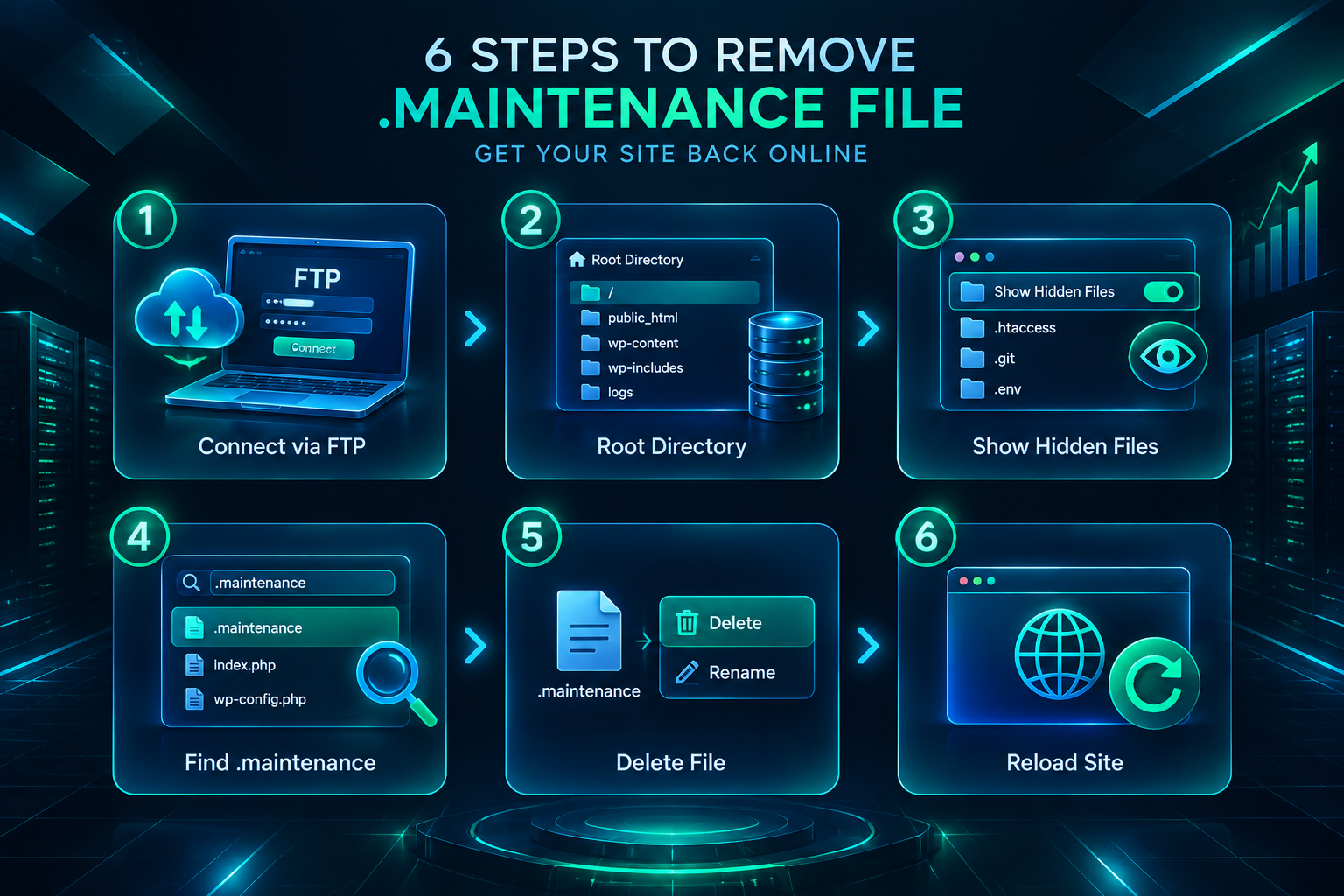
In most cases, this single action restores the site immediately. No WordPress restart or server reboot is required.
Fixing Maintenance Mode via SSH or WP-CLI
If you manage multiple PBN sites or prefer command-line access, SSH combined with WP-CLI offers a faster workflow, particularly when dealing with several sites simultaneously.
To remove the maintenance file via SSH, connect to the server and run the following command from the WordPress root directory:
rm .maintenance
If you are unsure of the exact path, use find / -name ".maintenance" 2>/dev/null to locate the file across the server. WP-CLI does not have a dedicated maintenance-mode removal command, but you can use it to check the WordPress installation status and run any pending database upgrades after removing the file manually. Running wp core update-db after restoring the site ensures the database schema matches the installed WordPress version, which is relevant if the original update was partially applied before the failure.
What to Do When the File Is Gone but the Site Is Still Down
Occasionally, removing the .maintenance file does not immediately restore the site. Several secondary issues can produce a similar front-end result.
Incomplete Database Upgrade
If a WordPress core update was interrupted after the files were replaced but before the database upgrade completed, the site may display a different error or redirect to the upgrade screen at /wp-admin/upgrade.php. Visiting that URL while logged in as an administrator will run the remaining database upgrade steps and typically resolves the issue.
Plugin or Theme Conflict
A plugin that was being updated when the process failed may be left in a partially installed state. If the site loads but displays a fatal error or white screen after removing the maintenance file, deactivate all plugins by renaming the wp-content/plugins directory to wp-content/plugins-disabled via FTP. If the site loads after that, reactivate plugins one at a time to identify the conflicting one. Restore the directory name once the conflict is resolved.
Caching Layer Serving a Stale Maintenance Response
Some hosting environments and caching plugins cache the maintenance-mode response. If the .maintenance file has been removed but the browser still shows the maintenance message, clear the server-side cache through your hosting control panel or caching plugin settings. Also clear the browser cache and test from a different device or network to rule out a local cache issue.
Custom Maintenance Mode Plugin Still Active
Some PBN operators use dedicated maintenance mode or coming-soon plugins to control site visibility during setup. If such a plugin is active and was not disabled before the site went live, it may be serving a maintenance page independently of the WordPress core mechanism. Log in to the WordPress admin panel and check the active plugins list for any maintenance, coming-soon, or under-construction plugin. Deactivate it and test the front end.
Hosting-Level Causes Specific to PBN Environments
PBN sites are often hosted on budget shared hosting, reseller accounts, or multiple accounts spread across different providers to manage footprint. These environments introduce specific conditions that increase the likelihood of maintenance mode becoming stuck.
PHP Execution Time Limits
Shared hosting plans frequently impose short PHP execution time limits, sometimes as low as 30 seconds. A WordPress update that requires more time than the limit allows will be terminated mid-process, leaving the .maintenance file in place. If this is a recurring issue on a particular host, increasing the max_execution_time value in the php.ini file or .htaccess file may reduce the frequency of failed updates. The specific method for adjusting this setting varies by host; consult your hosting provider’s documentation for the correct approach.
Memory Limit Errors
Insufficient PHP memory allocation can also terminate an update prematurely. Adding define('WP_MEMORY_LIMIT', '256M'); to the wp-config.php file increases the memory available to WordPress processes, though the hosting plan must actually allow that allocation. If the host enforces a lower ceiling, the wp-config.php setting will have no effect beyond that ceiling.
Simultaneous Updates Across Multiple Sites
Running automatic updates across a large number of PBN sites simultaneously on the same server or reseller account can exhaust available resources and cause multiple update processes to fail at once. Staggering updates or disabling automatic updates in favor of manual, scheduled maintenance windows reduces this risk.
Preventing Maintenance Mode Issues Across a PBN
Recovery is straightforward, but prevention reduces the operational overhead of managing a network of sites. Several practices help minimize the frequency of maintenance-mode incidents.
- Disable automatic WordPress core and plugin updates on PBN sites and apply updates manually during a scheduled window when you can monitor the process and intervene quickly if a failure occurs.
- Use uptime monitoring tools to receive an alert when any site in the network becomes inaccessible. Services that check site availability at regular intervals and send notifications via email or SMS allow you to detect and resolve maintenance-mode incidents within minutes rather than discovering them days later.
- Take a full backup before each update cycle. A backup that includes both the database and the file system allows you to restore a site quickly if an update causes a more serious failure beyond maintenance mode.
- Choose hosting with adequate PHP resources. Sites on plans with higher execution time limits and memory allocations are less likely to experience interrupted updates. This is a relevant factor when selecting hosting for new PBN sites.
- Test updates on one site before rolling them out across the network. If a plugin update causes a conflict on a test site, you can resolve it before it affects the rest of the network.
Crawling and Indexing Implications for PBN Sites
Search engine crawlers treat a maintenance-mode response as a temporary unavailability signal. When Googlebot or another crawler visits a page and receives the maintenance-mode message, it typically does not immediately remove the page from the index. Crawlers are generally designed to tolerate short periods of unavailability and will attempt to recrawl the URL later.
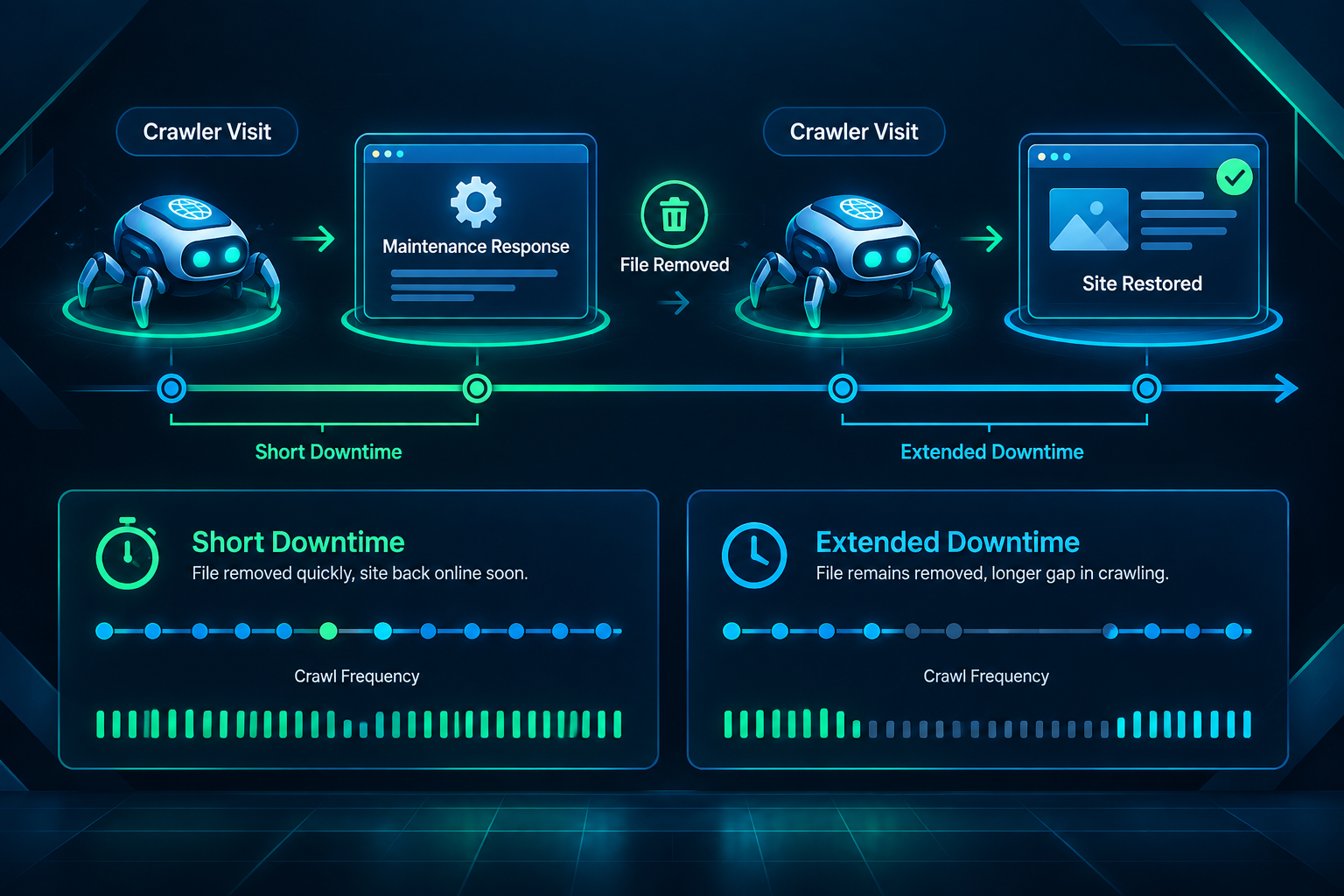
However, if a PBN site remains in maintenance mode for an extended period — measured in weeks rather than hours — repeated crawl attempts that return a maintenance response may eventually lead the crawler to reduce crawl frequency for that site or treat the pages as temporarily unavailable. The practical consequence for the PBN placement is that the outbound link on that page is not being crawled and followed during the downtime period.
Once the site is restored and the pages are accessible again, crawlers will typically revisit the site during their next scheduled crawl. The speed of recrawling depends on the site’s crawl budget, which is influenced by the site’s overall link profile, update frequency, and server response reliability. For a PBN site that has been offline for a significant period, submitting the site’s sitemap through the relevant webmaster tools platform after restoration can encourage faster recrawling, though this step is optional and the effect varies.
The key operational point is that maintenance mode is a recoverable situation. Restoring the site promptly limits the period during which the placement is effectively inactive.
Checking Site Health After Recovery
Once the .maintenance file has been removed and the site is loading normally, a brief post-recovery check helps confirm the site is fully functional rather than partially broken.
- Visit several pages on the site, including the home page and any page containing the outbound link placement, to confirm they load without errors.
- Check the WordPress admin panel to confirm all plugins and themes are active and no update notices indicate a failed installation.
- Review the site’s error log if accessible through the hosting control panel. PHP fatal errors logged around the time of the failed update can identify a specific plugin or theme that requires attention.
- Use a crawling tool to verify that the outbound link on the placement page is present, correctly formatted, and not blocked by a noindex or nofollow directive that may have been introduced inadvertently during the update.
- Confirm the site is not returning any unexpected HTTP status codes. A site that loads visually but returns a non-200 status code at the server level may still be treated as unavailable by crawlers.
Frequently Asked Questions
How long does it take for a PBN site to recover in search results after being stuck in maintenance mode?
Recovery in search results depends on how long the site was inaccessible and how frequently the crawler was visiting it. For a site that was in maintenance mode for only a few hours, there may be no measurable impact at all. For a site that was down for several weeks, recrawling after restoration may take days to a few weeks depending on the site’s crawl frequency. There is no fixed timeline, and the outcome varies by site.
Can I prevent WordPress from creating the .maintenance file during updates?
WordPress creates the .maintenance file as part of its standard update process and there is no built-in setting to disable this behavior entirely. The practical approach is to manage updates manually, ensure adequate server resources to prevent interruptions, and monitor for the file’s presence after each update cycle.
What if I cannot access the site via FTP or the hosting file manager?
If FTP and the file manager are unavailable, contact your hosting provider’s support team and ask them to remove the .maintenance file from the WordPress root directory. Most hosts can perform this action quickly. Alternatively, if SSH access is available, use the command-line method described earlier in this article.
Does maintenance mode affect all pages on the PBN site or only some?
WordPress maintenance mode affects the entire front end of the site. Every URL on the domain returns the maintenance-mode response while the .maintenance file is present. This includes the home page, all post and page URLs, and any other publicly accessible URL on the site.
Should I be concerned if a PBN site goes into maintenance mode frequently?
Frequent maintenance-mode incidents usually indicate a recurring resource issue on the hosting environment, such as a consistently low PHP execution time limit or memory ceiling. Addressing the underlying hosting configuration or switching to a more capable hosting plan is more effective than repeatedly removing the .maintenance file after each failed update.
Is there a way to check all my PBN sites for maintenance mode at once?
Uptime monitoring services that check HTTP response codes at regular intervals across multiple URLs can detect maintenance-mode responses alongside other downtime events. Setting up monitoring for every site in the network and configuring alerts for non-200 responses provides early warning of maintenance-mode incidents without requiring manual checks.
Getting Your PBN Network Back to Full Operation
A PBN site stuck in maintenance mode is a solvable technical problem, and in the majority of cases the resolution takes only a few minutes once you have file system access. The .maintenance file is the starting point for almost every incident of this type, and removing it restores normal front-end operation immediately. Secondary issues — incomplete database upgrades, plugin conflicts, caching layers, or custom maintenance plugins — account for the cases where the initial fix does not fully resolve the situation, and each has a clear diagnostic path.
The broader operational lesson for anyone managing a network of sites is that maintenance-mode incidents are most disruptive when they go undetected. A site that is offline for a day is a minor inconvenience; a site that has been serving a maintenance page for three weeks without anyone noticing represents a meaningful gap in the network’s operational reliability. Uptime monitoring, manual update schedules, adequate hosting resources, and regular post-update checks are the practical measures that keep a network functioning consistently.
If you are evaluating the overall health and performance of your PBN placements — including site uptime, crawlability, and link functionality — the team at PBN Backlinks Service can help you assess placement quality and network reliability as part of a broader link-building strategy review.