

PHP memory errors are one of the most common technical issues that surface when managing multiple PBN sites, and they can quietly disrupt everything from WordPress admin access to plugin execution and page rendering. Understanding what causes these errors, where to adjust the memory limit, and how to verify the fix is working will keep your network’s sites stable and reduce the risk of downtime affecting your link placements.
Key Takeaways
- PHP memory errors on PBN sites typically appear as a “Fatal error: Allowed memory size exhausted” message and are caused by WordPress, plugins, or themes requesting more RAM than the server has allocated to PHP.
- The memory limit can be raised in several places:
wp-config.php,php.ini,.htaccess, or the hosting control panel — the effective location depends on your server configuration. - Auditing and removing unnecessary plugins is often as effective as raising the limit, and it reduces server overhead across every site in the network.
- Shared hosting environments impose a ceiling on how high the PHP memory limit can be set, which is a practical consideration when choosing hosting for PBN sites.
- After any fix, verify the new limit is active using a PHP info page or a WordPress debug log before assuming the problem is resolved.
What a PHP Memory Error Actually Means
When PHP executes a WordPress page or admin request, it allocates a block of server RAM for that process. The PHP memory limit is the maximum amount of RAM a single PHP process is permitted to use. If a script — whether it belongs to WordPress core, a plugin, or a theme — tries to use more memory than that ceiling allows, PHP terminates the process and returns a fatal error. The most common message reads: Fatal error: Allowed memory size of X bytes exhausted (tried to allocate Y bytes). On a PBN site, this error can prevent the WordPress dashboard from loading, stop a page from rendering for visitors, or cause a plugin to fail silently during a scheduled task.
The default PHP memory limit set by many shared hosting providers is 64 MB or 128 MB. WordPress itself recommends at least 64 MB for basic operation and 256 MB for sites running heavier plugins such as page builders, SEO tools, or WooCommerce. PBN sites are often lean by design, but even a lightweight WordPress installation with a caching plugin, an SEO plugin, and a theme framework can push past a 64 MB ceiling during certain operations, particularly during plugin updates, XML sitemap generation, or image processing.
Diagnosing the Source of the Error
Before adjusting any server setting, confirm that a PHP memory error is actually the cause of the problem. The error message itself is usually explicit, but it may be suppressed by a caching layer or a custom error page. To see the raw PHP error, temporarily enable WordPress debug mode by adding the following lines to wp-config.php:
define('WP_DEBUG', true);
define('WP_DEBUG_LOG', true);
define('WP_DEBUG_DISPLAY', false);
With WP_DEBUG_LOG set to true, PHP errors are written to /wp-content/debug.log rather than displayed on screen. Review that file after reproducing the error. If the log confirms a memory exhaustion message, note which file and function triggered it — this tells you whether the culprit is a plugin, a theme file, or WordPress core itself.
Also check the current PHP memory limit before making changes. The quickest method is to create a temporary file in the site’s root directory containing <?php phpinfo(); ?>, load it in a browser, and search for memory_limit in the output. Delete the file immediately after checking. Alternatively, in the WordPress admin panel, navigate to Tools > Site Health > Info > Server to see the PHP memory limit reported by WordPress. Note that the value shown there reflects what PHP reports, which may differ from what you have set if a higher-priority configuration file is overriding your edit.
Where to Increase the PHP Memory Limit
PHP memory limits can be set in several locations, and they follow a priority order. Understanding that order prevents the frustrating situation where you edit one file and the limit does not change because another file is overriding it.
Option 1: wp-config.php
The simplest starting point for a WordPress site is to add a memory definition to wp-config.php. Open the file via FTP, SFTP, or your hosting file manager and add the following line before the line that reads /* That’s all, stop editing! */:
define('WP_MEMORY_LIMIT', '256M');
This constant tells WordPress to request up to 256 MB of RAM for front-end PHP processes. To raise the limit for WordPress admin operations specifically, also add:
define('WP_MAX_MEMORY_LIMIT', '512M');
The WP_MEMORY_LIMIT constant only works up to the ceiling set by the server’s PHP configuration. If the server’s php.ini caps memory at 128 MB, setting WP_MEMORY_LIMIT to 256 MB will have no effect. In that case, you need to raise the limit at the server level.
Option 2: php.ini
The php.ini file is the primary PHP configuration file and sets the default memory limit for all PHP processes on the server. On shared hosting, you may have access to a user-level php.ini file in your home directory or in the public_html folder. On a VPS or dedicated server, the system-level php.ini is typically located at a path such as /etc/php/8.1/apache2/php.ini or similar, depending on the PHP version and web server in use.
Find the line that reads memory_limit = 128M (or whatever the current value is) and change it to your target value:
memory_limit = 256M
After saving the file, restart the web server or PHP-FPM service for the change to take effect. On a VPS running Apache, the command is typically sudo service apache2 restart. On Nginx with PHP-FPM, restart the PHP-FPM service instead. If you are on shared hosting and cannot restart services, the change usually takes effect automatically within a few minutes or after the next PHP process cycle.
Option 3: .htaccess
On Apache-based shared hosting where you cannot edit php.ini directly, you may be able to set the PHP memory limit through the site’s .htaccess file. Add the following line:
php_value memory_limit 256M
This approach works only when the server is running PHP as an Apache module (mod_php). If the server uses PHP-FPM or CGI, the php_value directive in .htaccess will either be ignored or cause a 500 error. In that case, use a user-level php.ini or contact the hosting provider.
Option 4: Hosting Control Panel
Many managed hosting providers and control panels such as cPanel, Plesk, or DirectAdmin include a PHP settings interface where you can adjust the memory limit through a dropdown or text field without editing configuration files directly. Look for a section labeled PHP Configuration, Select PHP Version, or PHP Settings within your hosting control panel. Changes made here typically write to a user-level php.ini or a .user.ini file automatically.
For PBN sites hosted across multiple accounts or providers, this control panel method is often the most practical because it does not require SSH access and the interface is consistent across sites on the same host.
Verifying the Fix Is Working
After making a change, always confirm that the new memory limit is active before assuming the problem is resolved. The phpinfo method described in the diagnosis section is the most reliable check. Load the temporary phpinfo page and look for two rows: memory_limit under the Core section. The Local Value column shows the effective limit for that directory, and the Master Value column shows the server-wide default. If your edit worked, the Local Value should reflect your new setting.
If the value has not changed, a higher-priority configuration is overriding your edit. The priority order from highest to lowest is generally: server-level php.ini > user-level php.ini or .user.ini > .htaccess (mod_php only) > wp-config.php. Work up the chain until the change is reflected in phpinfo output. Delete the phpinfo file immediately after verification to avoid exposing server configuration details.
Reducing Memory Consumption Without Raising the Limit
Raising the PHP memory limit is the direct fix, but reducing how much memory WordPress and its plugins consume is equally important, particularly on shared hosting where the ceiling is fixed. A leaner site also loads faster, which benefits the quality of the PBN placement itself.
Audit and Remove Unnecessary Plugins
Each active WordPress plugin adds to the PHP memory footprint of every page load and admin request. On a PBN site, the plugin set should be minimal: typically a caching plugin, an SEO plugin for sitemap and meta tag management, a security plugin if required, and possibly a contact form plugin. Deactivate and delete any plugin that is not actively serving a function. Even deactivated plugins consume no memory, but leaving unused plugins installed creates maintenance overhead and update notifications that can distract from network management.
To identify which plugins are consuming the most memory, install a temporary diagnostic plugin such as Query Monitor, which reports memory usage per page load and flags which plugins contribute most to the total. Remove the diagnostic plugin once the audit is complete.
Switch to a Lightweight Theme
Page builder themes and multipurpose frameworks load significantly more PHP code than simple themes. For a PBN site whose primary function is to host contextual content and pass link equity, a lightweight theme such as GeneratePress, Astra on a minimal configuration, or a custom minimal theme is preferable. Switching themes can reduce per-request memory consumption noticeably, particularly if the current theme loads a large number of template files, custom post type handlers, or bundled plugins on every request.
Enable Object Caching
WordPress makes repeated database queries during a single page load, and each query result consumes memory. An object cache stores query results in memory (using Redis or Memcached if available, or a file-based cache as a fallback) so that repeated queries within the same request retrieve cached data rather than executing new database calls. This reduces both memory consumption and database load. On shared hosting without Redis or Memcached, a persistent object cache plugin that writes to disk can still reduce redundant query overhead.
Optimize Image Handling
WordPress generates multiple image sizes when a file is uploaded, and this process is memory-intensive. If a PBN site’s content includes images, ensure that the theme registers only the image sizes it actually uses. Unused registered image sizes cause WordPress to generate and store additional files on upload without any front-end benefit. The add_image_size function in the theme’s functions.php controls which sizes are generated; remove entries for sizes that are not displayed in the theme’s templates.
Shared Hosting Ceilings and PBN Site Hosting Choices
Shared hosting environments impose a hard ceiling on the PHP memory limit that individual users cannot exceed regardless of what they set in configuration files. This ceiling varies by provider but is commonly between 128 MB and 512 MB. For a PBN site running a lean WordPress installation, 256 MB is generally sufficient. If a site consistently requires more than 256 MB to function normally, that is a signal that the plugin or theme configuration needs optimization rather than that the memory limit should simply be raised further.
When selecting hosting for PBN sites, the PHP memory limit is one practical factor alongside server response time, uptime reliability, and IP diversity. A hosting environment that allows at least 256 MB of PHP memory and provides access to a user-level php.ini or a control panel PHP settings interface gives you the flexibility to resolve memory errors without needing to contact support for every adjustment. VPS hosting provides the most control over PHP configuration but adds management overhead that may not be justified for every site in a large network.
PHP Memory Errors During WordPress Updates and Cron Jobs
Memory errors on PBN sites often surface during specific operations rather than during normal page loads. WordPress core updates, plugin updates, and theme updates temporarily require significantly more memory than standard page rendering because the update process downloads, extracts, and replaces files while keeping the existing installation in memory. If a site’s memory limit is close to the minimum required for normal operation, updates may fail with a memory exhaustion error mid-process, leaving the site in a partially updated state.
WordPress cron jobs — scheduled tasks such as publishing scheduled posts, checking for plugin updates, and sending email notifications — run as background PHP processes and are subject to the same memory limit. A cron job that fails due to a memory error may not produce a visible error message, making it harder to diagnose. If scheduled posts are not publishing or plugin update checks are not running, a memory error in the cron process is worth investigating via the debug log.
The practical fix for update-related memory errors is to ensure the WP_MAX_MEMORY_LIMIT constant in wp-config.php is set to a value higher than WP_MEMORY_LIMIT. WordPress uses WP_MAX_MEMORY_LIMIT specifically for admin and update operations, allowing those processes to request more memory than front-end page loads without permanently raising the front-end ceiling.
Managing PHP Memory Across a PBN Network
When a network contains dozens or hundreds of sites, diagnosing and fixing PHP memory errors one site at a time is inefficient. A more scalable approach is to establish a standard WordPress configuration template that includes appropriate wp-config.php memory constants from the outset, so that new sites are deployed with a sensible memory limit already in place. This reduces the likelihood of memory errors appearing after a plugin is added or a theme is updated.
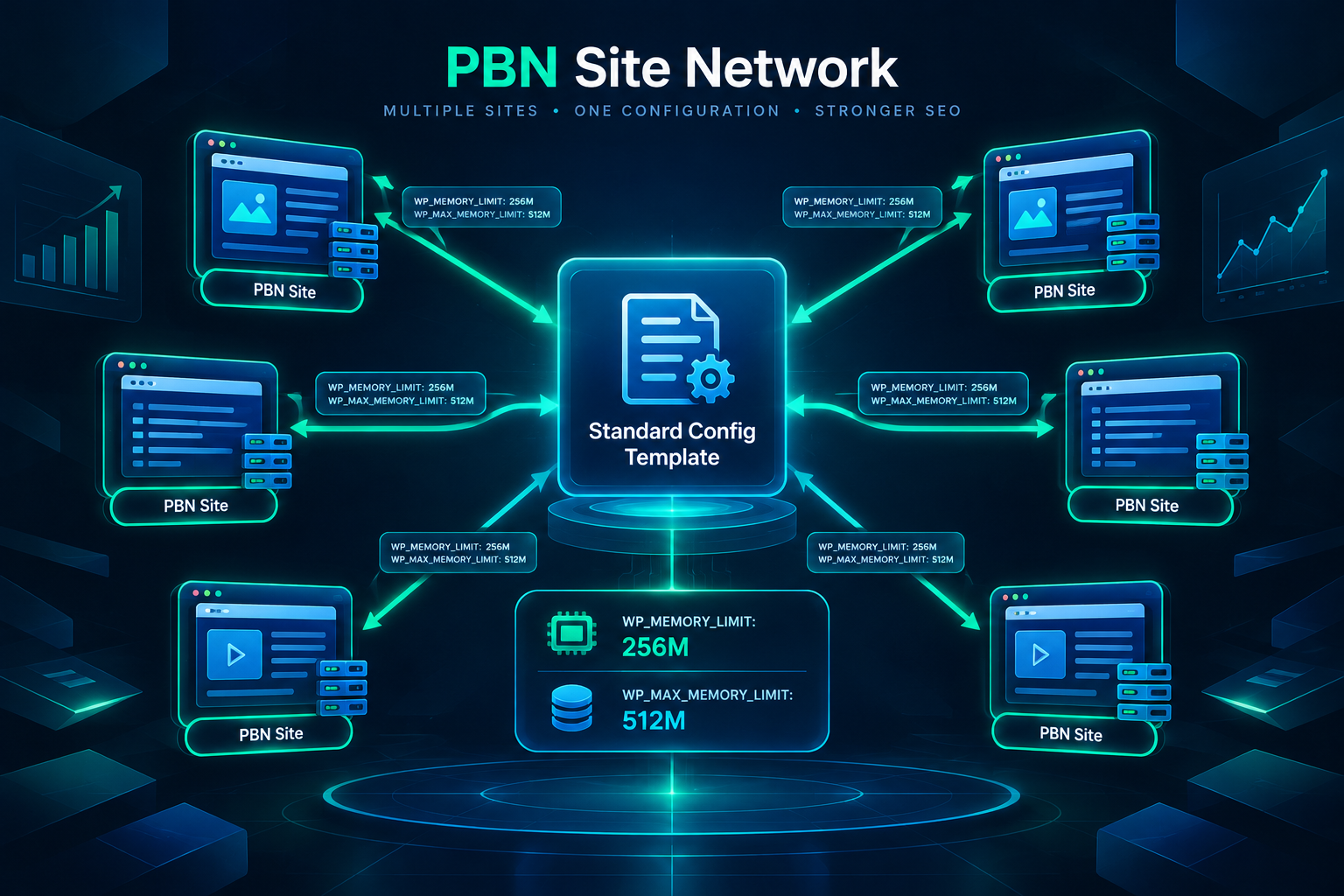
For networks where sites share a hosting account or server, a single php.ini or control panel adjustment may apply to all sites simultaneously, making the fix straightforward. For networks distributed across multiple hosting providers for IP diversity, the fix needs to be applied per account, which is a reasonable argument for standardizing on hosting providers that offer a consistent PHP settings interface.
Monitoring tools that check site uptime and HTTP response codes can catch memory errors that produce 500 responses before they affect the site’s indexing status or the availability of link placements. A site returning a 500 error consistently will eventually be crawled less frequently by search engines, which can affect how reliably the links it hosts are discovered and credited. Keeping PBN sites technically stable is therefore directly relevant to the effectiveness of the placements they carry.
Frequently Asked Questions
What is the recommended PHP memory limit for a WordPress PBN site?
For a lean PBN site running a minimal plugin set and a lightweight theme, 128 MB to 256 MB is typically sufficient for normal page loads. Setting WP_MEMORY_LIMIT to 256 MB and WP_MAX_MEMORY_LIMIT to 512 MB in wp-config.php provides headroom for admin operations and updates without requiring an unusually high server-level allocation.
Why does my wp-config.php change not seem to be working?
The WP_MEMORY_LIMIT constant in wp-config.php can only request memory up to the ceiling set by the server’s PHP configuration. If the server’s php.ini sets a lower limit, WordPress cannot exceed it regardless of what the constant specifies. Check the effective limit using a phpinfo page and adjust the server-level configuration if necessary.
Can a PHP memory error cause a PBN site to be deindexed?
A single memory error is unlikely to cause deindexation on its own, but a site that consistently returns 500 errors due to memory exhaustion may be crawled less frequently over time. Persistent server errors can affect how reliably search engines discover and process the site’s content and outbound links. Resolving memory errors promptly keeps the site technically accessible to crawlers.
Is it safe to set the PHP memory limit very high, such as 1 GB?
Setting an unnecessarily high memory limit on a shared hosting account can cause problems if the server enforces per-account RAM limits, potentially leading to process termination or account suspension. On a VPS or dedicated server, a high limit is technically possible but wastes resources if the site does not actually need that much memory. Set the limit to a value that resolves the error with reasonable headroom — typically 256 MB to 512 MB for most WordPress sites — rather than setting it arbitrarily high.
How do I find out which plugin is causing the memory error?
Enable WordPress debug logging via wp-config.php and reproduce the error. The debug log will show the file path and function that triggered the memory exhaustion, which usually identifies the responsible plugin or theme. The Query Monitor plugin can also display per-plugin memory usage during a page load, making it easier to identify high-consumption plugins without reading raw log files.
Do PHP memory errors affect all sites on a shared hosting account?
PHP memory limits are typically enforced per process, not per account. A memory error on one site does not directly cause errors on other sites hosted on the same account. However, if multiple sites simultaneously run memory-intensive processes and the account has a shared RAM allocation, overall server performance may degrade. This is one reason to keep plugin sets lean across all sites in a network.
Keeping PBN Sites Technically Stable for Reliable Link Placements
PHP memory errors are a solvable technical problem, and the fix is usually straightforward once you identify where the effective memory limit is being set. Start with the wp-config.php constants for a quick WordPress-level adjustment, then move to the server-level php.ini or hosting control panel if the site’s hosting configuration requires it. Pair the limit increase with a plugin audit and a lightweight theme to reduce baseline memory consumption, which benefits site performance and long-term stability across the network.
For PBN sites specifically, technical stability matters beyond the user experience. A site that loads reliably, processes cron jobs correctly, and returns consistent HTTP responses is more likely to be crawled regularly and to have its outbound link placements discovered and processed by search engines. Addressing memory errors promptly is therefore part of maintaining the operational quality of the network as a whole. If you are evaluating the technical setup of your PBN sites or considering new placements, PBN Backlinks Service can help you assess domain and site quality as part of a broader link-building strategy review.