

When you restore a PBN site using archived content from the Wayback Machine, residual archive code often travels with it. Banner bars, injected JavaScript, redirect snippets, and absolute URLs pointing back to web.archive.org can expose your network’s restoration method, create crawlable footprints, and interfere with how search engines index the live domain. Removing this code thoroughly before the site goes live is a practical maintenance step, not an optional polish task.
Key Takeaways
- Wayback Machine archive code typically appears as injected JavaScript, toolbar markup, absolute archive URLs, and meta tags inserted during the restoration process.
- Leaving archive code in place creates a detectable footprint that can signal a restored or repurposed domain to crawlers and manual reviewers.
- A systematic file-level and database-level audit is more reliable than a visual check alone, because some archive artifacts are embedded in theme files, widget areas, or serialized database entries.
- After cleanup, canonical tags, internal links, and sitemap references should all point to the live domain rather than any archived URL.
- Cleanup is one part of a broader domain preparation process that also covers content quality, topical relevance, and backlink profile review.
What Archive Code Actually Looks Like
The Internet Archive’s Wayback Machine inserts its own markup when it serves a cached page. If you used a tool or manual process to scrape and restore archived content, that markup is likely embedded in your HTML files or database records. Understanding what you are looking for makes the cleanup process faster and more complete.
The most common archive artifacts include a toolbar or banner bar rendered at the top of each page. This is typically a <div> block with an inline style or a class referencing the archive, accompanied by a JavaScript file loaded from web.archive.org. The script handles the toolbar’s navigation controls and is usually called via a <script src> tag pointing to an absolute archive URL.
Beyond the toolbar, the Wayback Machine rewrites internal hyperlinks and asset paths during serving so that clicks stay within the archive. When content is scraped in that state, those rewritten URLs are captured verbatim. You may find href and src attributes that begin with https://web.archive.org/web/[timestamp]/ followed by the original URL. These appear in navigation menus, image tags, stylesheet links, script tags, and anchor elements throughout the page content.
Some restoration tools also carry over archive-specific meta tags or comments embedded in the HTML head section. These may include timestamp references, archive identifiers, or tool-specific markers left by the scraping software itself. Each of these elements is a potential footprint if left in the live site’s source code.
Why Thorough Cleanup Matters for PBN Domains
A restored PBN domain is intended to function as an independent, topically relevant website. Archive artifacts undermine that presentation in several ways. First, any crawler that fetches the page source can identify the archive origin from the injected JavaScript or rewritten URLs. This is not a theoretical concern: automated tools used for competitive research and link auditing can flag domains that serve archive-sourced markup.
Second, absolute URLs pointing to web.archive.org create broken or misdirected resource requests. Stylesheets and scripts that fail to load degrade page rendering, which affects user experience signals and can cause crawlers to encounter incomplete page states. A page that partially loads archive assets alongside live assets is also inconsistent in ways that a technical audit would surface quickly.
Third, from a network management perspective, a consistent restoration footprint across multiple domains in the same network increases the likelihood that those domains share an identifiable pattern. Removing archive code is part of the broader effort to ensure each domain in a private blog network presents as a distinct, independently operated site.
File-Level Cleanup: Theme Files, Templates, and Static HTML
If the restored site was built by importing static HTML files into a CMS such as WordPress, or if the theme files themselves were generated from archived content, the archive code will be embedded in PHP template files, HTML partials, or JavaScript files within the theme directory.
Start with a recursive text search across the site’s file system. Using a command-line tool such as grep on a Linux server, search for the string web.archive.org across all files in the site’s root directory and subdirectories. This single search will surface every file containing an archive URL, whether it appears in a template, a JavaScript file, a CSS file, or a static HTML page. Record each file path and the line number of each match before making changes.
The Wayback Machine toolbar is typically inserted just after the opening <body> tag. In a WordPress theme, this may appear in header.php or in a file that outputs the document head and body open. Look for a block of HTML that references archive.org in its class names, IDs, or inline styles, followed by one or more <script> tags loading JavaScript from the archive domain. Remove the entire block, including any associated inline styles that were added to push page content below the toolbar.
For rewritten asset URLs in theme files, replace each absolute archive URL with the correct relative or absolute URL pointing to the live domain or to the appropriate asset path. If the original asset no longer exists, either source a replacement or remove the reference entirely rather than leaving a broken link to the archive.
Database-Level Cleanup: WordPress Tables and Serialized Data
In a WordPress installation, the majority of page content, post content, widget settings, and option values are stored in the database rather than in flat files. Archive URLs embedded in post content or widget areas will not be found by a file-system search alone. A database-level search is essential.
The most practical approach for WordPress sites is to use a search-and-replace tool that handles serialized data correctly. Serialized PHP arrays store string lengths alongside string values, so a naive find-and-replace that changes a URL without updating the stored length will corrupt the serialized data and break the site. Tools such as WP-CLI’s search-replace command handle serialization automatically and are suitable for this task. Run the command against the live database on a staging copy first to verify the output before applying it to the production database.
Search for web.archive.org across all relevant tables: wp_posts for post and page content, wp_postmeta for custom field values, wp_options for theme settings and widget configurations, and wp_comments if comments were imported. Replace each archive URL with the correct live equivalent. After the replacement, verify that the site loads correctly and that no serialization errors appear in the WordPress error log.
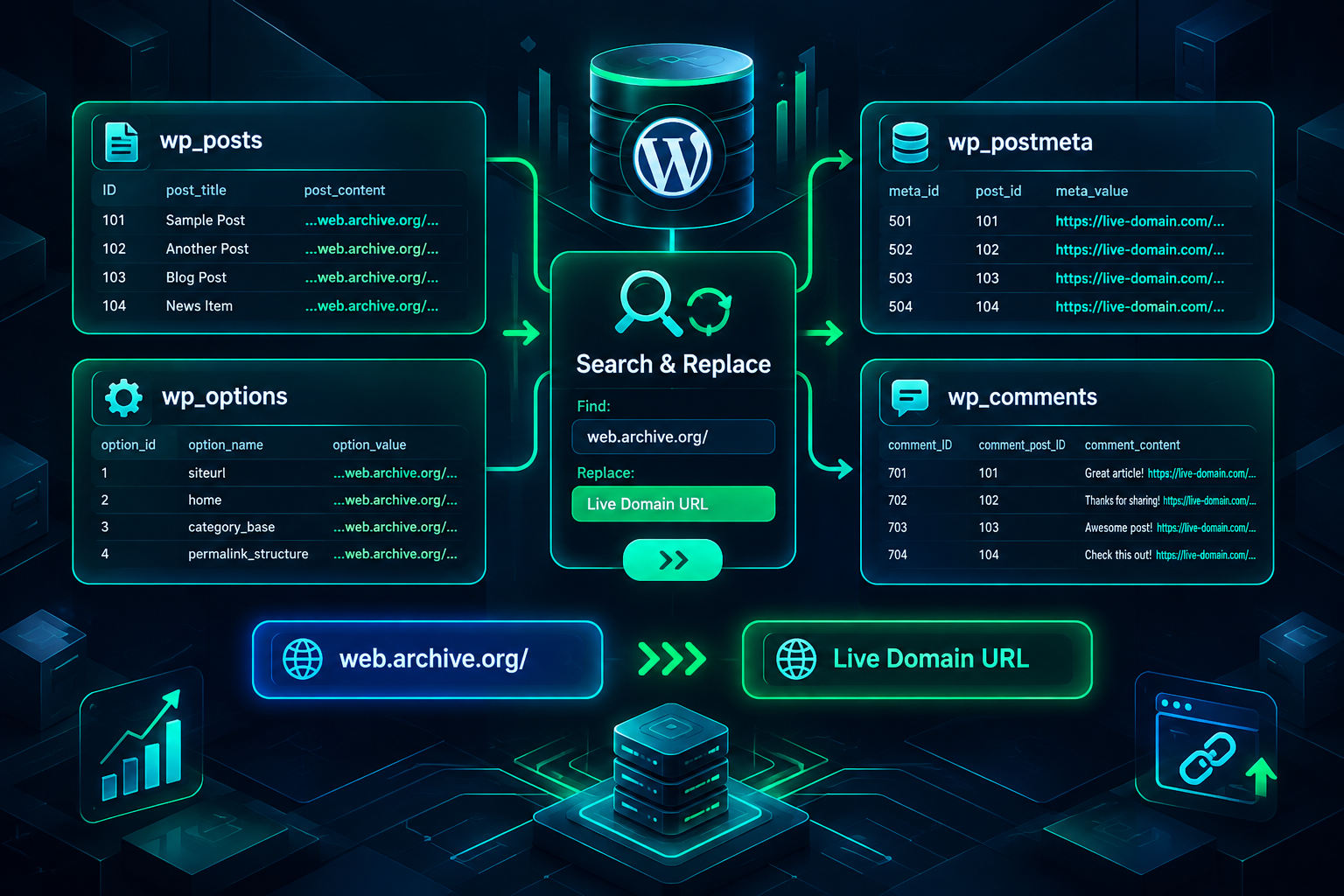
Also check the wp_options table for the siteurl and home values. These should point to the live domain, not to any archive URL or to the domain as it appeared during the restoration process. If the site was restored on a staging subdomain or a temporary URL before being moved to the final domain, these values may still reference the old location.
Canonical Tags, Internal Links, and Sitemap References
After removing archive code from files and the database, audit the canonical tag on each page. A canonical tag that points to an archived URL or to a staging domain tells search engines that the authoritative version of the page is located somewhere other than the live domain. This directly affects how the page is indexed and whether link equity flows correctly to the intended URL.
In WordPress, canonical tags are typically managed by an SEO plugin. Verify that the plugin’s settings reference the correct live domain and that no hardcoded canonical tags remain in theme template files from the restoration process. If canonical tags were embedded in the scraped HTML and imported as post content, the database search-and-replace step should have addressed them, but a spot-check of several pages in the rendered source is worthwhile.
Internal links throughout the site’s content should also resolve to the live domain. An internal link that passes through an archive URL before reaching the intended page creates an unnecessary redirect chain and may not pass link signals as intended. After the database replacement, crawl the site using a tool such as Screaming Frog to identify any remaining redirects, broken links, or URLs that still reference the archive domain.
The XML sitemap should list only live domain URLs. If the sitemap was generated from archived content or was imported as part of the restoration, regenerate it using the CMS’s sitemap plugin after cleanup is complete. Submit the updated sitemap through Google Search Console or Bing Webmaster Tools once the domain is ready for indexing.
Checking for Injected JavaScript and External Script Calls
The Wayback Machine toolbar relies on JavaScript loaded from the archive’s own servers. Even if the HTML block for the toolbar has been removed from the template, a stray <script> tag referencing archive.org may remain in the theme’s header or footer, in a plugin’s output, or in a widget area. A script call to an external archive domain will appear in the browser’s network requests and in the page source, making it visible to anyone inspecting the site.
Review the rendered page source in a browser rather than relying solely on the file-system search. The rendered source reflects what the CMS actually outputs after PHP execution, plugin hooks, and widget rendering, which may differ from what appears in the raw template files. Search the rendered source for archive.org to confirm that no references remain after the file and database cleanup steps.
Also check any caching plugin or server-level cache. If the site was cached before cleanup, the cached version may still serve the old markup. Clear all caches after completing the cleanup and verify the rendered output again from a fresh browser session or using a tool that bypasses the cache.
Reviewing Redirects and HTTP Headers
Some restoration workflows involve setting up redirects from the archived URL structure to the live domain’s URL structure. If those redirects were configured in the .htaccess file or in the server configuration during the restoration process, review them after cleanup to ensure they serve the intended purpose and do not inadvertently reference archive URLs in redirect targets.
Check the HTTP response headers for each page as well. Some archive-aware tools inject headers during the restoration process, and while these are less common than HTML-level artifacts, they are worth verifying. A tool such as curl with the -I flag will return the response headers for any URL without downloading the full page body, making it a quick check for unexpected header values.
Content Review: Timestamps, Bylines, and Archive-Era References
Archive code cleanup addresses the technical artifacts, but the content itself may also carry signals of its archived origin. Publication dates, bylines, copyright notices in the footer, and references to events or products that are clearly dated to the archived period can all indicate that the content was not originally produced for the live domain.
This is not strictly a code cleanup task, but it is part of the same preparation process. Updating publication dates, revising or replacing outdated content sections, and ensuring that the footer copyright year and contact information reflect the current domain operation are practical steps that contribute to the site presenting as an active, independently maintained property rather than a restored archive snapshot.
For PBN domains where topical relevance is a key quality factor, this content review also provides an opportunity to assess whether the restored content aligns with the niche the domain is intended to support. A domain with strong historical relevance in a specific topic area is more useful as a PBN asset when its live content maintains that topical focus rather than serving generic or mismatched material.
Post-Cleanup Verification Checklist
Before considering a restored PBN domain ready for deployment, work through a structured verification process rather than relying on a single check. The following steps cover the main areas where archive artifacts are likely to persist:
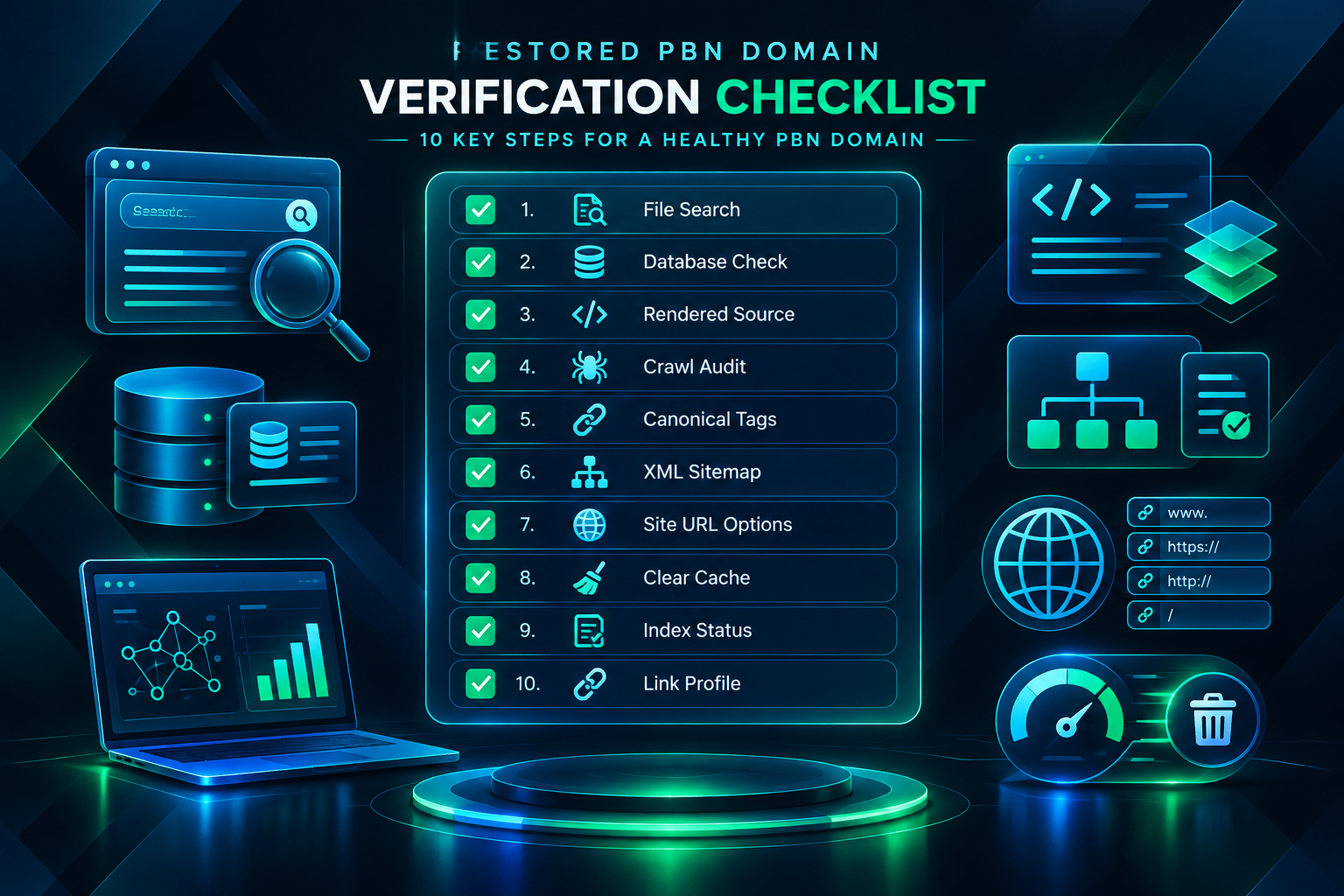
- Run a recursive file-system search for
web.archive.organd confirm zero results across all theme files, plugin files, and static assets. - Run a database search across all relevant WordPress tables and confirm no archive URLs remain in post content, meta fields, or option values.
- View the rendered page source in a browser for at least three representative pages and search for
archive.orgin the source. - Crawl the site with Screaming Frog or an equivalent tool and review the list of outbound URLs for any pointing to the archive domain.
- Verify that canonical tags on all pages reference the correct live domain URL.
- Confirm that the XML sitemap contains only live domain URLs and has been regenerated after cleanup.
- Check the
siteurlandhomevalues in the WordPress options table. - Clear all server-side and plugin-level caches and re-verify the rendered output.
- Review the
.htaccessfile and server configuration for any redirect rules referencing archive URLs. - Check HTTP response headers for unexpected archive-related values.
Frequently Asked Questions
Does leaving Wayback Machine code on a restored site cause a penalty?
Search engines do not publish a specific rule about archive toolbar code triggering a manual action. The practical concern is that archive artifacts create a detectable footprint that signals the domain’s restoration origin, which is relevant to how the site is perceived during a manual review. Removing the code is a standard preparation step rather than a penalty-avoidance measure with a guaranteed outcome.
Can I use a plugin to find and remove archive code automatically?
No single plugin is designed specifically for this task. The most reliable approach combines a file-system search using command-line tools, a database search-and-replace using WP-CLI or a serialization-aware plugin, and a rendered-source verification in a browser. Automated tools can assist with individual steps but should be followed by manual verification.
What if the archive URLs are embedded in images or media file names?
Image file names themselves are unlikely to contain archive URLs, but the src attributes in <img> tags may reference archive-hosted versions of images. These will be caught by the file-system and database searches. Replace each archive image URL with a locally hosted version of the image or remove the reference if the image is not needed.
How do I handle archive code in a non-WordPress CMS or static site?
The same principles apply. Use a recursive text search across all files to locate archive references, then edit each file to replace or remove them. For static HTML sites, the process is entirely file-based and does not require a database search. For other CMS platforms, consult the platform’s documentation for the equivalent of a database search-and-replace operation.
Should I re-index the domain after cleanup?
If the domain was already indexed before cleanup, the updated pages will be recrawled in the normal course of Googlebot’s crawl schedule. Submitting the updated sitemap through Google Search Console can help prompt recrawling of the affected URLs. If the domain has not yet been indexed, completing cleanup before any indexing occurs is the preferred sequence.
Is archive code the only footprint concern when restoring a PBN domain?
No. Archive code is one specific technical footprint. Other preparation considerations include hosting environment, WHOIS privacy, nameserver diversity, content originality, internal linking structure, and the overall presentation of the domain as an independently operated site. Archive code cleanup is a necessary step but sits within a broader domain preparation process.
Preparing a Restored PBN Domain for Deployment
Archive code cleanup is a defined, completable task. Once you have worked through the file-level search, the database replacement, the canonical and sitemap audit, and the post-cleanup verification checklist, the technical artifacts from the restoration process should be fully removed. What remains is a domain whose source code, database, and HTTP responses no longer reference the Wayback Machine in any form.
At that point, the domain’s readiness for deployment depends on the broader preparation work: content quality and topical alignment, the strength and relevance of the domain’s historical backlink profile, hosting and registration setup, and the placement strategy for the links the domain will carry. Archive code removal clears a specific technical obstacle; it does not by itself determine whether the domain will perform as a useful PBN asset. That assessment depends on the domain’s history, the niche it supports, and how it fits within the overall link-building strategy for the target site.
If you are evaluating restored domains for a private blog network or reviewing the preparation process for domains you have already acquired, PBN Backlinks Service can help you assess domain quality, placement context, and campaign fit before deployment. A domain that has been properly cleaned and prepared is a more reliable foundation for contextual link placements than one where restoration artifacts remain in the source.